Claude integrates with Google's three core office applications, allowing users to directly edit documents, spreadsheets and presentations.
AI-generated content is being produced faster than ever, yet the pending finishing tasks on your to-do list keep piling up.
Tweak the opening paragraph, adjust your train of thought, and AI will quickly generate a new version for you. But every time a new version comes out, you have to re-copy, re-typeset, and re-check all the content.
Paste the content back to the document, and you'll find scattered paragraphs and lost formatting; when numbers change, the corresponding spreadsheets need to be adjusted accordingly; old content still remains in your PPT, forcing you to replace them page by page.
More often than not, AI has already started generating the next version, while you are still wrapping up the previous one.
The days of being a "content porter" for AI are about to come to an end.
On October 6, Anthropic announced that Claude has integrated with Google Docs, Sheets and Slides, with public Beta access open to all paid plans (Pro, Max, Team and Enterprise).
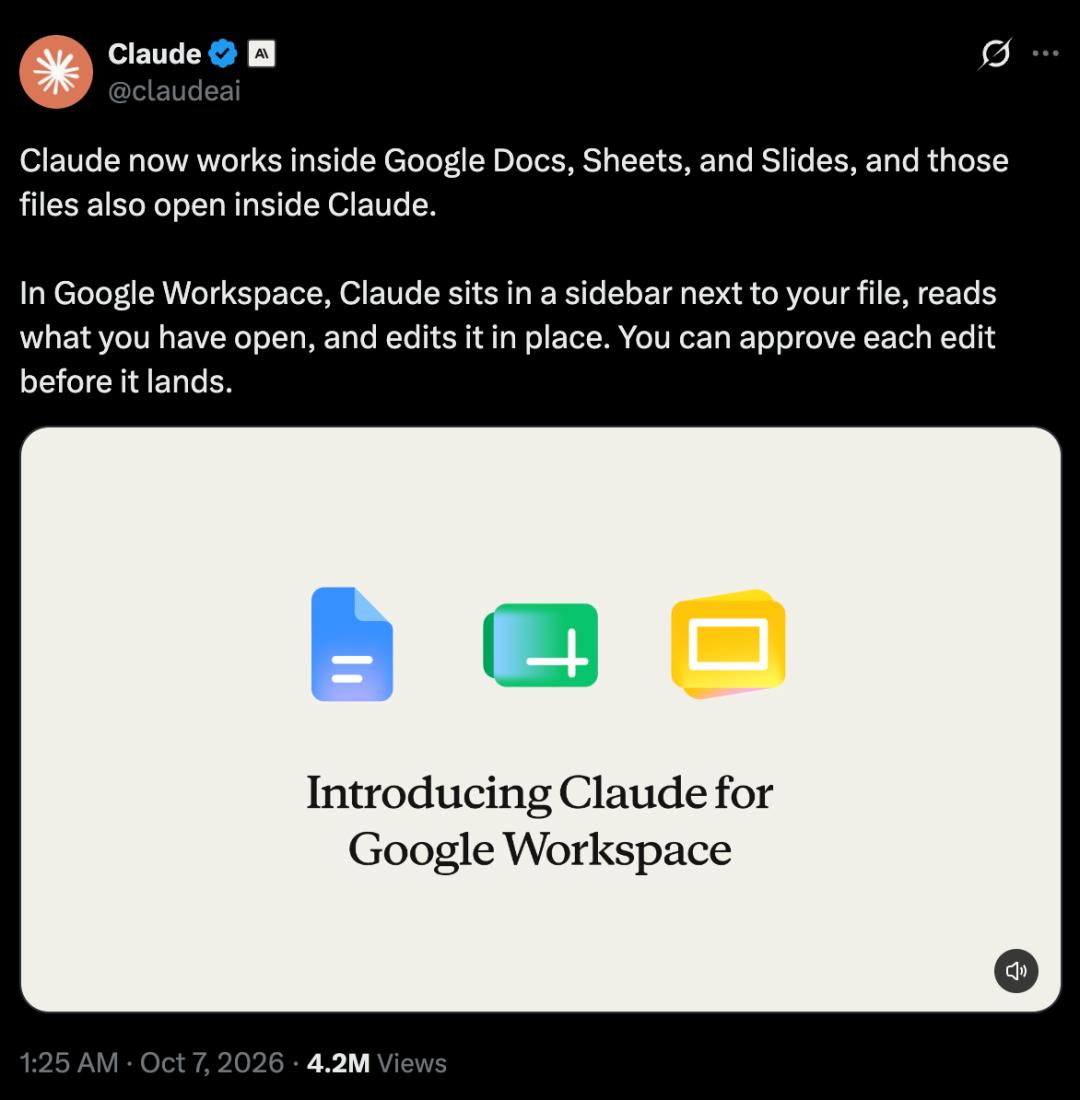
After installing the plugin and completing authorization, you can directly ask Claude to revise manuscripts, adjust formulas, and add new pages in the sidebar of Google Docs, Sheets and Slides, and all modifications will be directly applied to the current file.
Of course, you can also start from the Claude chat window.
After enabling the corresponding Google connector and finishing authorization, paste the link of your existing file into the conversation, and Claude can open and modify it for you.
If you don't have an existing file yet, you can also directly ask it to create a brand new Google Doc, Sheet or Slide.
The official team has also selected three common tedious office tasks to demonstrate how Claude operates in these three applications respectively:
In Docs, it can extract key points from a dense, information-packed proposal; in Sheets, it can compare the budget with actual expenditures to find out where overspending occurs; in Slides, it can turn customer materials and communication records into a full set of quarterly reports.
As a result, Claude works directly on your files, and the revised content stays in place, saving you multiple copy-paste operations and repeated formatting adjustments.
Revising Documents: Make Adjustments Directly on the Original Draft
It's extremely common that a proposal is filled with full content but fails to highlight key points when people read it.
In the demo, the user asked Claude to do several things: streamline the abstract, move suggestions to the front, unify heading styles, and sort out next-step tasks into a table.
The originally crowded text is turned into a well-structured proposal: suggestions are highlighted, key figures are presented separately, and tasks are reorganized based on information like responsible persons and time nodes.
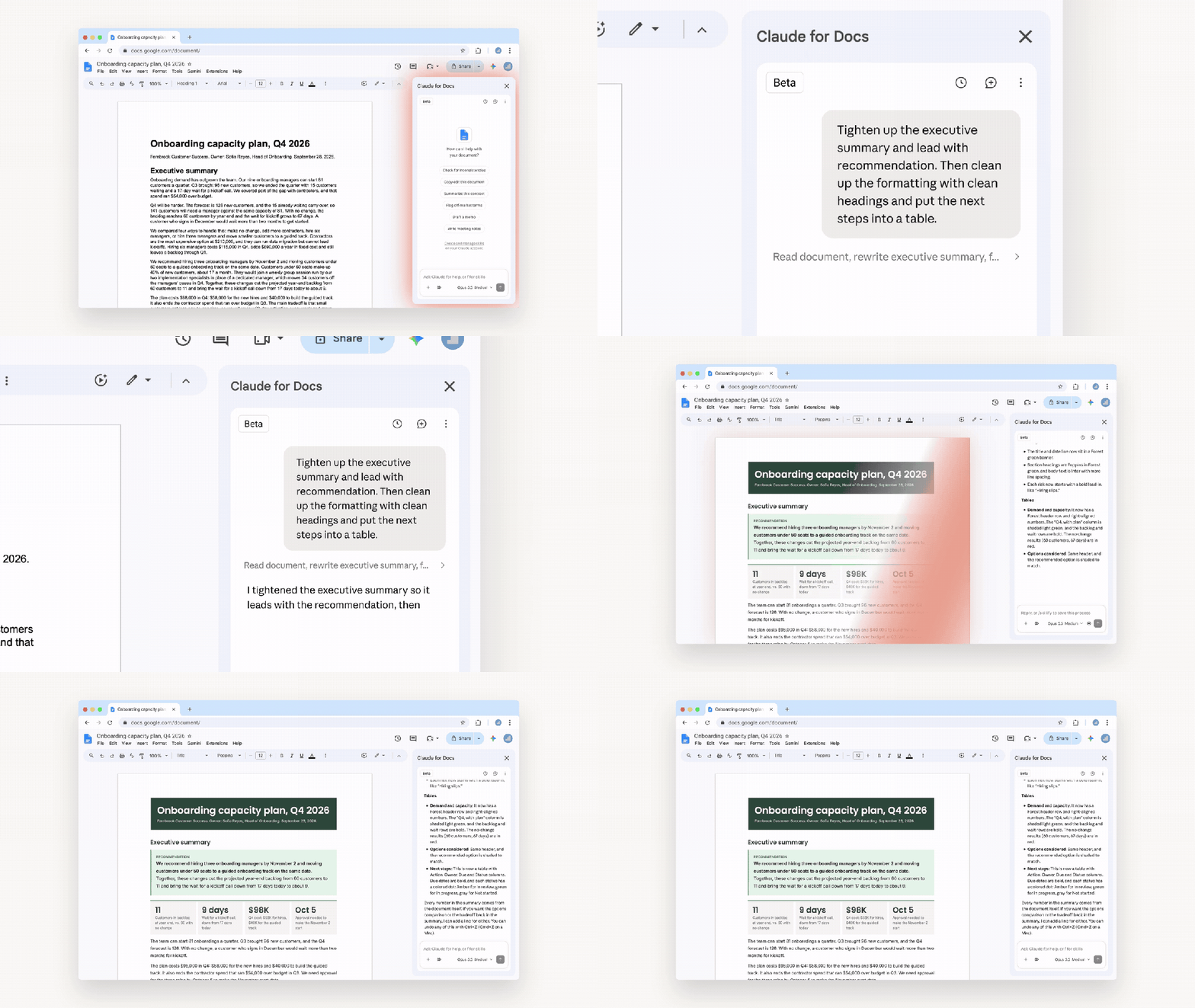
Claude streamlines the abstract, adjusts formatting, and sorts out next-step tasks into a table in the original document.
All these modifications are completed right in Docs. You don't need to move the original draft out first, nor do you have to paste the new version back later, you can check the changes directly against the original file after revision.
If you only want to process a certain paragraph, you can select the text and ask Claude to rewrite that part locally.
According to the official introduction, it supports adjusting heading styles while retaining the surrounding formatting; for major rewrites, it can also generate a modification card first, so you can decide whether to accept or discard the changes.
Text revision and structure adjustment are all done in the same file. Every time you avoid moving content around, your train of thought will not be interrupted.
Working on Spreadsheets: Organize Two Sets of Data Directly into a Report
The most frustrating part of working with spreadsheets is that even when you have all the data in hand, you are still far from getting a usable final result.
You have one spreadsheet for budget, and another for actual expenditures. To reconcile accounts, you still have to merge data, group and summarize results, generate charts, and then find out where the overspending happens.
In the demo, the user dragged two CSV files of budget and actual expenditures into the Sheets sidebar, and asked Claude to create separate worksheets for each team, generate a summary page with charts, and mark the over-budget items.
The sorted data and analysis results are directly written into the current spreadsheet: data of different teams are divided into separate worksheets, the summary page puts budget, actual expenditure and the difference side by side, so you can spot overspent items at a glance.
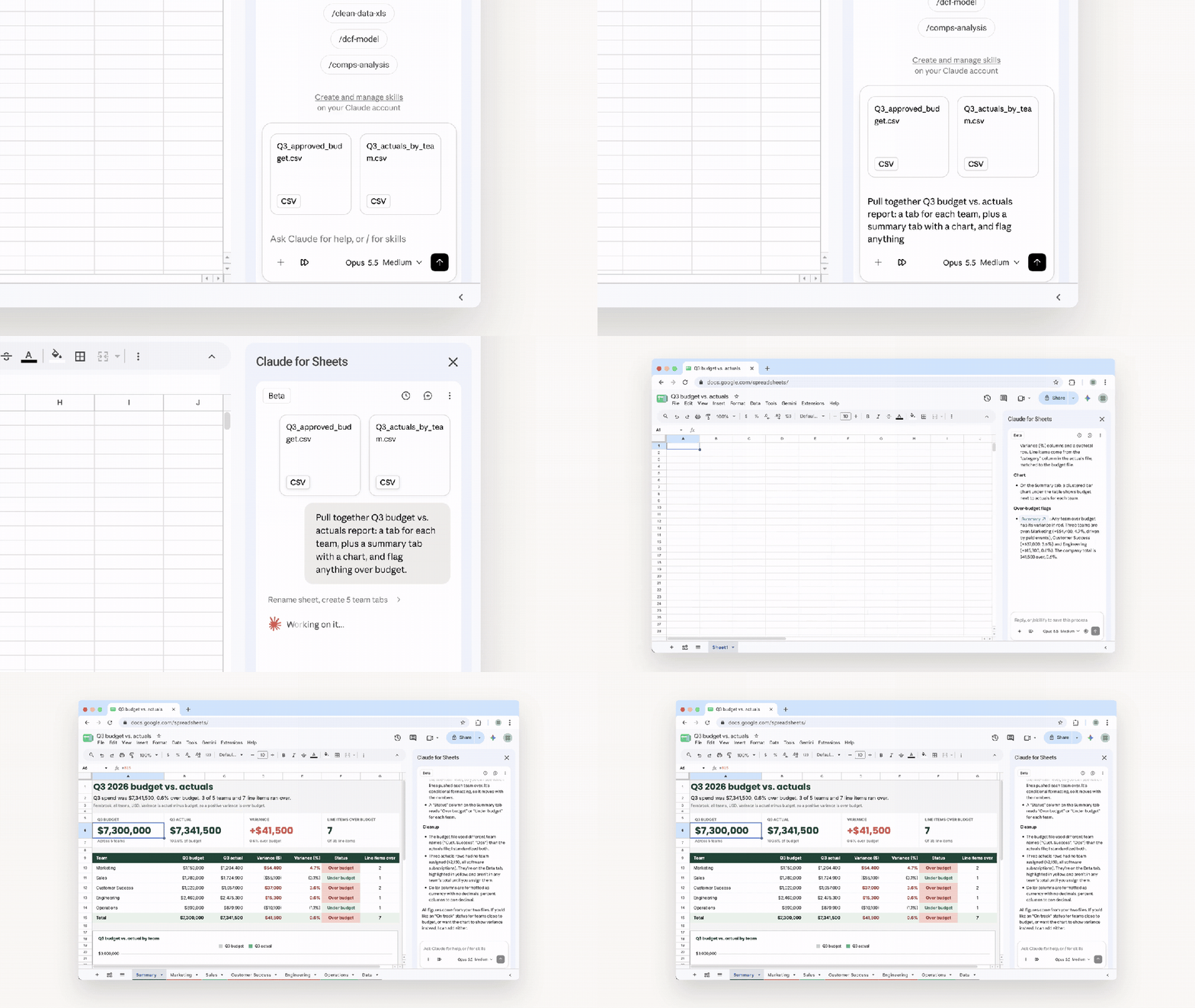
Claude compares the budget with actual expenditures, generates separate worksheets for each team, and marks over-budget items on the summary page.
After the analysis is completed, the file is right at your fingertips, no extra content moving is needed in the whole process.
Apart from this kind of report organization, Claude can also read the current spreadsheet and selected cells, help write and correct formulas, clean up date and other data formats, and build pivot tables and native charts.
When encountering complex data merging and cleaning tasks, it can also hand over the data in a selected range to Python for processing, then write the results back to the original spreadsheet.
However, a finished report does not mean the accounts are completely correct.
You still need to check the formulas, summary calibers and abnormal items, especially when you are going to use these figures for subsequent reports, the necessary account checking work cannot be omitted.
Making PPT: Hand Over Materials to AI and Generate Reports Directly
When you need to make a report temporarily, the common workflow is: let AI write the content, then you paste it into the template, and adjust the font size, color and position of each element one by one.
In the demo, the user enabled the corresponding connector in the Slides sidebar, and asked Claude to combine the customer materials from Salesforce and recent communication records from Google Drive to generate a full set of quarterly customer reports.
Multiple pages of content then appeared in the blank presentation: abstract, usage status, target progress, customer demands and next-step plans are all organized into the same set of slides.
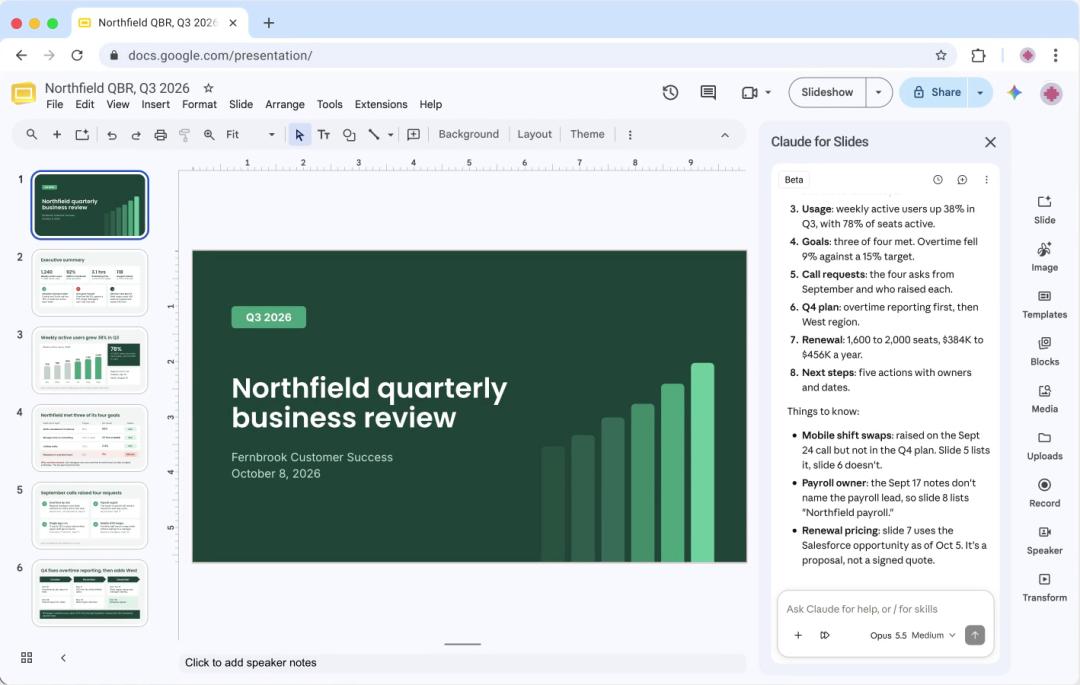
Claude combines connected customer materials and communication records to generate quarterly reports directly in Google Slides.
This also shows that the sidebar can read other materials with the enabled and authorized connectors, then write the results into the current file.
If you already have a set of PPT on hand, Claude can also add new pages based on the theme and layout of the current Slides, so that the newly added content matches the original style.
If the text on a certain page is too crowded, it can try to split it into two pages, and it can also check for issues like overlapping elements, content running out of the page, and unreadable text.
With AI helping you finish these trivial tasks, you can save a lot of effort in preparing reports, leaving you more time to check whether the content itself is clearly presented.
Revise While Chatting
The File Is Right Next to the Conversation
If you don't even have a draft yet, or want to clarify your requirements first, you can start the process from the Claude chat interface.
After enabling the corresponding connectors for Google Docs, Sheets, Slides and completing authorization, paste the link of your existing file into the conversation, and Claude can operate the files that you have access to. You can also simply say: "Help me create a new Google Doc."
In supported environments, the file will open right next to the conversation. You can chat and view the file at the same time, or make modifications by yourself, and Claude will continue to edit in the same file.
The side-by-side window feature currently supports the Chrome web version, and the Claude desktop version with built-in browser enabled. File access is still constrained by the original Google sharing permissions.
Here is a small detail: you need to clearly specify Google Doc, Sheet or Slide. If you only say "make a document", it may generate a downloadable file for you.
The functions of the two entry points are not exactly the same.
The Docs connector in the chat window can read comments and suggestions, while the file sidebar cannot read comments for now, nor can it accept or reject existing suggestions. The Slides connector in the chat window cannot add charts at present, and modifications may not be displayed in real time in the side-by-side window.
To modify an existing ready-made file, you can use the sidebar; to create something from scratch based on materials and requirements, you can start from the chat interface.
AI Can Edit Directly
How Do Users Keep Control of Quality?
What if AI makes mistakes when modifying the original file directly?
The Claude sidebar adopts the default "Ask before modification" mode: it will first explain what it plans to do, and wait for your approval before execution. You can also turn on the "Accept all modifications" mode, so that it can complete regular content edits continuously without stopping to ask for permissions multiple times.
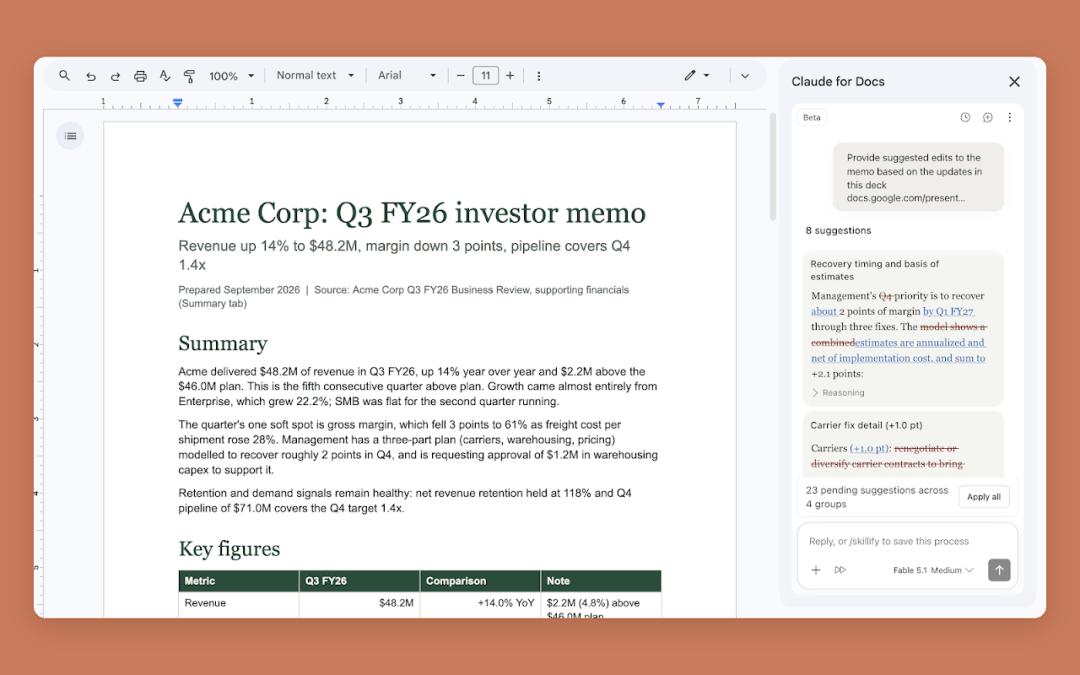
Claude displays modification suggestions in the Docs sidebar, and users can apply them after review.
However, operations like adding external links and inserting images from URLs still require separate approval.
All modifications will be recorded in the Google file version history under your username. If the modification is not appropriate, you can undo it, or restore the file to an earlier version.
This Beta version covers Pro, Max, Team and Enterprise plans. Users need to install the plugin, complete authorization and log in to Claude; when using an organizational account, whether plugins can be installed depends on the settings of your Google administrator.
The sidebar only processes the currently opened file. If you close the sidebar, the current task will stop immediately, and it cannot automatically hand over the task to another application to continue.
There is another easy-to-miss pitfall for charts in Slides: the new charts added by Claude through the sidebar are images, which will not automatically update when the numbers in Sheets change, and you need to regenerate them manually.
Therefore, when the numbers in the spreadsheet are modified, you also need to check the charts in the report, do not use old charts to present new data.
Whether you actually save time still depends on the time spent on inspection and rework. If you skip a few confirmation steps but spend half a day correcting mistakes, it may not be cost-effective.
AI-powered Office
Competing While Integrating
After reading this part, it is easy to think of OpenAI's recently launched Space and Pages.
OpenAI builds a new collaboration space around ChatGPT, putting materials, discussions and creation all in one place; while Claude this time steps into users' existing Google office files, and directly assists users in the familiar Docs, Sheets and Slides.
Interestingly, this competition is not a completely isolated game where each player works behind closed doors.
Microsoft's Microsoft 365 Copilot not only integrates OpenAI's models, but also introduces Anthropic's Claude.
OpenAI is building its own office entry point on one hand, and providing models for Microsoft's products on the other hand; while Claude enters both Microsoft and Google's office environments at the same time.
What everyone is competing for is where users start their daily work, and what they are cooperating to solve is how AI can seamlessly integrate into these workflows.
Google has recently completed another part of the puzzle: enabling direct usage of Markdown files in Drive and Docs.
Chandu Thota, Vice President of Engineering at Google Workspace, stated on X that Markdown has become the "common language" between humans and AI agents.
From specifications, work plans to task lists, even AI-generated documents, many of them are .md files from the very beginning.
Now, these files can be directly opened, edited, commented on, and collaborated with others without being converted to Google Docs first.
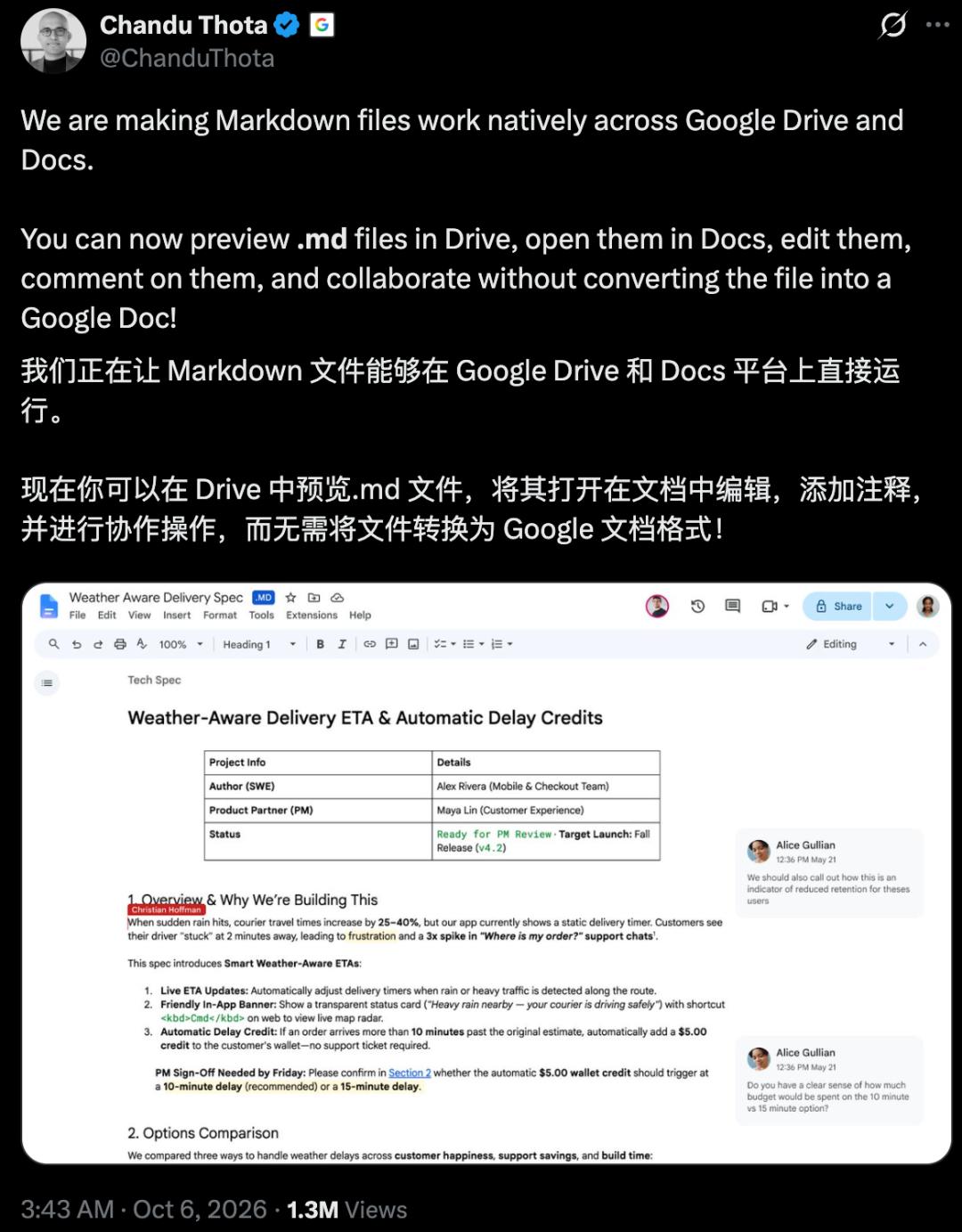
Google starts to support direct editing of Markdown files, no format conversion is needed, and users can also comment and collaborate with multiple people.
What Thota values are those trivial but frustrating troubles: repeated import and export operations, messy formatting after conversion, and the need to jump between multiple tools to discuss the same piece of content.
Netizens have already started asking for the next feature.
Chirag Nagpal left a comment asking whether the platform can also support LaTeX mathematical formulas in the body text?

Now that text and spreadsheets are well supported, can mathematical formulas in Markdown also be directly recognized and displayed normally, saving users another round of tedious formatting adjustments?
Models are being integrated into office software, and office software is also starting to support file formats that are commonly used by AI. When humans and AI work on the same file together, the intermediate content moving and conversion work can be greatly reduced.
For ordinary users, it does not matter that much who is cooperating with whom.
What they care more about is whether they can avoid moving content around, adjust formatting less times, and reduce unnecessary rework.
How much of these trivial tasks can be saved is what determines how much easier AI-powered office can make our work.
References:
https://claude.com/resources/articles/claude-now-works-in-google-docs-sheets-and-slides?utm_source=chatgpt.com
https://x.com/ChanduThota/status/2107195115441946850
https://openai.com/index/devday-2026-recap/?utm_source=chatgpt.com