ChatGPT Lands in Word: Available Even on the Free Version, We Can Finally Say Goodbye to Copy and Paste
The era of copy-paste is coming to an end!
In the past, when writing a weekly report, you might get halfway through and feel that a certain paragraph is too verbose.
Select the text, copy it, switch to the browser, paste it into ChatGPT, type "Help me streamline this", wait for the result, then copy it back.
When you paste it back, you find the font has changed, the numbering is messed up, and you have to manually adjust it for a long time.
Actions like this may be repeated a dozen times a day for us.
Nowadays, this whole workflow has been eliminated.
On September 17, ChatGPT was officially integrated into Word.
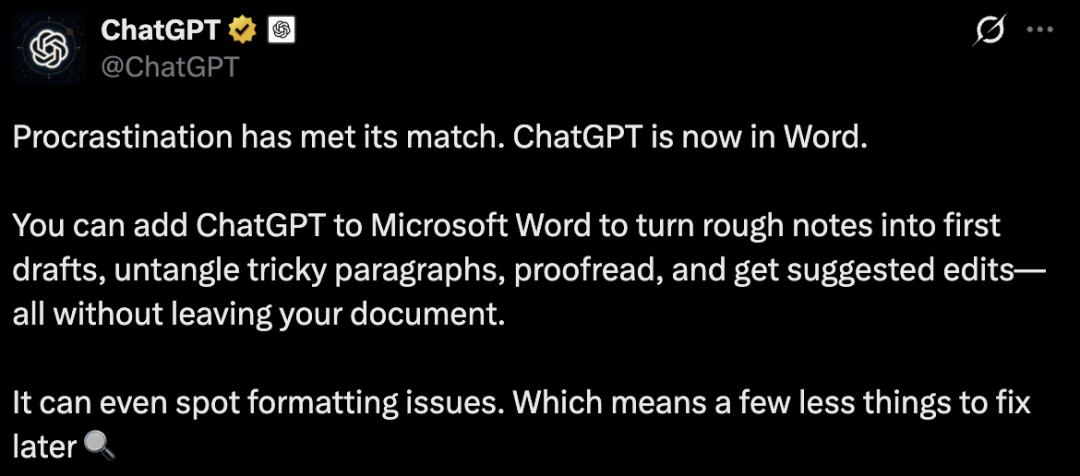
A chat-enabled sidebar appears on the right side of Word.
Select the paragraph you want to modify, type "Condense this to three lines, do not change any numbers", the revised content will be placed back in the original position, and you don't need to adjust the font and numbering anymore.
The official tweet wrote in a rather ostentatious humblebrag style: Procrastination has finally met its match.
What's more surprising is that there are almost no usage thresholds set this time.
Free, Go, Plus, Pro, Business, Enterprise, and various accounts for schools, all plans are supported, with global availability.
You can use ChatGPT in Word without spending a penny.
The whole process of revising drafts
has completely changed
What ChatGPT launched this time is an official plugin that you need to install from the Microsoft Marketplace by yourself.
After installation, it reads the document you are currently opening, and the tasks it can perform for you include:
•Turn scattered notes into first drafts: Directly organize your casually recorded key points into a complete, well-structured draft.
•Write summaries for long reports: Read through the full text and automatically extract conclusions and key risks.
•Adjust content for specific reader groups with one sentence: The official example instruction is "Condense this section for the management team, do not modify facts and defined terms".
•Fix messy document formatting: If the heading hierarchy is disordered or the numbering is broken, hand it over to the plugin for one-second reordering.
•Unify terms across the full text: If you use "user" earlier, "client" later, and "consumer" afterwards, it can list all inconsistent terms at once to help you align them.
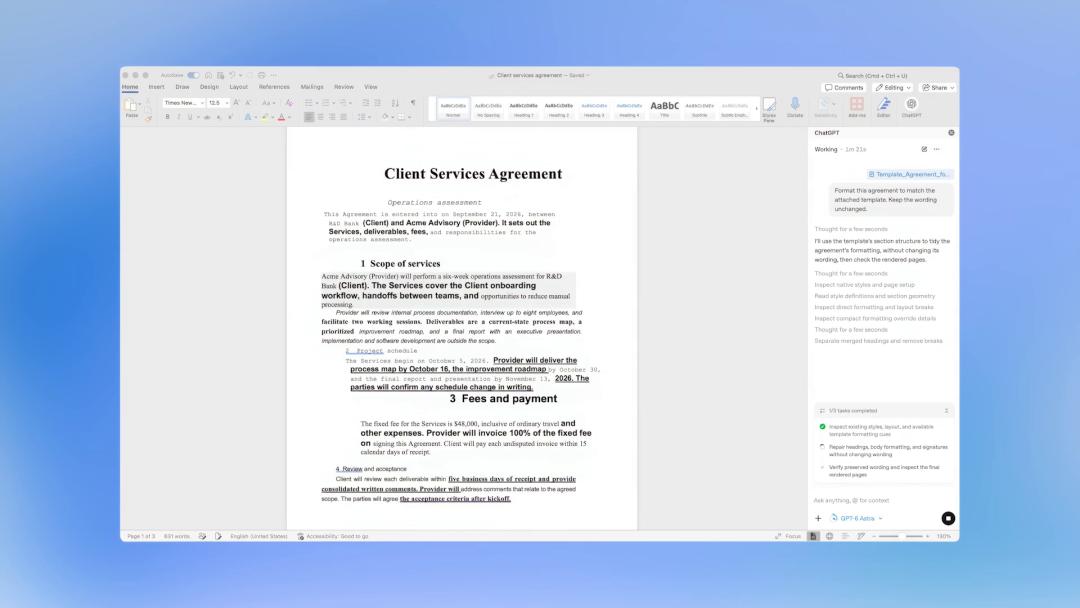
If you are a student, it can help you read through your paper, unify terms, and organize chapters; if you are a teacher, you can use it to revise lesson plans and condense handouts.
If you can't understand the terms of a contract, you can select them directly and ask it to translate them into plain language, and it can also list several questions for you to ask the legal team.
There is also such a detail in the official demo video.
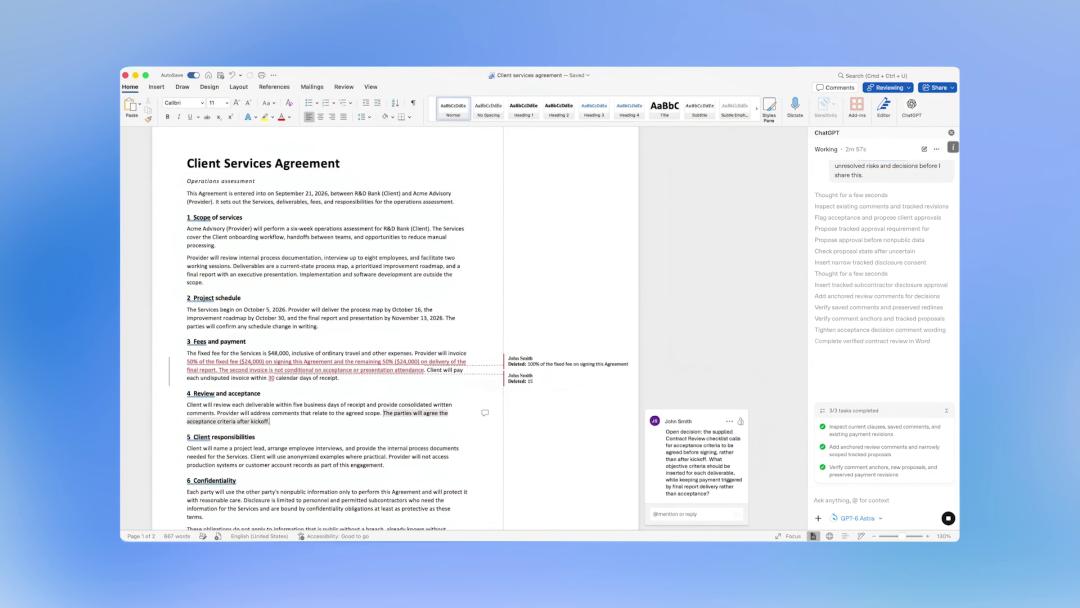
Send it an instruction: "Modify the payment terms according to the negotiation records in the attachment, and turn on the revision mode". It will not overwrite the original text directly, but as shown in the picture below: mark the deleted content with strikethrough, highlight the newly added content, leave traces for every change, and wait for you to accept or reject them one by one.
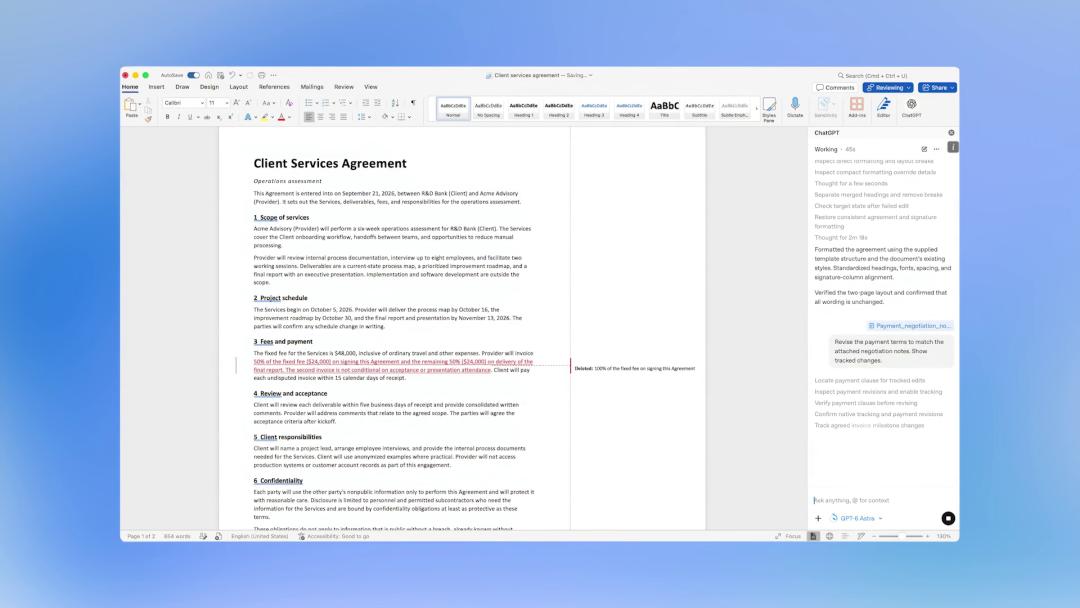
It can also add comments next to paragraphs to point out undecided matters for you: Should the acceptance criteria be agreed upon before signing, or as it is now, after the kick-off meeting?
It can do all the actions that a reviewer would do for you, and all you need to do is click accept or reject one by one.
Paid and enterprise accounts can also pull in external context: emails and files in Outlook, SharePoint, Google Workspace, and Dropbox can all be used as writing materials.
The most practical feature is that repeated tasks can be saved as Skills.
The instruction in the demo picture below is: Use the "Contract Review" skill to mark out unresolved risks and pending items, as I'm about to send the document out.
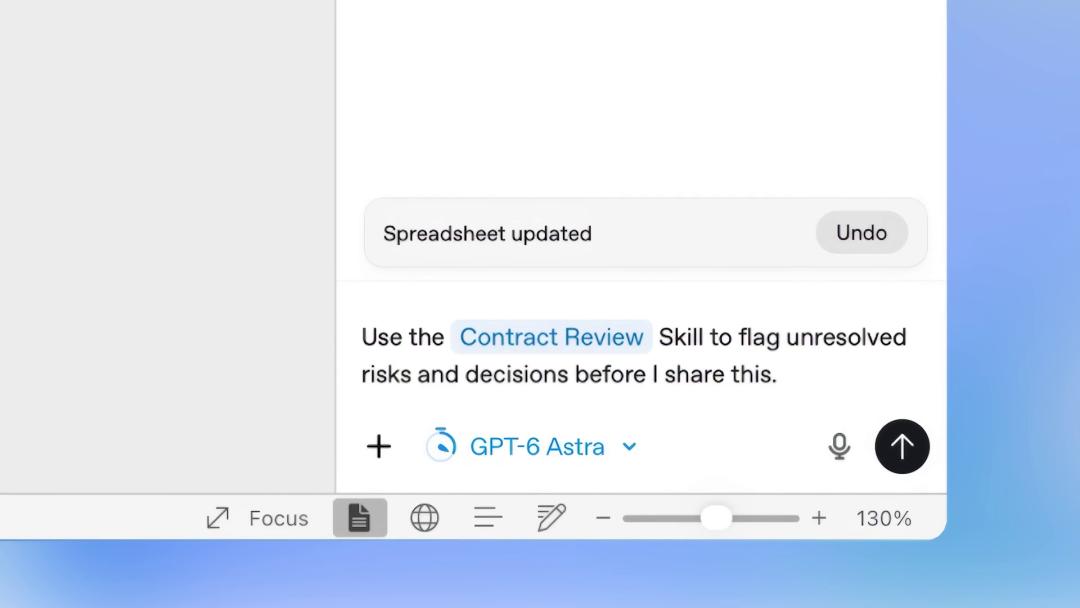
For weekly memos and fixed-format contract reviews in the future, you don't need to explain the requirements from scratch every time.
It's free, but there are three points to note
There are three points you need to clarify in advance:
First, free users only get the access, not the most powerful model.
The Free and Go plans support installation, but the default model is GPT-5.6 Luna (the fastest and lowest-cost tier), GPT-5.6 Sol is not available, and even the Deep Thinking feature runs on the Luna model.
Second, only enterprise users can get the real no-quota benefit.
From September 17 to 30, in these two weeks, Business and Enterprise users can preview GPT-5.6 Sol in Word for free, which does not occupy their regular quota.
OpenAI's path is very clear: lower the access threshold to zero to bring in all office workers, and then place the most expensive model on the table of enterprise customers, making companies pay for the service after users get used to it.
Third, writing reports and writing code are now sharing the same quota.
Word is billed by tokens, following the API rate of the model you use. The longer the document is and the more revisions you make, the faster your quota will be consumed.
More importantly, it shares the same quota with advanced features such as Codex. The official statement is that using Word will reduce the available quota for these features.
If you spend a lot of time revising a 30-page proposal in Word during the day, when you open Codex at night, most of your quota may have already been used up.
A new colleague with extremely fast working speed
The official help document mentions that complex formatting, tables and charts still require manual adjustment.
In addition, three things are specially reminded:
1.It can make mistakes: Important facts and numbers must be checked by yourself before sending out; remember to save a copy before making large revisions.
2.It can only access the current document: It cannot see any other files on your computer. If you want it to refer to the content of other files, you need to paste the content into the dialog box yourself.
3.Chat history is not shared: The conversations in the plugin are separate from the ChatGPT web version, and memories and usage habits will not be synced.
It is more like a new colleague who works very fast: efficient, but does not know you, and will not take responsibility for the results.
In the same Word window
there are now three sets of AI tools
ChatGPT didn't break into Word overnight, it just completed the last piece of the puzzle this time.
It launched on Excel in May, on PowerPoint in July, and joined Word in September.
In more than four months, the three office apps have all been supported. Moreover, the three apps share the same plugin, you only need to install it once to use it across the entire Office suite.

There is another key milestone: starting from October 1, 2026, ChatGPT for Word will be enabled by default in workspaces.
Two weeks later, it will become the standard configuration in Word for many companies, and employees don't even need to consider whether to install AI tools or not.
However, compared with OpenAI, Anthropic took an earlier step.
Claude for Excel and PowerPoint were launched in February this year, and Claude for Word opened public beta in April, which completed the support for the three office apps about 5 months earlier than OpenAI.
Its solution is more focused on professional scenarios: every modification is implemented with Word's native revision traces, you can accept or reject each change one by one just like reviewing a draft from a human colleague, and it can also follow the comment thread to tell you what was modified and why.
The downside is that it only supports paid plans, with no free tier.
Microsoft itself has never left this track.
Microsoft Copilot has long been in this core scenario, with highly overlapping feature descriptions, and it also has access to the entire organization's permission system and data.
The Word interface nowadays is very lively:
•Microsoft Copilot: Focuses on native experience and compliance, backed by the entire organization's permission system and data;
•Anthropic (Claude for Word): Focuses on depth and controllability, modified content is presented with Word's native revision traces, supporting one-by-one review;
•OpenAI (ChatGPT for Word): Focuses on broad accessibility and zero threshold, directly including all free users.
There are two other major model providers' tools running in one company's software, and these parties are each other's largest partners and competitors - this is a situation that has never appeared in the history of office software.
The landscape of office software is being reshuffled by AI.
What is saved is not just a few seconds
Moreover, what OpenAI is targeting this time is not only Word.
A few days before the Word version was launched, ChatGPT's Windows desktop version added a feature called Appshots:
No matter which software you are currently using, press the two Alt keys at the same time, the screenshot of the current window and the text inside will be sent to ChatGPT, even the part that is not scrolled outside the screen will be included.
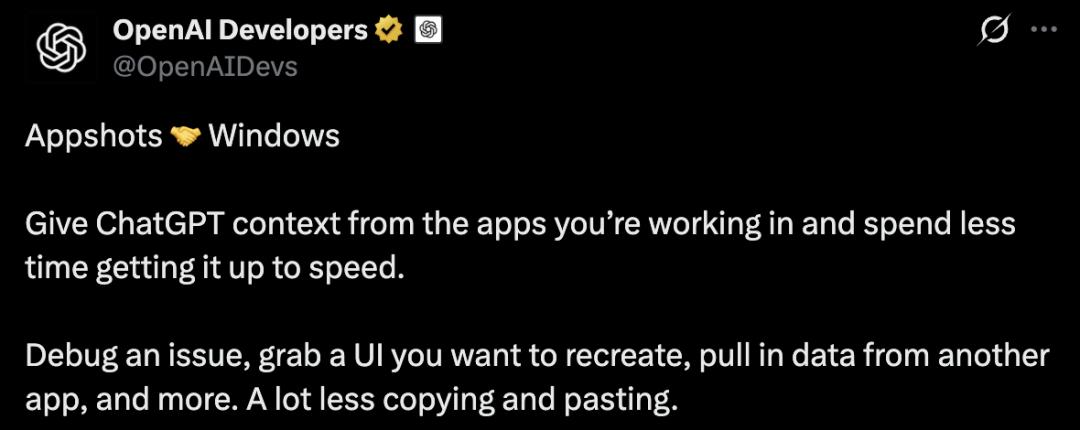
One solution works from the inside of Office, the other works from the outside of the desktop. Both paths aim at the same thing: let you reduce copy-paste operations.
In the past, when you wanted to use AI to modify a paragraph, you had to think first: Is it worth switching to another window just for this small task?
Most of the time, the answer was: Never mind, I'll just modify it myself.
Now, the AI is waiting right next to your cursor, ready to use with one simple move.
When the access threshold disappears, using AI is no longer a decision you need to hesitate about, but a default action just like spell check.
What several tech giants are scrambling for is exactly this default action.
The biggest change among all this is people's position in the process of document writing.
The part of drafting content will be more and more handed over to the sidebar.
What is left for people is to put forward requirements, review revisions, make judgments, and make the final decision.
In the future, when every document has an AI assistant beside it, fast writing will no longer be a scarce capability.
Your job is to clarify the content direction, set standards for the AI, check every revision, and take responsibility for the final output.
References:
https://x.com/ChatGPT/status/2100661995762798916?s=20
https://x.com/openaidevs/status/2100726653366534560
This article is from the WeChat Official Account "AI_era" (ID: AI_era), edited by Yuan Yu, and republished by 36Kr with authorization.