10 Pro Tips from Zero to Mastery to Maximize ChatGPT Work, Accessible to Everyone
In the past six months, the General Agent track has been gaining explosive momentum.
From the earliest Doubao, Yuanbao integrated with workflows, to CLI products like Lobster and Hermes, we have now entered the Agentic Coding era. Representative offerings include Workbuddy with over 10 million daily active users, the globally popular Claude Code, and especially OpenAI's Codex, which is widely praised for its exceptional usability and has become the most sought-after solution.
A more accurate name for Codex might actually be ChatGPT Work, as last night OpenAI released its new GPT 5.6 model, which merged Codex and ChatGPT and rebranded the combined product as ChatGPT Work.
The reasoning behind this rebranding is easy to guess: OpenAI wanted to avoid people misperceiving Codex as a purely programming-focused tool, since the name ChatGPT Work immediately signals that it is a general-purpose Agent product.
Indeed, Codex/ChatGPT Work can operate your computer, record your screen to learn your workflows, automatically run tasks for you on a daily schedule, and let you command the AI on your computer directly from your mobile phone...
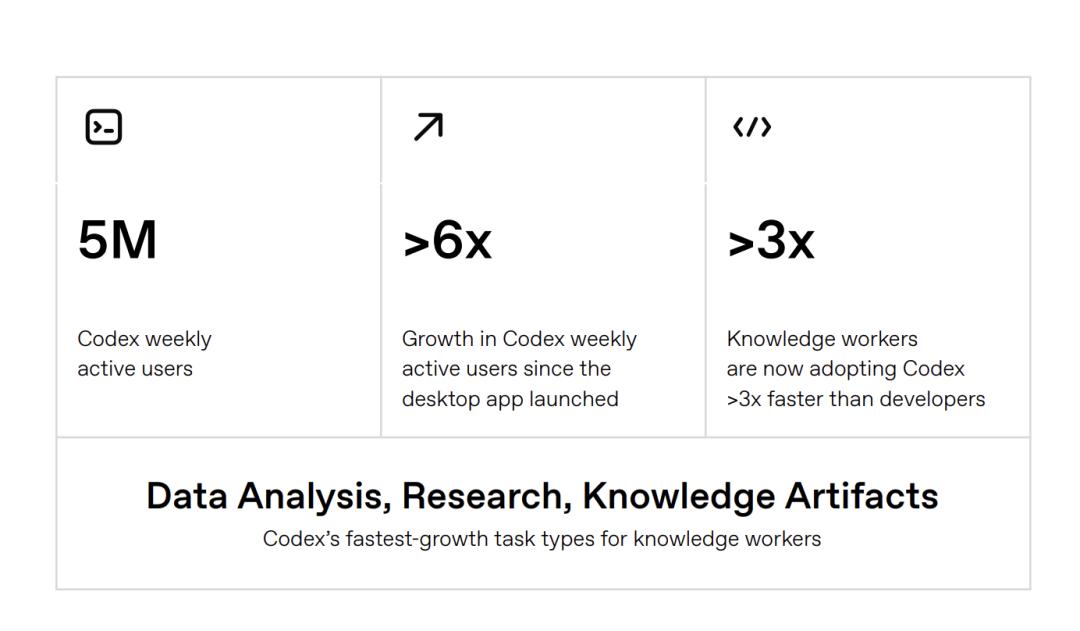
OpenAI's official report *The Next Era of Knowledge Work* also emphasizes that its use cases extend far beyond programming —
"Knowledge workers are growing 3 times faster than developers, and Codex is not exclusive to programmers."
If you want to make the most of Codex in your daily work and studies (given that most people are still accustomed to the Codex name, and the full product integration is not yet complete, we will still refer to it as Codex in the following content), you must save these 10 essential tips.
01
Raise your very own desktop pet 🐱
Codex comes with a built-in Pets feature — a tiny virtual pet will stay on your desktop to keep you company while you work.
It is not just a simple simulation pet; it acts as a status indicator that shows you the progress of its ongoing tasks, and lets you quickly confirm follow-up actions even when you are focused on other work.
When the AI is processing a request, the pet will wander back and forth on the screen. When a task is completed, it will perform a celebratory animation.
This way, you can freely switch to WeChat, reply to emails, or browse web pages — you do not need to stare at the AI window nonstop.
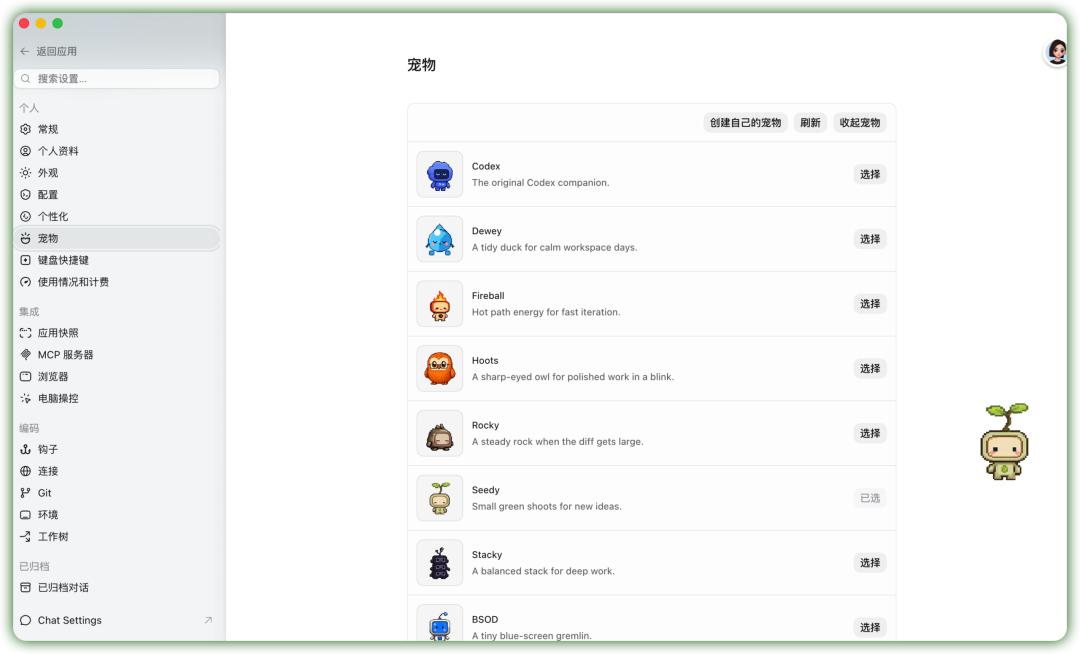
Access path: Codex → Settings → Personal → Pets, then pick your favorite pet style.
You can choose from official pets: the system has 8 pre-installed pixel-style pets for you to select from.
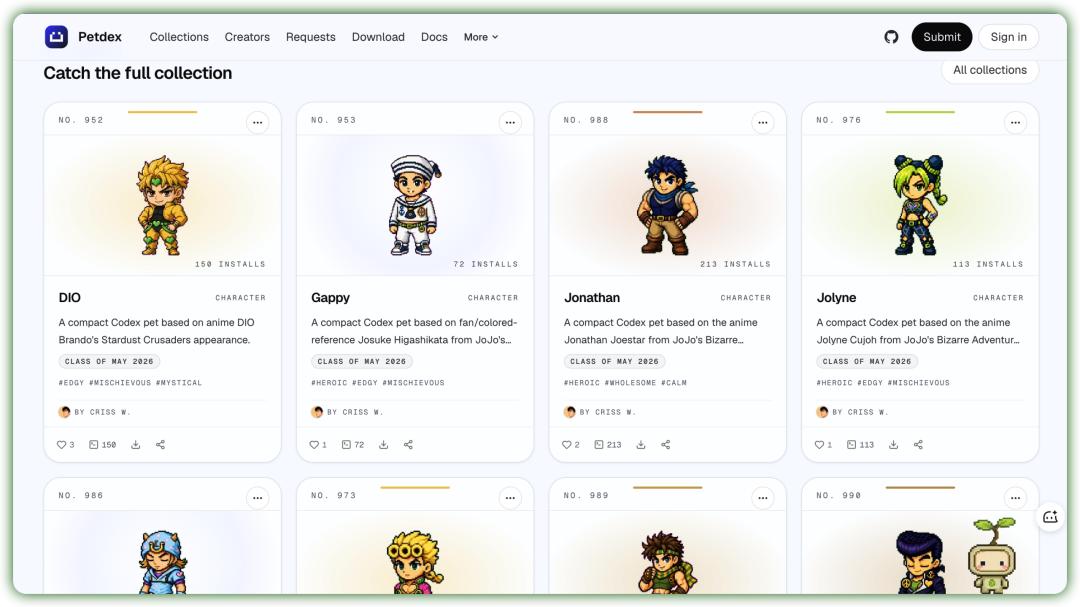
Or visit the Petdex website, where you can find more pet options, all available for free adoption.
Want a completely unique pet? Use the hatch-pet skill.
Search for the "Hatch Pet" skill in the plugins library, and let Codex create a fully customized pet that matches your exact description. For example, I uploaded a photo of my own cat, and Codex helped me make a custom desktop pet based on it.
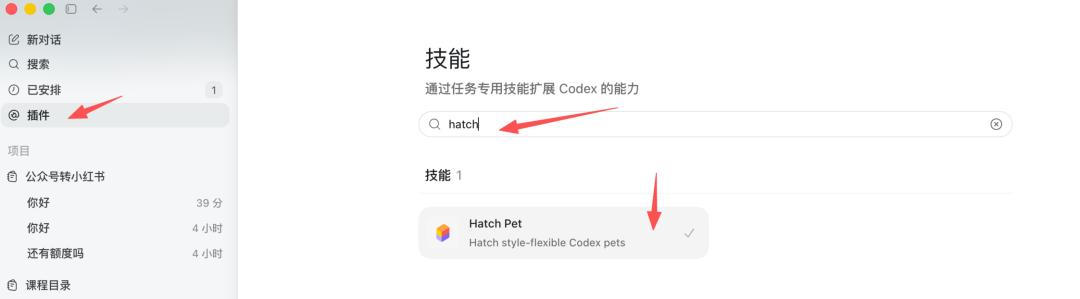
The trick to getting a highly accurate, true-to-life pet is to explicitly tell Codex not to use a pixel art style. You can specify that you want it to generate a realistic-style desktop pet based on the photo you provided, while preserving all the key recognizable features of the subject.

(Note: The standard version of Codex has limited image generation capabilities; you need to upgrade at least to the Plus tier to unlock full access.)

My beloved pet now appears vividly on my desktop, becoming my very own cyber desktop companion.
02
Give the AI an "Employee Handbook" — AGENTS.md
This is one of the most useful tips: the AGENTS.md file.
Every time you ask the AI to complete a task, it often acts like it is on its first day at work — even if you repeatedly emphasize certain settings that cannot be modified, it will still change them the next time you switch to a different task window.
AGENTS.md is exactly the employee handbook for your AI.
You can access this feature through Settings in the lower left corner → Personalization → Custom Commands.

The agents.md configured through this entry sets global rules, where you can define your personal role and your common work preferences, such as formatting requirements for WeChat Official Account posts or design specifications for PPT presentations.
This way, the next time you tell Codex to create a PPT, it will follow all the formatting rules defined in Agent.md automatically, without you needing to provide extra prompts.
Agent.md has two distinct levels: project-level and global-level. If you only need rules that apply to a specific project, you can create the agents.md file directly in the project directory, and tell Codex what content to write in it through a conversation.
Open your target project in Codex, then instruct it to generate a project-specific agents.md file with your required specifications appended.

Once you set up this employee handbook, you will no longer have to worry about Codex forgetting your preferences every time you start a new task.
03
Record your operations once, and the AI will automatically learn your SOP 🎬
This is my favorite feature: Record & Replay.
Many people who try to build SOPs or workflows run into limitations, because some complex tasks are hard to describe clearly in text — for example, the tedious multi-platform content distribution that plagues almost every content creator.
Uploading a single video to more than 10 platforms including Douyin and WeChat Channels, each with different upload requirements, used to be a task that people would hire interns to handle.
Now you can simply record your full operation sequence once, and the AI will observe and learn it automatically.
How to use this feature?
Open Codex → Plugins
Select Record a skill
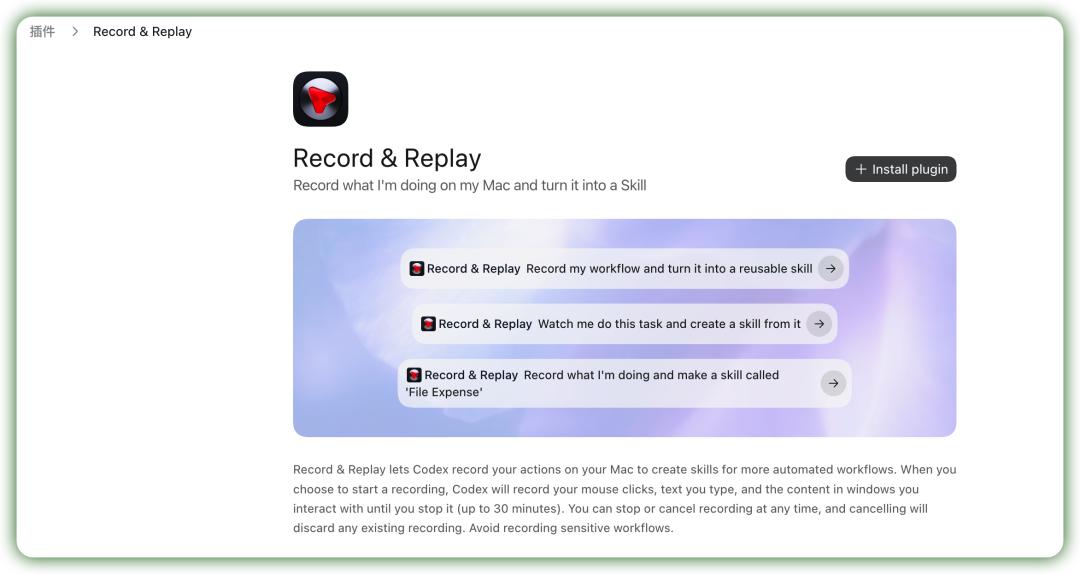
Describe the task you want to automate to Codex in plain, natural language.
When Codex asks you "Ready to start recording?", give your approval.
Operate your computer normally — open your browser, fill out forms, click buttons... You can record for up to 30 minutes in a single session.
When you finish all operations, tell Codex "Recording complete".
Codex will observe your entire workflow and automatically generate a complete Skill document.
The next time you need to perform the same task? Simply say "Use that skill we created earlier to do XXX" in the chat window.
Practical use cases include:
Expense report filling: Record the process once, and Codex will automatically fill out your monthly expense forms for you.
Content platform uploads: Record the upload workflow once, and Codex will automatically generate titles, add subtitles, and configure privacy settings for your future content.
Weekly report generation: Record your weekly report writing routine once, and Codex will automatically generate polished reports every week.
With this feature, you can create a fully functional automated workflow without ever writing a formal SOP document.
Tip 3 | Schedule tasks to let the AI run automatically for you ⏰
Many users do not realize that Codex has native support for scheduled tasks, which is extremely easy to set up and run.
Simply go to the Scheduled section in the upper left corner of Codex, select Templates, and browse the pre-built scheduled task templates created by other users.
You can also create a new project, then tell Codex exactly what scheduled task you want to set up: specify when it should run, and how frequently it should repeat.
For example:
Ask Codex to scrape trending open source projects on GitHub, organize the results into a concise briefing, and send it to your Feishu messages.
Just type in Codex: "Turn this workflow into a scheduled task that runs automatically at 21:30 every day." Codex will generate the required configuration file automatically, and the task will execute every day as long as your computer is powered on.
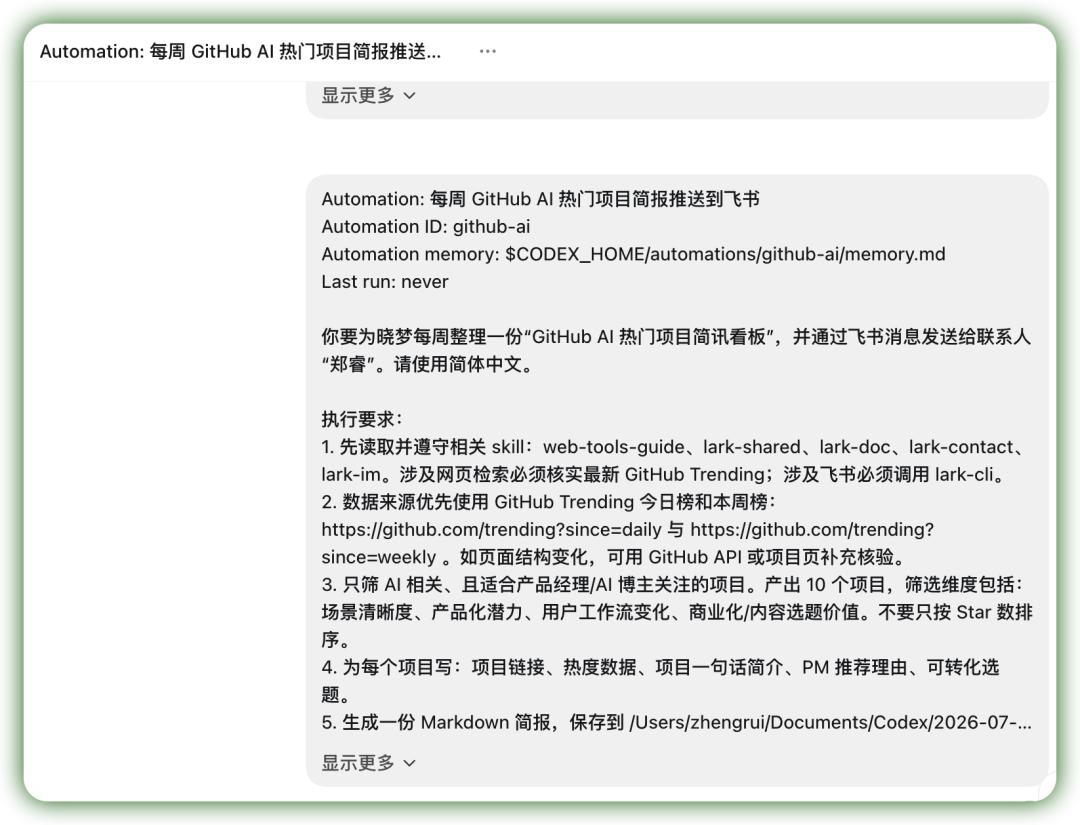
After configuration, you will see the new task added directly in the [Scheduled] panel.

You can also set up tasks like daily trending news monitoring, which is very convenient and efficient.
04
Let the AI take full control of your computer
This feature is called Computer Use — it lets Codex view your screen, launch applications, and operate your entire computer autonomously.
If you use voice input, you can simply say a command like "Play a song for me", and after a short wait, Codex will automatically open your audio player and start playing music with zero manual intervention required.

Computer Use can help you operate applications and browsers, and complete many complex tasks that would be difficult to handle manually.
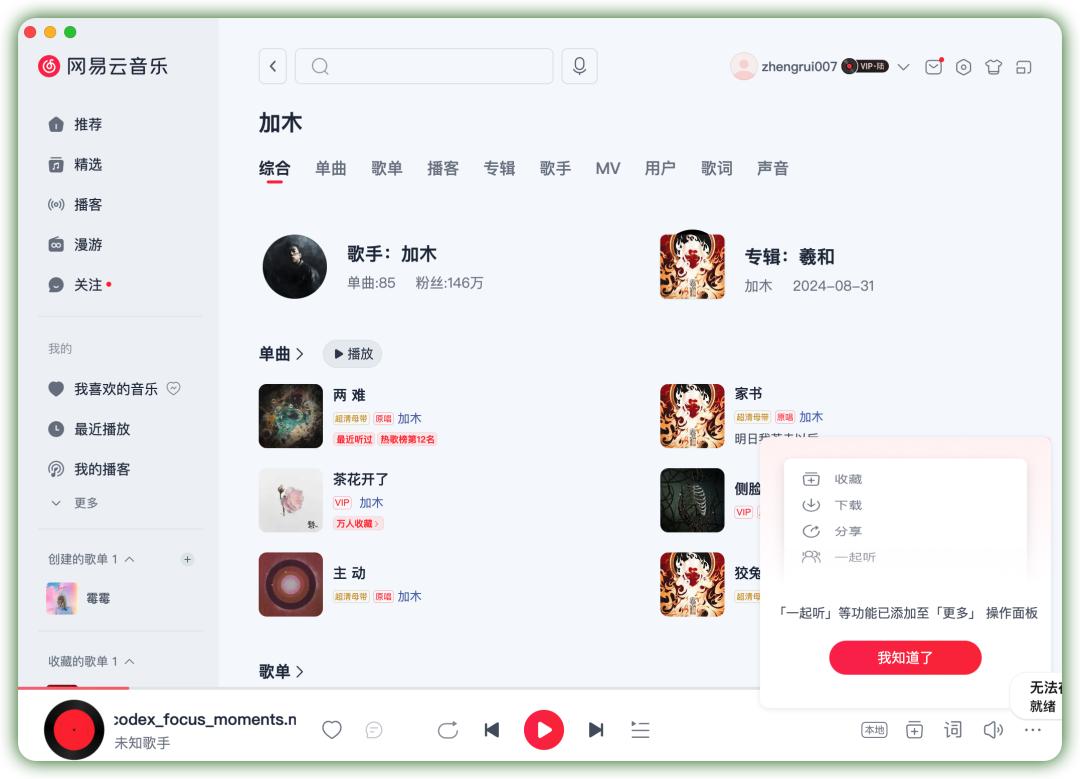
For example, you can use it to collect top-performing content cases on Xiaohongshu, scrape information from specific web pages, or operate complex professional software to complete