What Apple Didn't Tell You: How to Use Your iPhone to Monitor Your "Naughty Kid" at Home
The Global Accessibility Awareness Day aims to raise public awareness of digital accessibility. We want more people to see that the accessibility features in devices are far from being exclusive to people with disabilities. Whether it's an inherent usage barrier, operational difficulties that come with aging, or inconvenience in certain temporary scenarios, the "Accessibility Features" built into each system should provide more user - friendly support.
When it comes to accessibility features, perhaps many people's memories of them still revolve around the "Small White Dot" (this term is kept as it might be a specific product - related term). But as iPhones have fully entered the full - screen era, these features have gradually become unfamiliar. In fact, Apple adds many features to it every year to make it easier for people with disabilities to use iPhones.
However, although it was developed for people with various disabilities, many of its features can benefit all iPhone users. With the update of iOS 26, the accessibility features have received many upgrades. The following practical small features might really help you a lot.
Prevent Motion Sickness
I'm sure you've had the experience of using your phone on a bus or a ride - hailing car, maybe replying to work messages, chatting with friends, or just swiping through your phone to kill time... But in a car that speeds up and stops, you'll soon start to feel motion sick.
At this time, you can turn on the built - in "Motion Sickness Prevention" feature in iOS by going to Settings > Accessibility > Motion > Vehicle Motion Cue. After turning it on, dots that follow the vehicle's movement will appear on both sides of the iPhone screen to help you reduce the feeling of motion sickness. Through the "Customize Appearance" below, you can also customize the pattern, color, and visual effects of these dots.
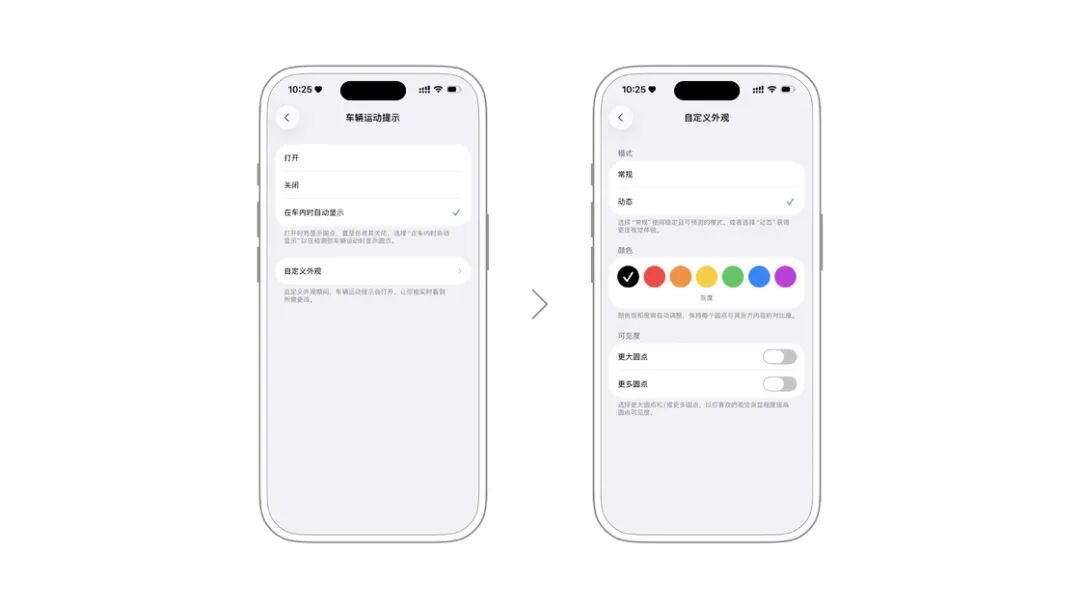
If you find this feature useful, you can add the Vehicle Motion Cue to the Control Center for quick access. Or, you can directly check the "Turn On When in Vehicle Motion" option on its settings page. In this way, when you get in the car, this feature will turn on automatically.
However, it's important to note that it can't completely prevent motion sickness. If you're really feeling sick, put down your phone and take a rest.
Reduce White Point Value: Make Your Screen Darker
Since iOS 13, Apple has introduced the "Dark Mode" to the iOS system. After turning on the Dark Mode, the system will change the background color to black. When looking at the screen at night, it can relieve visual irritation to some extent and make your eyes more comfortable.
However, nearly 7 years have passed, and there are still apps that haven't adapted to the Dark Mode. As a result, when using apps at night, we're still sometimes blinded by the white UI, even if we turn the brightness all the way down.
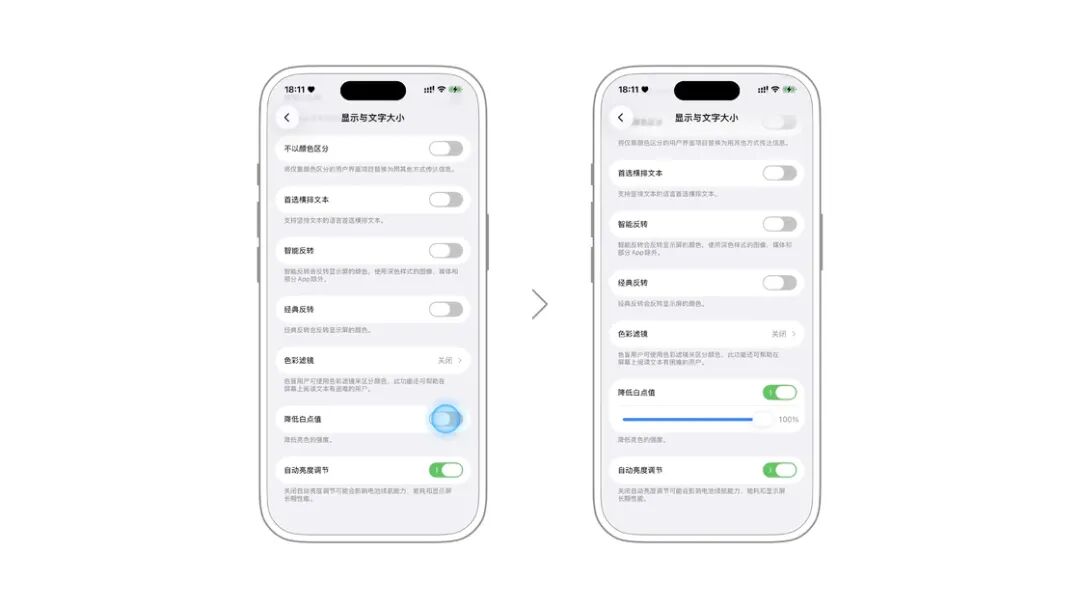
At this time, we can go to Settings > Accessibility > Display & Text Size and turn on the "Reduce White Point Value". After turning it on, you'll find that your screen can be even darker on top of the lowest brightness setting. You can adjust the slider below to select a value between 25% - 100%, so you won't be bothered by high - brightness apps at night.
Guided Access: Prevent "Naughty Kids" from Messing with iPhone and iPad
In the information age, kids do need devices for socializing, online classes, and multimedia homework. However, when parents lend them devices or buy them their own, many kids can't resist the temptation of short - videos and games, and parents can't always be around to supervise. Therefore, how minors can use electronic devices reasonably has become a problem that every parent has to face.
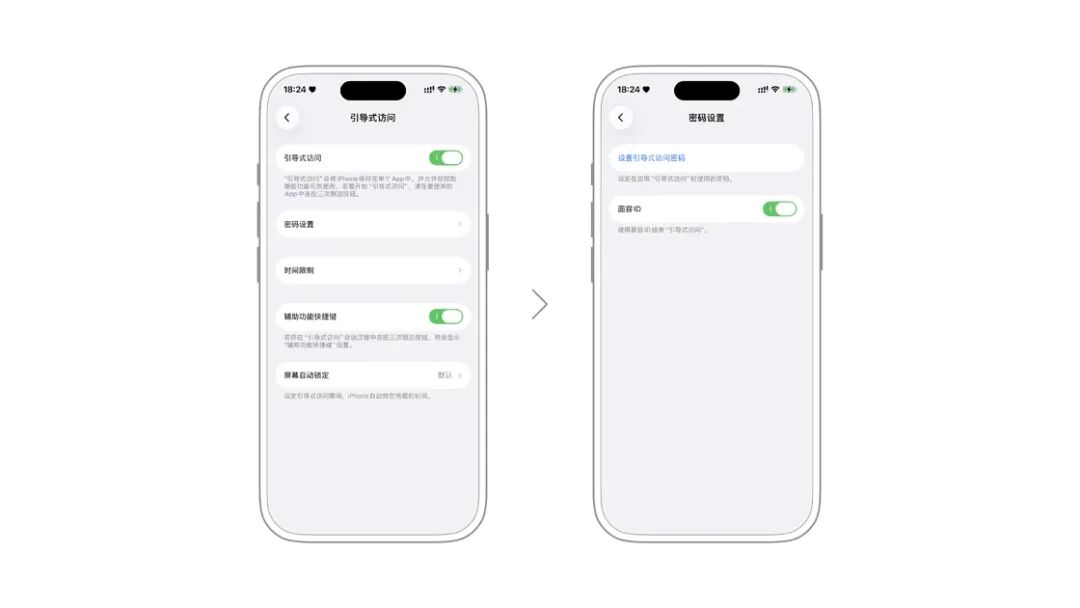
The "Guided Access" feature can make the iPhone or iPad display only the app you specify. Go to Settings > Accessibility > Guided Access, turn on the switch, and this feature will be enabled. At the same time, you can set a password so that naughty kids can't lift the restriction at will.
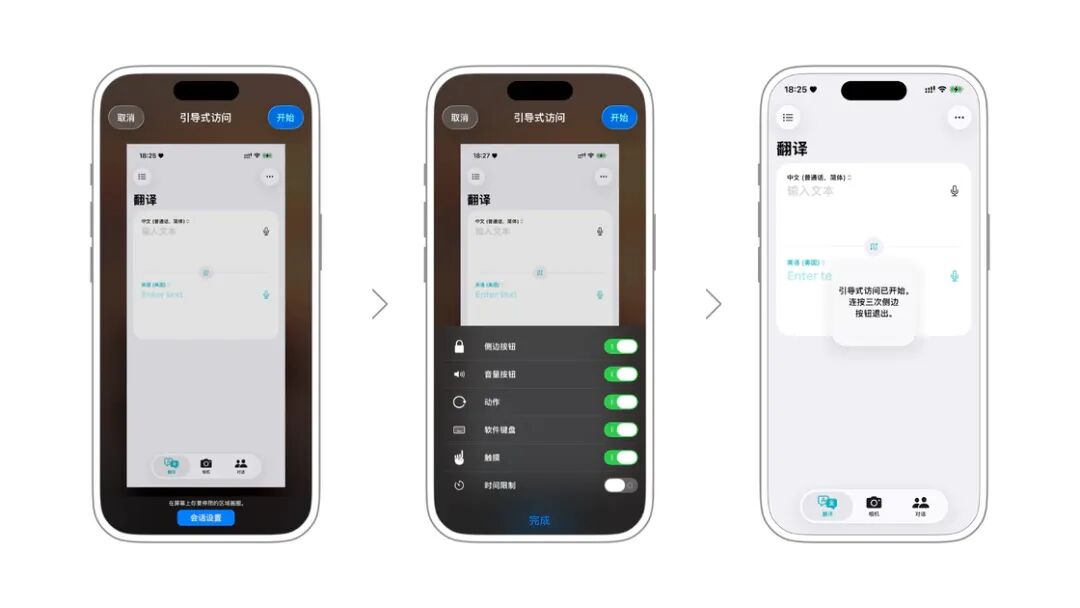
Then, enter the app you want to lock, press the side button three times in a row, and you can start Guided Access for that app. For example, when your child needs to look up words, you can press the side button three times in the translation app to turn on "Guided Access".
After clicking the "Start" button in the upper - right corner, the iPhone and iPad will run the translation app exclusively. Unless the password you set is entered, the translation app can't be closed or switched to other apps, which can prevent kids from getting distracted when using the iPhone or iPad to study.
In addition, you can click "Session Settings" before starting to enable or disable some system functions, such as disabling the lock screen, volume adjustment, or even completely disabling touch response on the screen. It's really a great helper for kids' study.
Of course, many friends may think they're still kids. For these friends, you can consider using this feature when reading or working. Turn on "Guided Access" in apps like todolist or white noise apps to completely eliminate distractions from other apps during the focus process. You might achieve twice the result with half the effort.
Tap the Back: Quickly Trigger System Operations
Although today's iPhones have operation buttons, each button can only correspond to one operation, which is not enough for some professional users who pursue efficiency. If you have this problem, you might as well try the operation of "tapping the back of the iPhone".
You can find the corresponding function setting page in Settings > Accessibility > Touch > Tap the Back. iOS 26 provides two operations: double - tap and triple - tap. The quick actions include common operations such as taking a screenshot, changing the wallpaper, turning on/off the flashlight, and it also supports running certain shortcut commands, allowing you to perform many quick operations with one click.
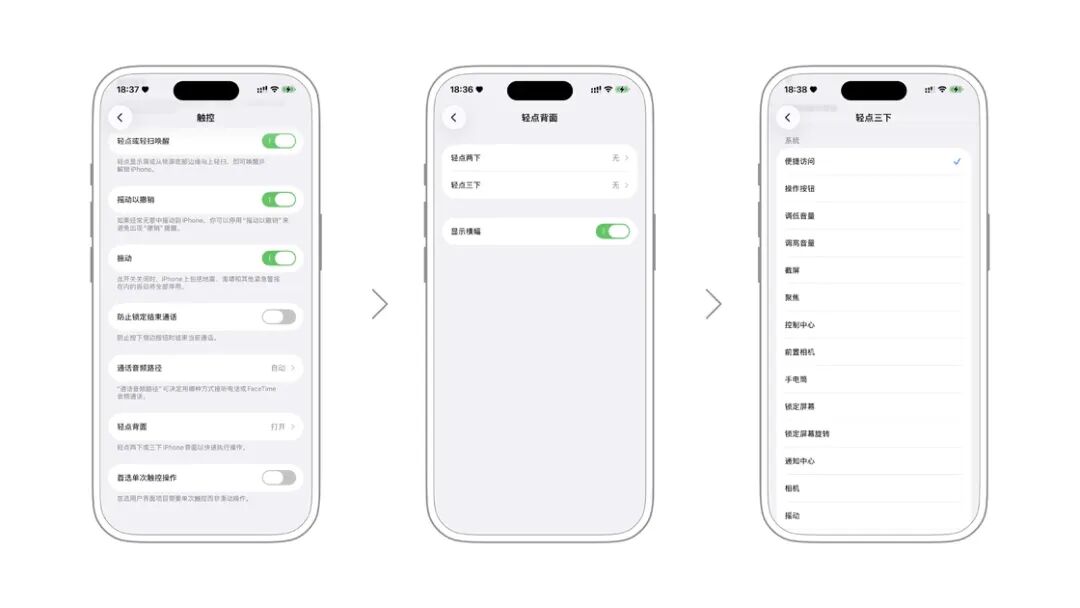
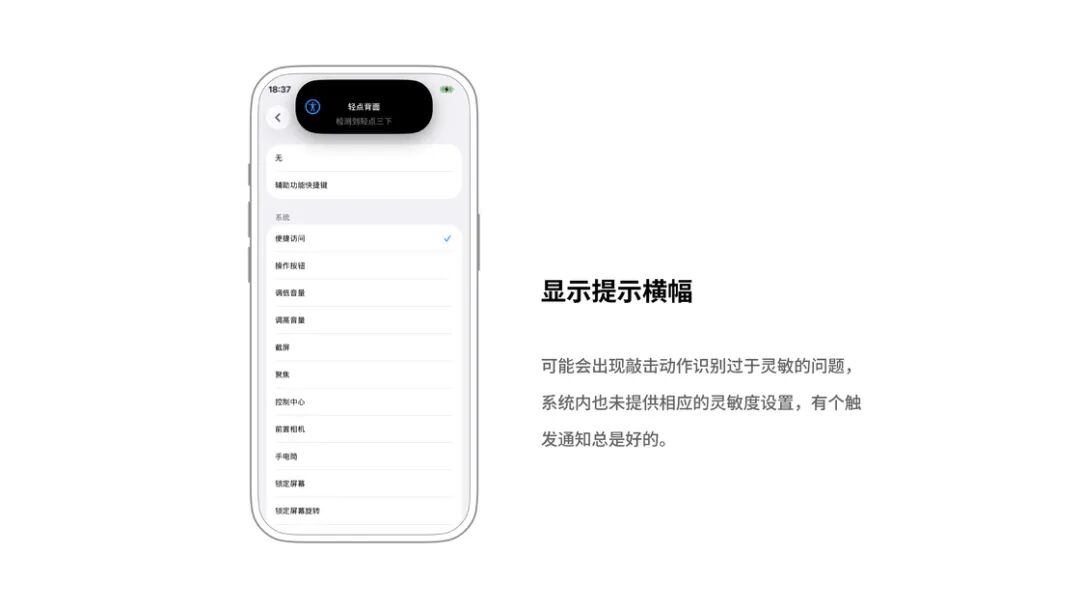
The "Show Banner" option below can adjust whether to display a prompt banner when the operation is triggered. It's recommended to turn it on because on some devices, the tap recognition might be too sensitive, and there are often accidental operations. Since the system doesn't provide a corresponding sensitivity setting, a reminder notification is always a good thing.
Operate iPhone with Eyes and Head
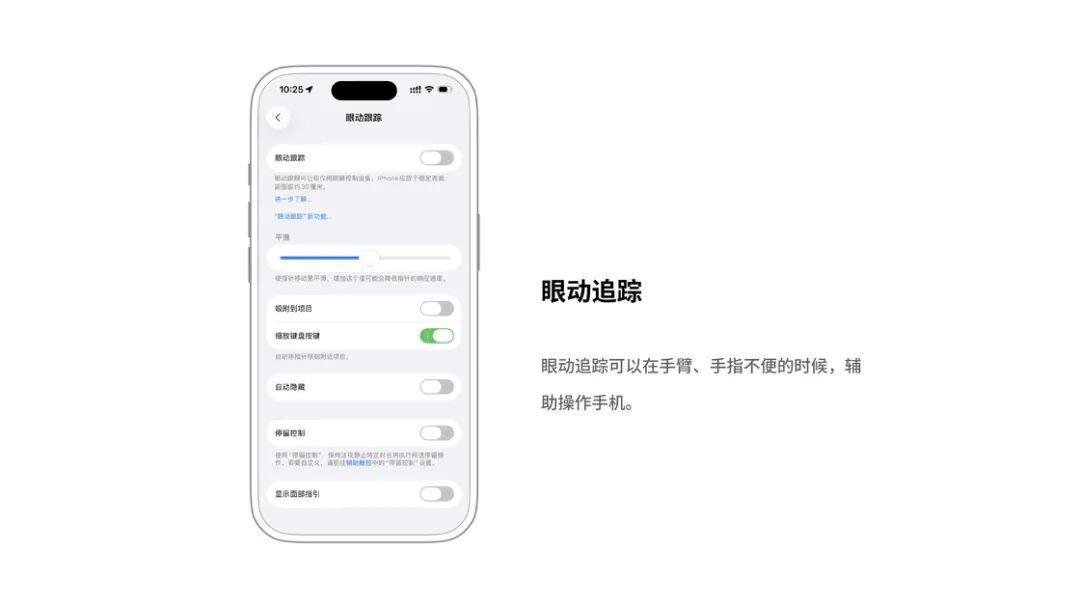
If your friends or relatives have arm problems, or if you're like me, having difficulty moving after a recent surgery and lying in bed, you can try the two practical features of "Eye Tracking" and "Head Tracking" to operate the iPhone.
These two features are likely derived from the technology on Apple Vision Pro and have really helped people with arm disabilities. Just go to Settings > Accessibility > Eye Tracking / Head Tracking and turn on the corresponding switches to start using them.
After turning on the Eye Tracking feature, the iPhone will first guide you to move your eyes following the dots on the screen and then record the position of your eyes to achieve eye positioning. You can adjust the smoothness of the pointer, whether to zoom the keyboard keys, and turn on auto - hide in the settings below.
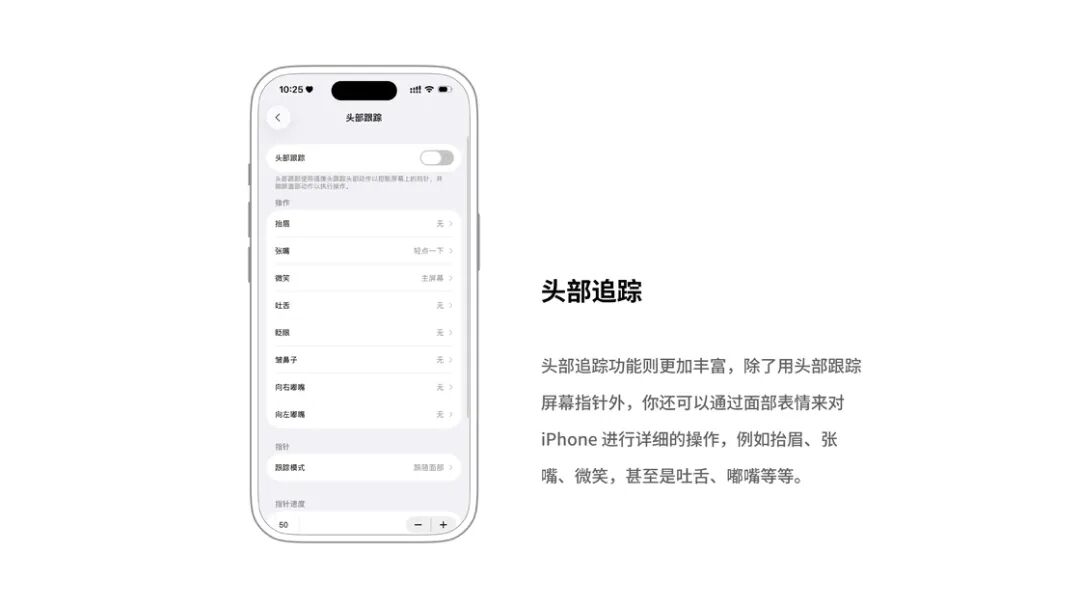
The Head Tracking feature is even more comprehensive. In addition to using your head to track the screen pointer, you can also perform detailed operations on the iPhone through facial expressions, such as raising your eyebrows, opening your mouth, smiling, or even sticking out your tongue and pouting.
Both features include an "Attach to Item" and a "Stay Control" option. The former will automatically attach the cursor to items such as switches and lists to help you locate them when using these features, while the latter will automatically simulate a click operation after you stay for a certain period of time, saving you an extra action.
Music Haptic Feedback
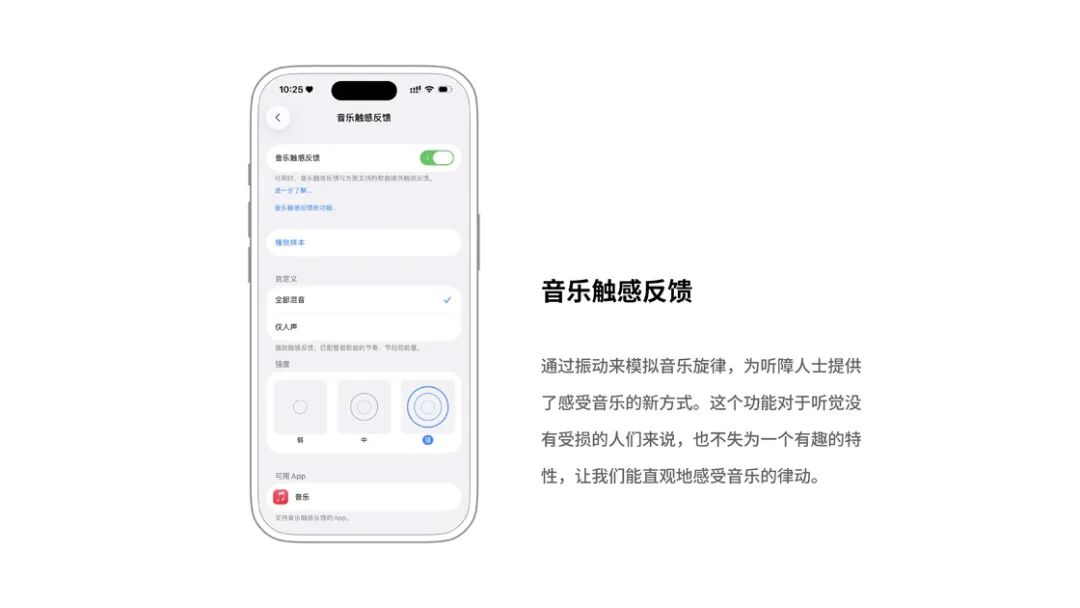
A "Music Haptic Feedback" feature was added in iOS 18. It simulates the music melody through vibration, providing a new way for people with hearing impairments to experience music. For people with normal hearing, this feature is also an interesting one, allowing us to intuitively feel the rhythm of music.
However, although this feature is fun, many users often report that "their hands get numb from the vibration". With the update of iOS 26, the Music Haptic Feedback has more detailed adjustment options. You can choose to make the vibration match the rhythm, beat, and energy of the whole song, or just match the vocals. At the same time, a vibration intensity selection has been added below to avoid the problem of "numb hands".
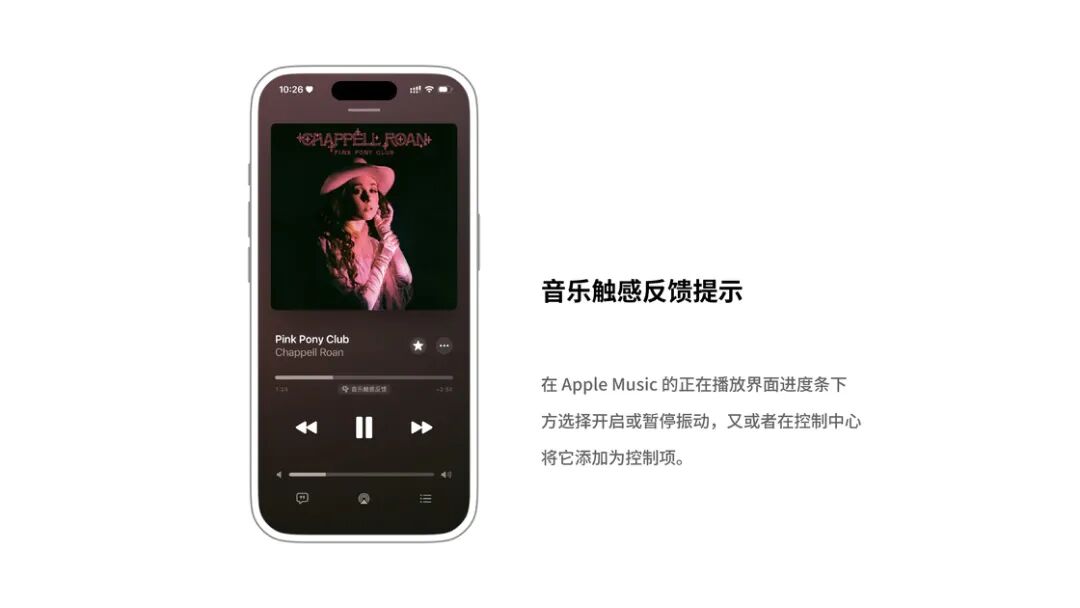
After turning on this feature, when playing music, the music spectrum will no longer be displayed on the right side of the Dynamic Island. Instead, only the status icon of the Music Haptic Feedback will be shown. You can choose to turn on or pause the vibration below the progress bar on the Apple Music playing page, or add it to the Control Center for quick access.
Voice Shortcut Commands
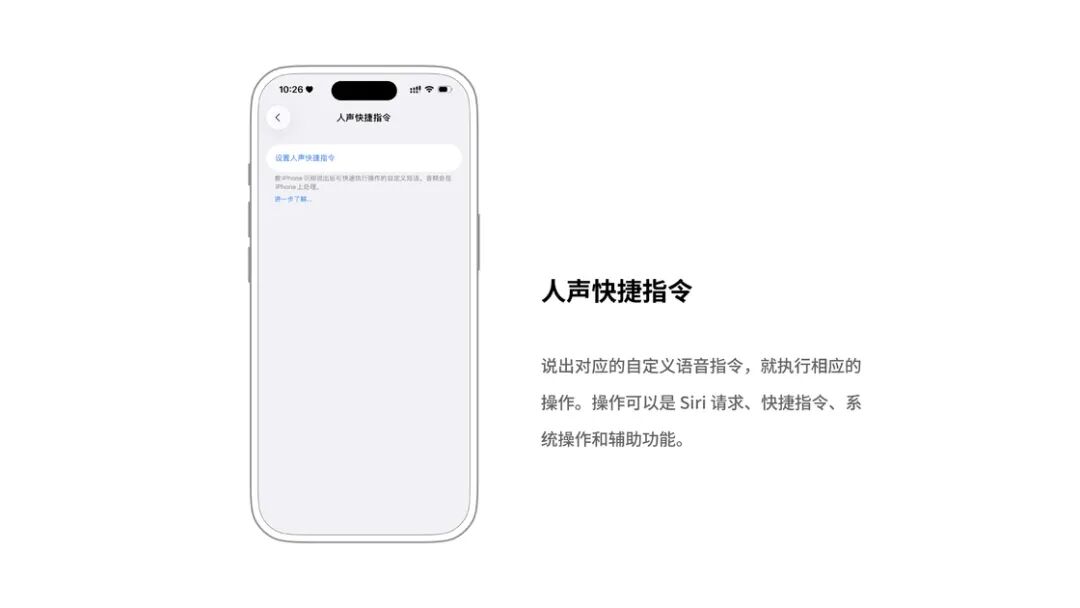
If there are some elderly people at home who are not familiar with iPhone operations, the Voice Shortcut Commands can be a great help. Simply put, it can turn the iPhone into a real "voice king". By saying the corresponding custom voice commands, the iPhone will perform the corresponding operations, achieving tasks with just a single command.
You can set it up in Settings > Accessibility > Voice Shortcut Commands. Click "Set Up Voice Shortcut Commands", and the iPhone will pop up a card page to guide you through the setup: first select an operation, and then set the corresponding voice command for that operation. It's worth mentioning that the operations can include Siri requests, shortcut commands, system operations, and accessibility features, with a very wide coverage.
For example, if I want to set up a voice operation of "Open WeChat Payment Code" for my mom, I can first create a corresponding shortcut command in the Shortcuts app, then go back to the Voice Shortcut Commands setup page and select it as the operation. Then, enter "WeChat Payment" in the "Custom Phrase", and let my mom say the phrase "WeChat Payment" three times to the iPhone, and the setup is complete.
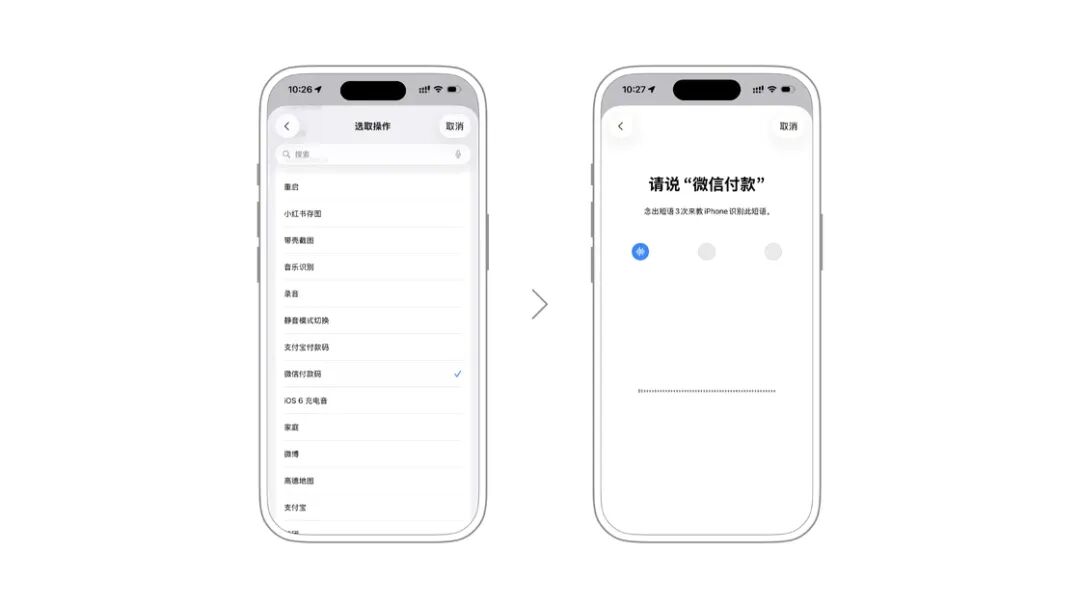
After the setup, the iPhone's microphone will be always on. As long as my mom says "WeChat Payment" to the iPhone, the WeChat payment QR code will pop up, which is very convenient.
You might be worried about privacy issues with the always - on microphone, but don't worry. Thanks to the powerful computing power of the iPhone's chip, Apple promises that the audio of this feature won't be uploaded to the cloud and will only be processed locally.
Preserve Your Voice
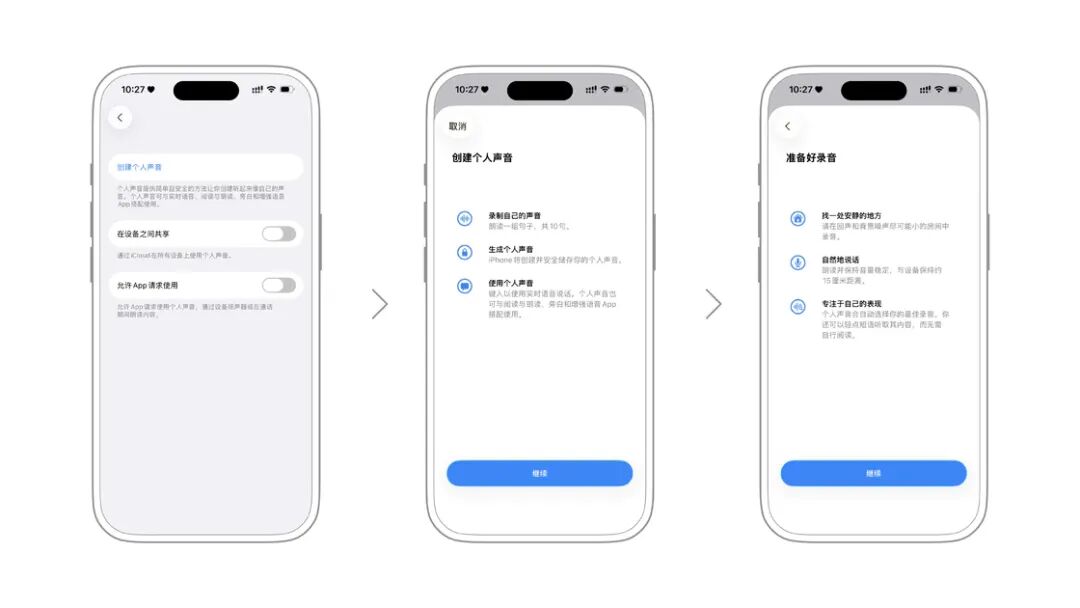
Maybe you have a dying relative or a friend who is about to lose their voice... In short, you want to preserve their voices, perhaps as a souvenir or to let them continue to "speak" with the help of technology. Now, with the "Personal Voice" feature of the iPhone, this wish is no longer hard to achieve.
Go to Settings > Accessibility > Personal Voice, record 10 sentences as guided by the iPhone, and the iPhone will learn their voice within 1 minute with the help of powerful AI technology. This voice can be used in applications such as reading aloud, voice - over, and enhanced speech.
Conclusion
Every year on the Global Accessibility Awareness Day, Apple brings a series of accessibility feature updates that benefit everyone. It tells us that technology is not just cold technology but a form of humanistic care that reaches everyone. I believe these features can not