Developers have recently recommended 3 useful apps on their own initiative.
Editor's Note: This issue features a collection of self - recommended articles for apps from the Matrix community of SSPAI. The articles represent the personal views of the authors, who have a direct stake in the products mentioned (such as developers or promoting their own products). SSPAI has only made minor adjustments to the titles and formatting.
Table of Contents for This Issue
👁 Visual Family: A Screen Testing Tool Compatible with All Platforms
🎬 video info action: Check Video Frame Rate with One Click
💻 Aion: A Mac App for Professionally Quitting Apps and Closing Windows

Visual Family
🧑💻 Code Traveler | 🌐 Web | Click to Visit
After getting a new monitor or laptop, screen testing is almost a must - do for every digital enthusiast.
Recall the previous methods. Usually, you would turn off the lights, draw the curtains, display a pure - black background to check for light leakage at the corners. Then you'd search for solid - color red, green, and blue images on various websites, switch them full - screen back and forth, and stare intently for dead pixels. Since I use both Mac and Windows in my daily life, sometimes I have to search for testing resources again when switching devices. There aren't many useful web - based testing tools. Some are full of ads, and some have extremely simple interfaces, offering a poor user experience. When testing a TV screen, you even have to copy test videos to a USB drive in advance.
After several rounds of such hassle, I decided to solve the problem myself by integrating all screen testing items into a pure browser - based screen testing tool: Visual Family.
▍ Abandon the Cold - hearted Hard - core Feeling and Create a Warm - hearted Tool
As an independent developer, I don't really like those traditional hardware testing pages that are cold and lack aesthetics.
The interface design of Visual Family doesn't follow the hard - core geek or cyberpunk style. Instead, it uses a warm milky - white color scheme. With rounded - corner elements and a regular bento - box layout, I hope it will first be a webpage that is pleasing to the eye. Many digital players have high aesthetic requirements. I hope that through this clean and slightly transparent visual language, the otherwise boring hardware troubleshooting process can become more approachable.
▍ The Testing Starts as Soon as You Open the Webpage
A common problem with most tool - type products is that their function entry points are well - hidden. The homepage of Visual Family is designed in a very minimalist way, with the most frequently used "solid - color screen testing" as the default state.
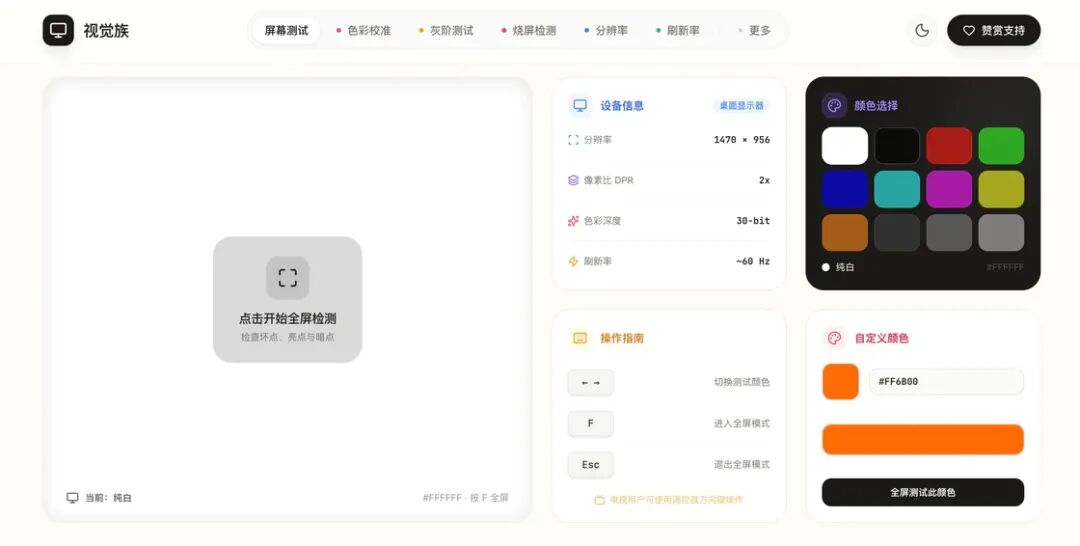
You don't need to search through multiple menus to find the entry. Just open the webpage, press the F key on the keyboard to enter full - screen mode, and the testing begins. Use the arrow keys to quickly switch between solid - color backgrounds, and you can check for dead pixels, bright spots, and dark spots in just a few seconds. This is also the most convenient way for me to test screens.
▍ Make Professional Color and Panel Testing More Intuitive
Often, a screen may not have obvious defects, but it still doesn't look right, feeling either too cold or too warm. So, I've added a more intuitive reference standard to the color calibration module.
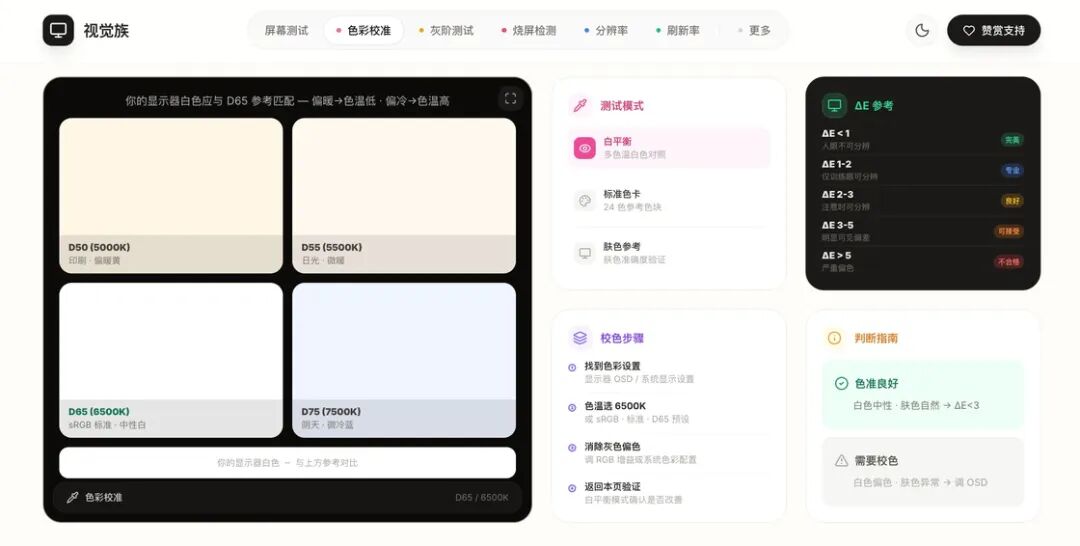
You can directly compare the reference color blocks from D50 printing - grade to D65 standard neutral white, and use the white - balance comparison card to easily and quickly adjust the OSD settings of your monitor until it looks perfect to your eyes.
Moreover, considering the increasing popularity of OLED panels, screen burn - in and image retention have become concerns for many people.
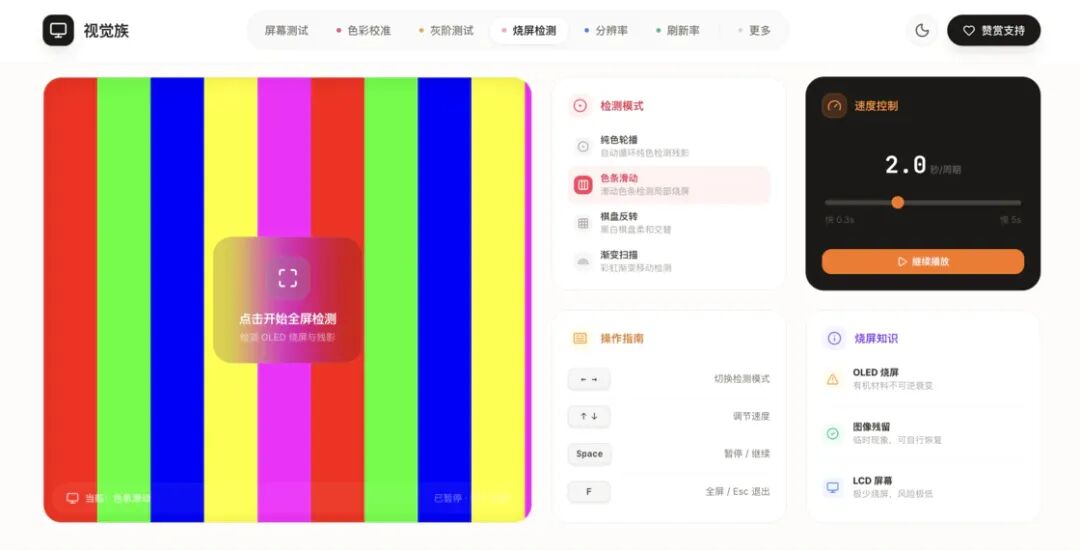
Therefore, I've added targeted troubleshooting tools to the testing module, including modes such as solid - color carousel, color - bar sliding, and checkerboard inversion. You can control the playback speed to check for irreversible decay or image retention on the screen.
▍ Ghosting and Refresh Rate: The Touchstone for High - Refresh Screens
High - refresh displays are now almost ubiquitous. However, a screen that looks perfect in static images may show flaws when there's movement.
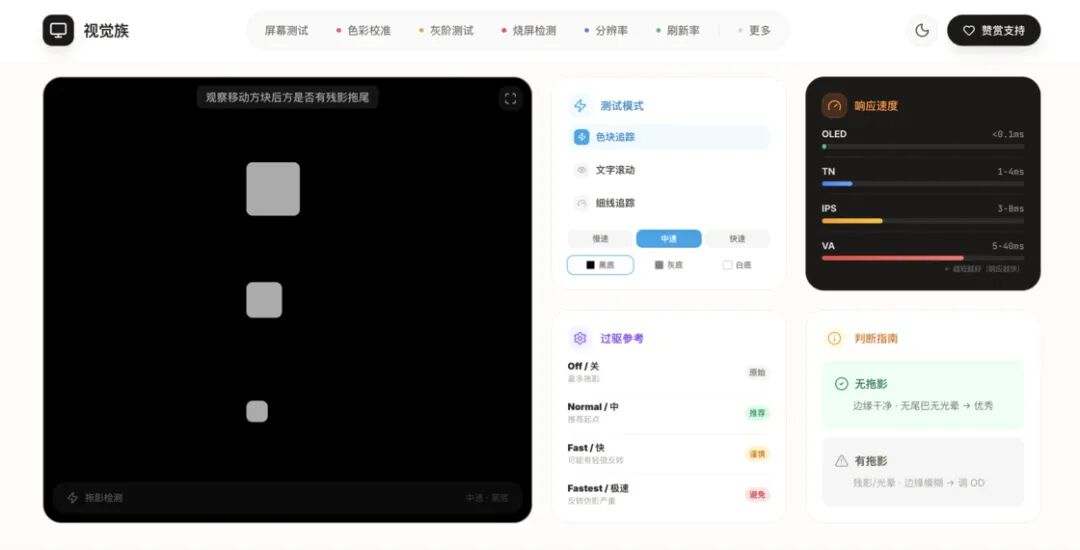
In the ghosting test module, colored blocks move at different speeds on the screen, and different contrast environments such as black, gray, and white backgrounds are provided. You can easily observe if there are trails or halos behind the blocks to evaluate the real - world response speed of the monitor. This is very helpful for adjusting the OD acceleration level of gaming monitors.
Regarding the refresh rate, many devices claim to have a 144Hz or even higher refresh rate, but the actual output often falls short.
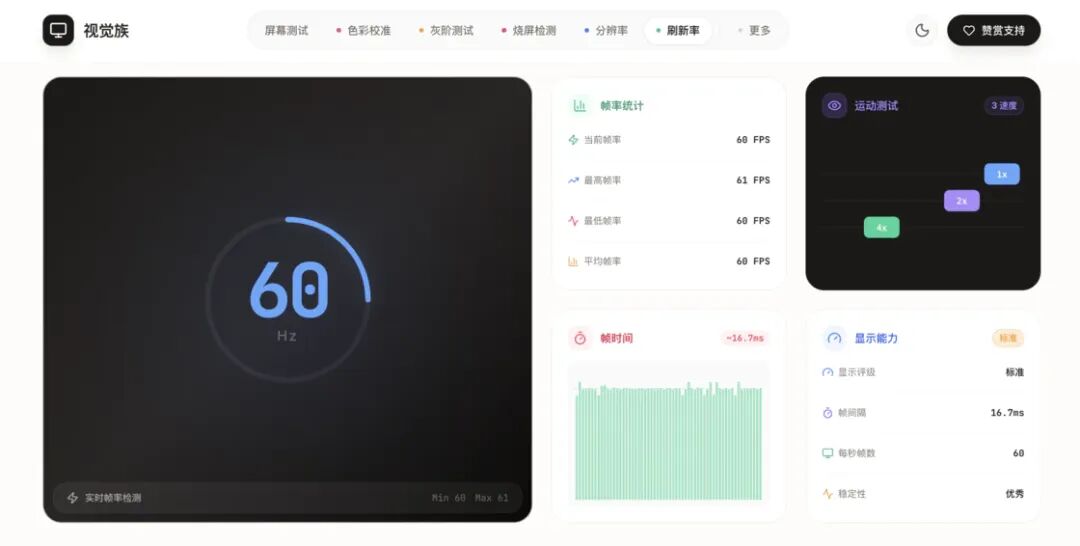
The refresh - rate module here not only shows the current frame rate but also introduces a real - time chart of frame - time fluctuations. The maximum, minimum, and average frame rates are clearly visible at a glance. You can quickly tell whether the screen is outputting stably or if there are system lags or frame drops just by looking at the chart trend.
▍ More Than Just Screen Testing: A Customizable "Screen Check - up Center"
The core functions mentioned above are just the tip of the iceberg for Visual Family. For hardcore players with deeper or specific needs, I've prepared a comprehensive toolbox on the "More" page.
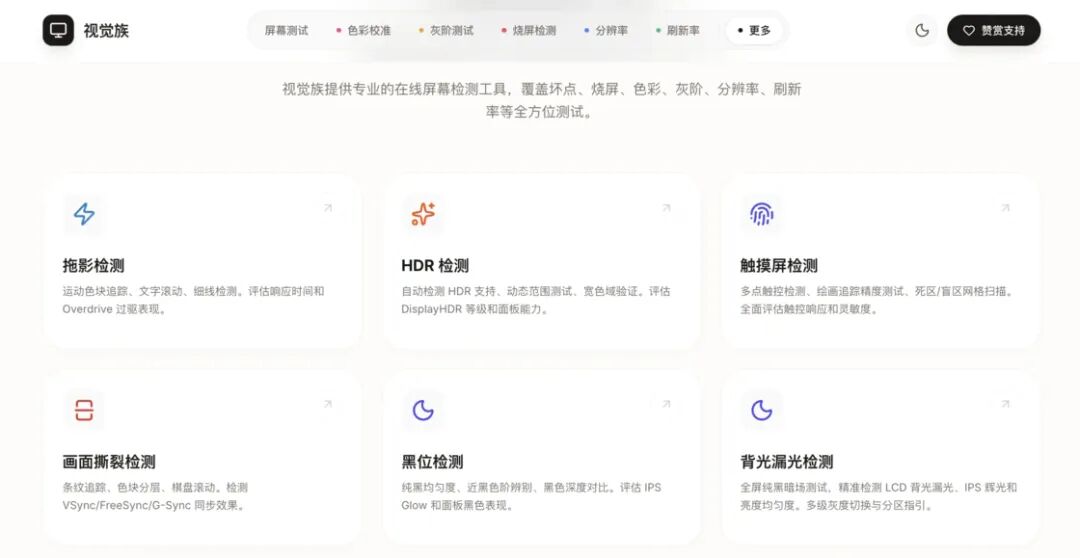
It covers more than 20 detailed tests, from hardcore HDR detection, PWM flicker testing, and Gamma curve analysis to very practical tools like the PPI calculator, touch - screen detector, and resolution query. All the function cards are neatly arranged, and you can simply click on the one you need.
What I really want to share with you is the "Device Inspection Guide" at the bottom of the page.
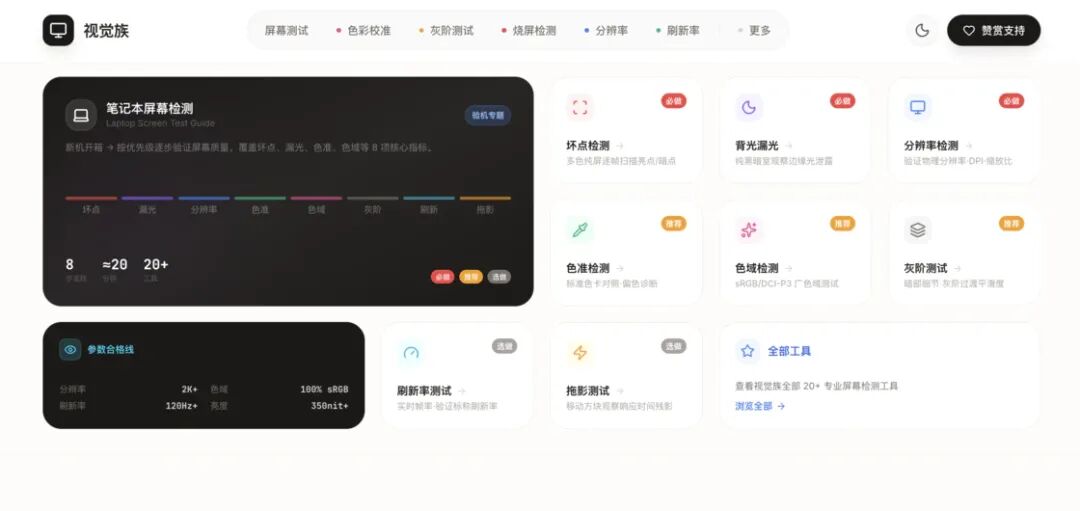
While developing this website, I found that the biggest obstacle for many digital novices isn't "not being able to find testing tools" but "not knowing which tests to perform on their new devices."
So, instead of bombarding users with a bunch of technical terms, I've bundled the tests according to common purchase scenarios. Whether you've just bought a flagship OLED smartphone, a high - refresh laptop for gaming, or a Mini - LED TV for your living room, you just need to click on the corresponding device type in the guide. It will tell you what problems are most likely to occur with that specific panel and directly lead you to targeted tests. The significance of a tool lies not only in providing functions but also in reducing the usage threshold.
▍ Compatible with All Platforms, Say Goodbye to Complexity
The biggest advantage of a pure web - based tool is cross - platform compatibility. This tool has been designed to be compatible with all devices from the start:
- Desktop: Supports full - keyboard shortcuts for a seamless experience.
- Mobile: Specifically adapted for touch gestures and swipe logic.
- TV: For a new TV, simply open the built - in browser, enter the website URL, and use the remote - control arrow keys to complete all operations. No need to mess with testing software anymore.
▍ In Conclusion
Before developing Visual Family, as an independent developer, I had already created a series of online hardware testing tools for keyboards, mice, gamepads, etc., and gradually accumulated many friends with similar needs. For me, it's very rewarding to use modern web technology to organize and streamline these scattered and complex hardware diagnostic requirements.
Visual Family doesn't have any advanced technical barriers. It solves a very specific pain point: you don't need to search for images everywhere or download software. Just open the webpage, and you can thoroughly check your screen.
If you've recently bought a new phone, monitor, or TV, you might as well save this tool for future use. I hope it can save you some time and hassle.

video info action
🧑💻 Gecho - Go | 💻 macOS | Download from GitHub
As someone who often deals with videos, I've always had a small annoyance: I want to quickly confirm whether a video's frame rate is 25 or 60, but there's no convenient way to do it.
The built - in "Get Info" (Cmd + I) on macOS can show the resolution but not the frame rate. You have to open the video in VLC or IINA to view its information. MediaInfo provides comprehensive information, but its interface is all in English, and it takes time to open. You have to go through several steps just to check the frame rate.
Although this requirement is small, it always interrupts me. So, I created this tool.
Here's how it works: Right - click on any video file in Finder → Quick Actions → View Video Information, and immediately pop - up: resolution, frame rate, encoding format, color information, duration, and file size, all at once.
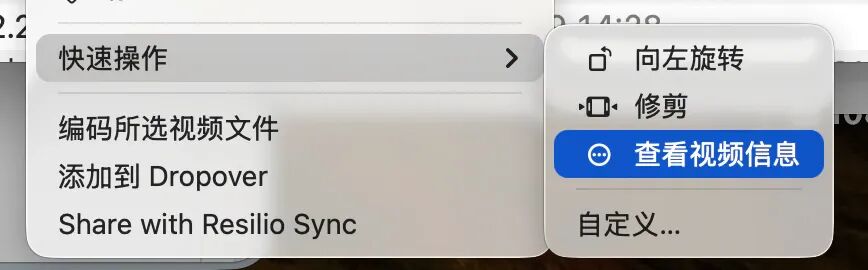
Right - click - Quick Actions
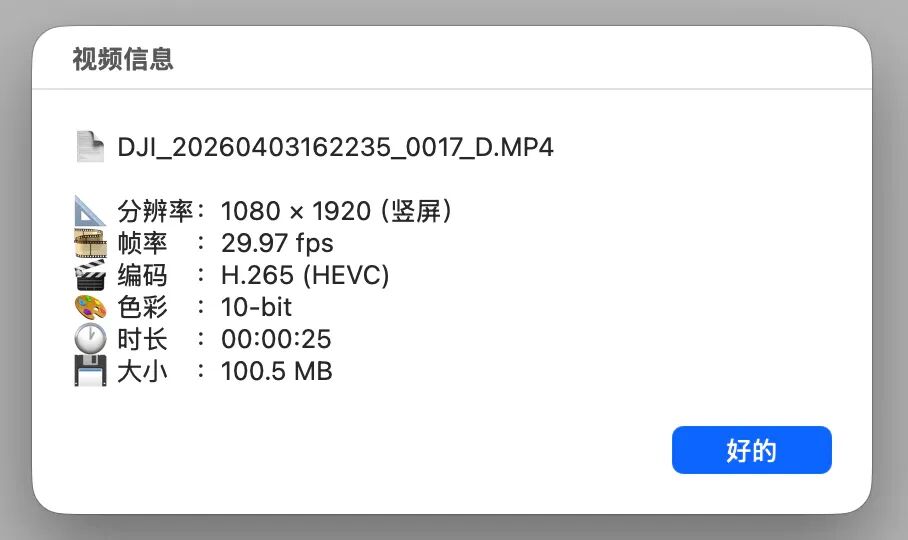
Common information about the video
▍Installation Method
Go to the GitHub page and download View Video Information.pkg
Double - click to install and enter the administrator password
Done, no other software is required
This tool reads video information based on the built - in AVFoundation framework of macOS, with zero external dependencies. You don't need to install ffmpeg or any command - line tools.
▍Set Shortcuts
After setting up, you can select a video and press a shortcut key to view its information, almost replacing the native Cmd + I.
System Settings → Keyboard → Keyboard Shortcuts → Services
Find View Video Information under "Files and Folders"
Double - click on the right - hand side and press a shortcut key (Cmd + Shift + I is recommended as it doesn't conflict with the system)
▍Supported Formats
Mainstream formats such as MP4, MOV, MKV, and AVI are all supported. Encoding recognition includes H.264, H.265/HEVC, AV1, and the entire Apple ProRes series. Videos with color metadata (such as HDR and Log footage) will also display additional information about the color gamut and dynamic range.
System Requirements: macOS 13 or higher, Apple Silicon (M - series chips).
This tool is completely free, and its source code is open - sourced on GitHub. If you have any problems or suggestions, feel free to submit an issue.

Aion (Lingxi)
🧑💻 runking | 🤖 macOS
I'm the developer of Aion (Lingxi). In this article, I'd like to talk about why I created this tool and what problems it solves.
▍ The Origin of Everything
I usually have more than twenty apps running on my MacBook Pro all the