Do you know enough about these accessibility features in iOS?
In 2009 at the Worldwide Developers Conference (WWDC), Phil Schiller, then the senior vice president of global product marketing at Apple, briefly introduced the new accessibility features in iOS in 36 seconds after presenting the new "Voice Control" and compass apps launched on the iPhone 3GS.

At that time, the accessibility features only included five items: VoiceOver, Zoom, Invert Colors, Mono Audio, and Replace Text with Speech. However, Apple has since attached great importance to and invested in accessibility features. After 12 years of continuous evolution, they have become a unique set of features in the iOS ecosystem.
In this article, various settings of the accessibility features will be introduced.
Vision
VoiceOver
VoiceOver aims to help users use the device with their senses such as hearing and touch instead of their eyes. It can be turned on through Settings > Accessibility > VoiceOver.
After turning on VoiceOver, the original operation logic of iOS will change, and the changes are mainly centered around the principle of "using ears instead of eyes".
In VoiceOver mode, the system assumes that the user's access to information through vision is limited and they cannot click directly. At this time, the basic operation mode changes from single - finger swiping or tapping to multi - step operations:
Single - tap: It becomes a selection instead of direct entry. The selected item will be surrounded by a rectangular frame, and the iPhone will read out its content text or attributes. For example, if you select an app on the home screen, the app's name will be read out; if you select a title, the title content and the prompt "Title Bar" will be read out; if you select a switch, the switch's name and its current on/off state will be read out.
Double - tap: Enter or open the corresponding item.
Single - finger swipe left or right on the screen: Move the cursor to the previous/next item.
Single - finger swipe up or down on the screen: Quickly switch the cursor between items.
Three - finger swipe: Replace the original single - finger screen swipe.
In addition, the operation methods for invoking the Control Center, Notification Center, and entering the multitasking interface all have corresponding alternative steps. You can refer to the instructions on the VoiceOver settings interface for details.
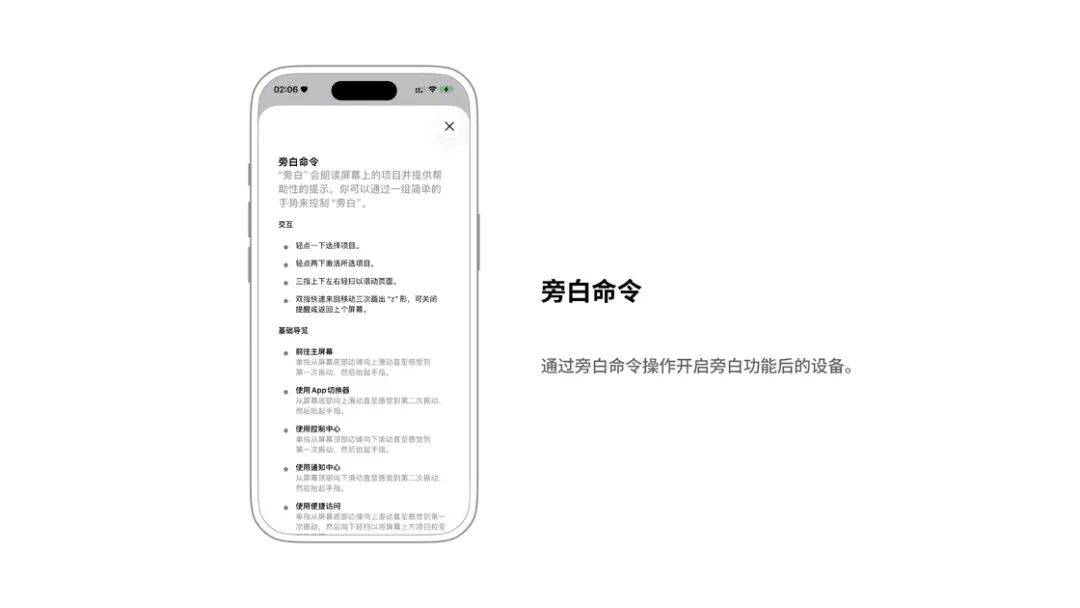
To make the VoiceOver feature more suitable for the needs of different users, Apple provides a large number of adjustable parameters, which are more abundant than those of Siri, another voice - related feature, such as speech rate, language, and tone. In addition, thanks to the progress of iOS devices in machine learning in recent years, VoiceOver can also describe the selected image through algorithms; on devices equipped with the A12 chip or later, VoiceOver can read the text in the image.
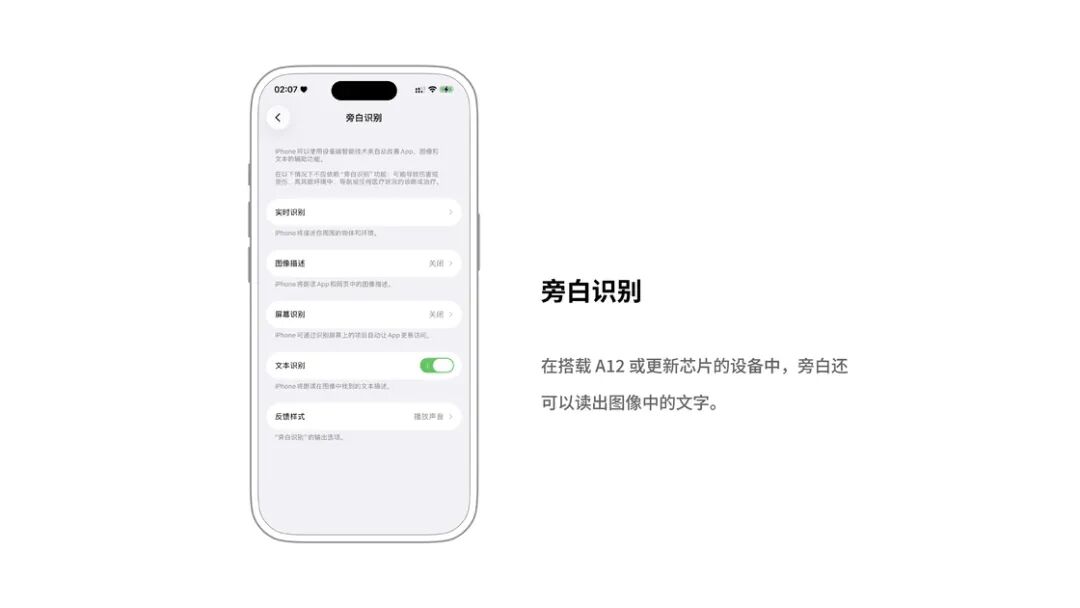
Zoom
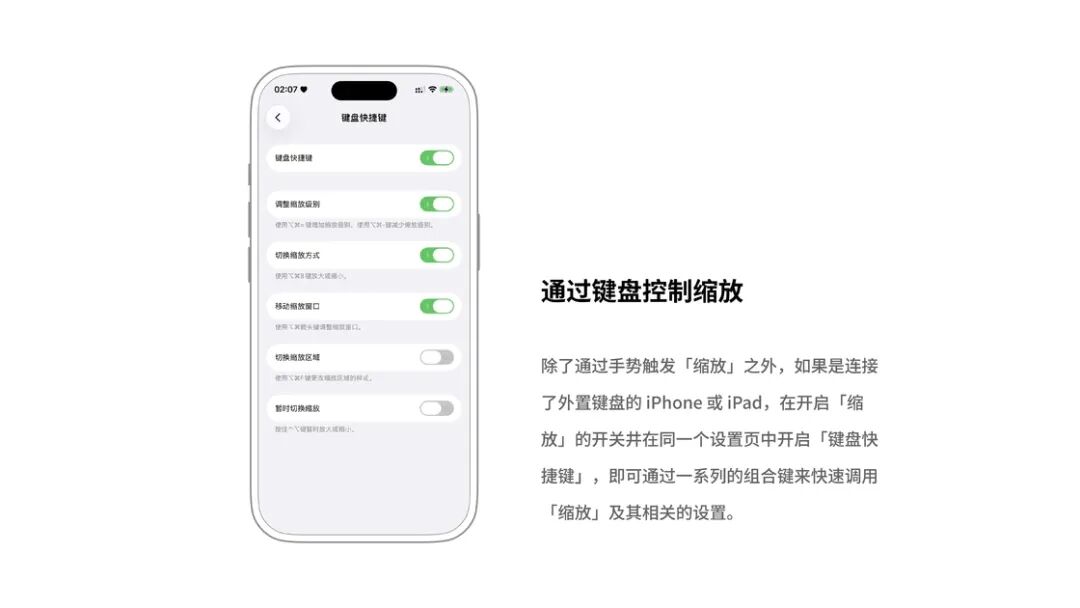
Zoom can be regarded as a "global magnifying glass" and can be turned on at Settings > Accessibility > Zoom .
After turning on the Zoom switch, the system operation logic remains unchanged, but a global zoom function is added. Its control method is based on three - finger taps and drags:
Three - finger double - tap: Zoom in the center area of the tap to the entire screen (by default);
Three - finger drag: Move the view;
Three - finger double - tap and then drag up or down: Adjust the zoom ratio.
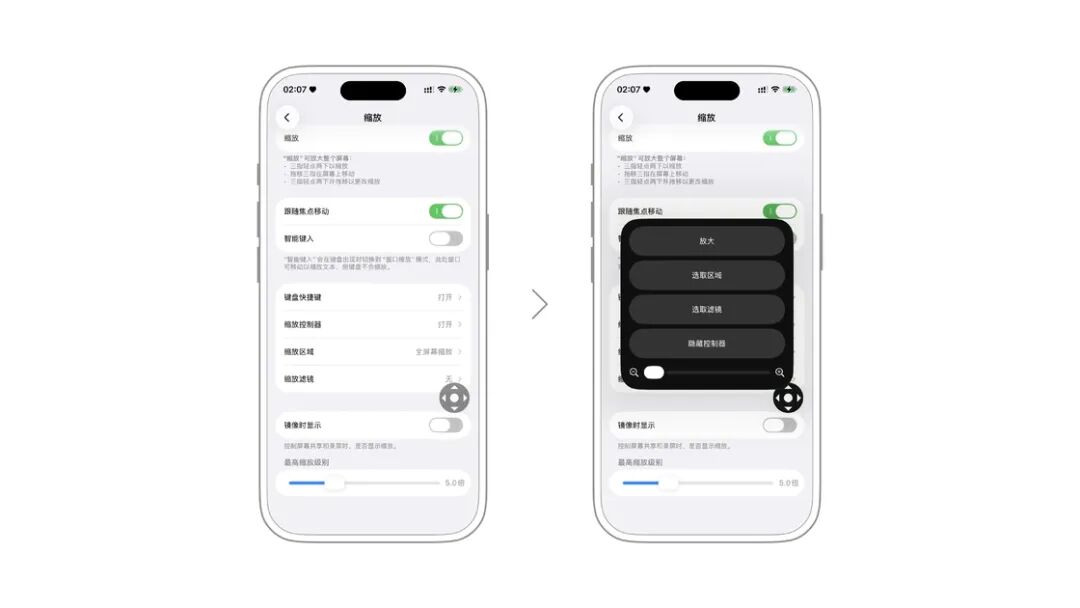
Even without connecting an external keyboard, you can turn on the "Zoom Controller" to bring up a global virtual button (similar to the "AssistiveTouch" white dot). Operating it can control the zoom (the specific gestures can be adjusted on the "Zoom Controller" settings page):
Single - tap: Bring up the shortcut menu
Double - tap: Quickly zoom in on the center area of the screen
Drag this button: Adjust the zoom position
In addition, in the Zoom settings, you can change full - screen zoom to display the zoom area in a window, set the display effect after zooming for differentiation, and adjust the zoom ratio up to 15 times.
Hover Text
Hover Text can magnify the text content you select above the screen. After turning it on, click the Hover Text controller and then click the corresponding text, pictures, icons, etc., and you can see the relevant information above the screen.
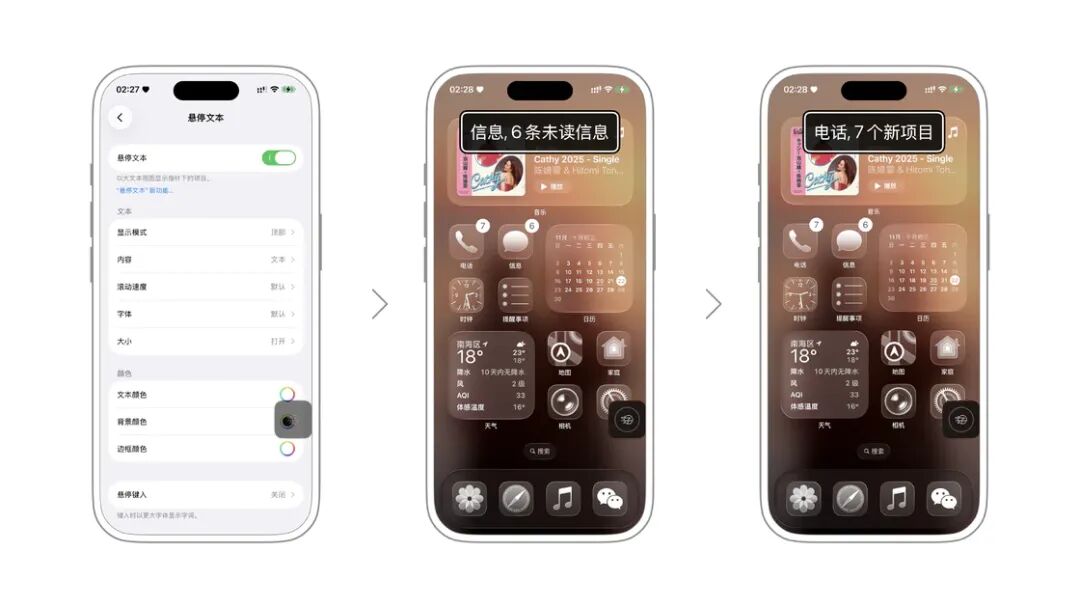
You can adjust the display details of Hover Text below, or enter "Hover Typing" to display larger words when typing on the keyboard.
Display & Text Size
Settings > Accessibility > Display & Text Size contains a series of settings options related to the display of system text, images, etc., including "Bold Text", "Larger Text", "Button Shapes", "On/Off Labels", "Reduce Transparency", "Increase Contrast", "Color Filters", "Reduce White Point Value", etc.
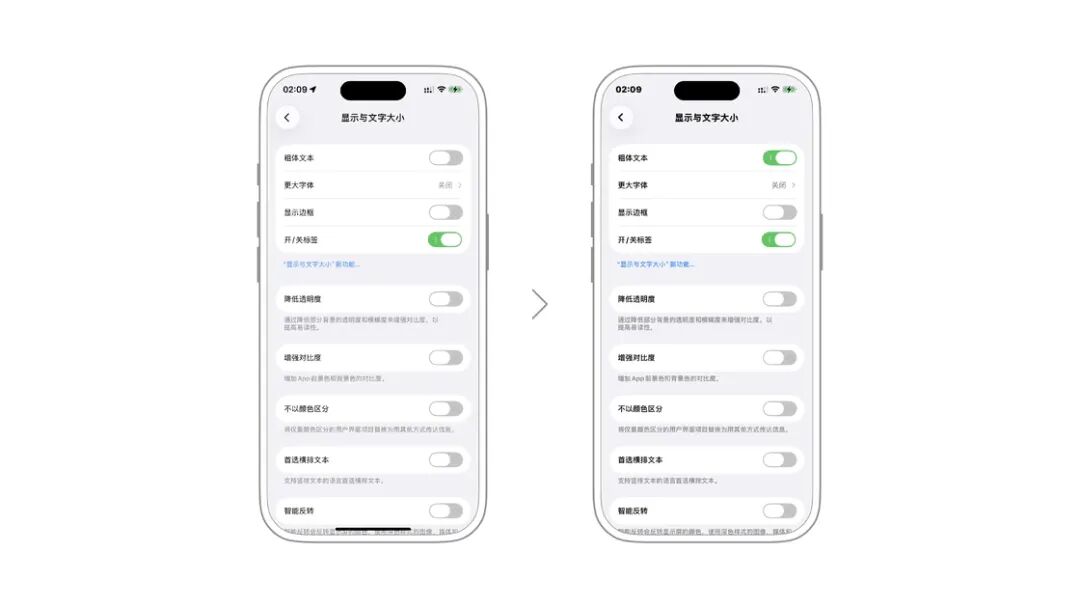
Although this is not the original intention of this feature, we can also turn it on for the elderly to help them more easily recognize the text on the screen.
Invert Colors
For some users, displaying some content in negative colors through "Invert Colors" can help them better recognize the screen content. Therefore, iOS provides the "Invert Colors" feature.
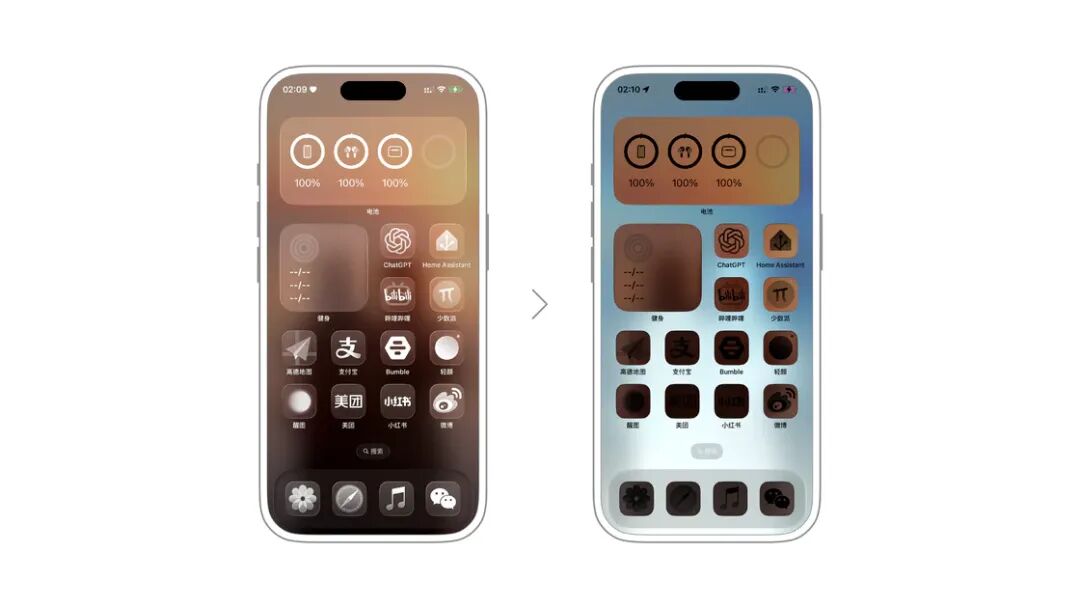
Invert Colors can be divided into two types: "Classic Invert" and "Smart Invert". "Classic Invert" simply globally inverts all displayed content according to the RGB encoding. That is to say, all the icons and photos you see are in inverted colors.
"Smart Invert", while inverting colors, optimizes the content of icons, pictures, and videos, etc., and displays them in normal colors. However, in some third - party apps that are not adapted, "Smart Invert" cannot affect the content, and it will still be displayed in inverted colors.
Auto - Brightness
By default, your iPhone will automatically adjust the screen brightness according to the ambient brightness. However, this is not ideal in all situations. For example, in a moving vehicle, the ambient brightness changes rapidly due to the occlusion of buildings and trees along the way. At this time, the auto - brightness will make the screen flicker, which actually affects visual comfort.
In this case, you can find "Auto - Brightness" in Settings > Accessibility > Display & Text Size and turn it off. After turning it off, the iPhone's screen will always remain at the brightness you manually set.
Motion
As we all know, one of the major features of iOS is its ubiquitous and smooth non - linear animations. From a design perspective, these animations are indeed pleasing to the eye. However, for some users with special visual conditions, frequent animations may cause symptoms such as fatigue and dizziness. In addition, for older models with insufficient performance, too many animation effects will increase the performance burden and cause stuttering.
To address this, you can find the "Reduce Motion" switch in Settings > Accessibility > Motion; after turning it on, a new switch for "Preferred Cross - Fade Transitions" will appear, which further turns off the transition animations when opening and exiting pages.
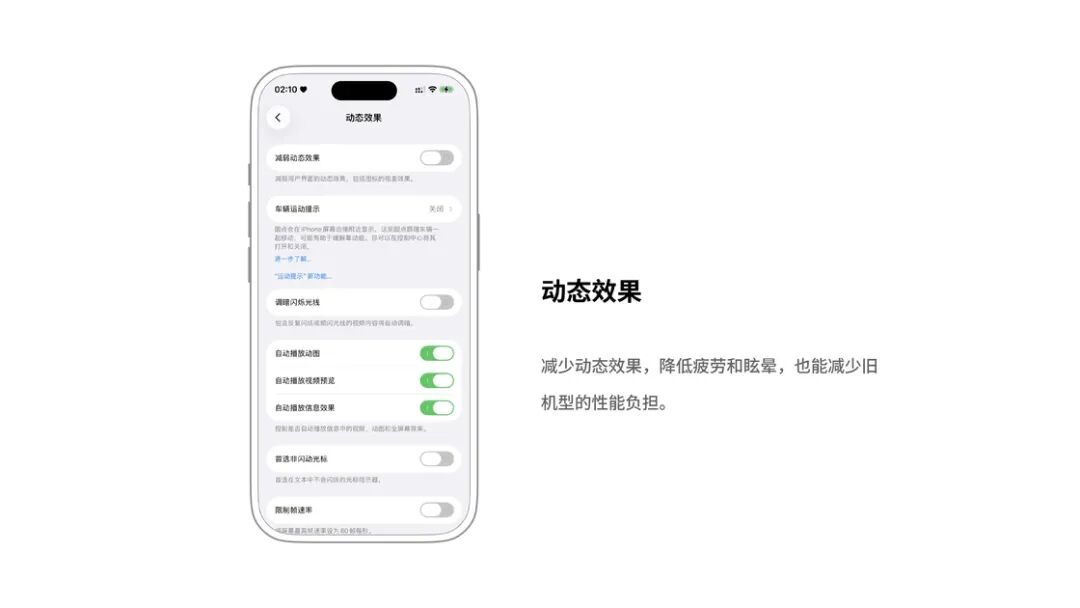
In addition, on the "Motion" settings page, you can also:
Disable "Auto - Play Message Effects": iMessage contains many dynamic effects, which are even more than the bombs and fireworks in WeChat. Considering that these effects may interfere with users' focus on the content itself, Apple provides a switch. After turning it off, iMessage will be prohibited from automatically playing the full - screen effects in the "Messages" app.
Disable "Auto - Play Video Previews": After turning it off, when you select a video in apps such as "Photos", it will no longer play automatically. Instead, a play button will be displayed for manual playback.
Prevent Motion Sickness
In iOS, you can turn on the "Show Vehicle Motion Cues" option. When the option is turned on, dots will be displayed around the iPhone screen. These dots will move with the vehicle, which has the effect of reducing motion sickness. If you set the option to "Auto", the iPhone will automatically display these dots when it detects that you are traveling in a vehicle.
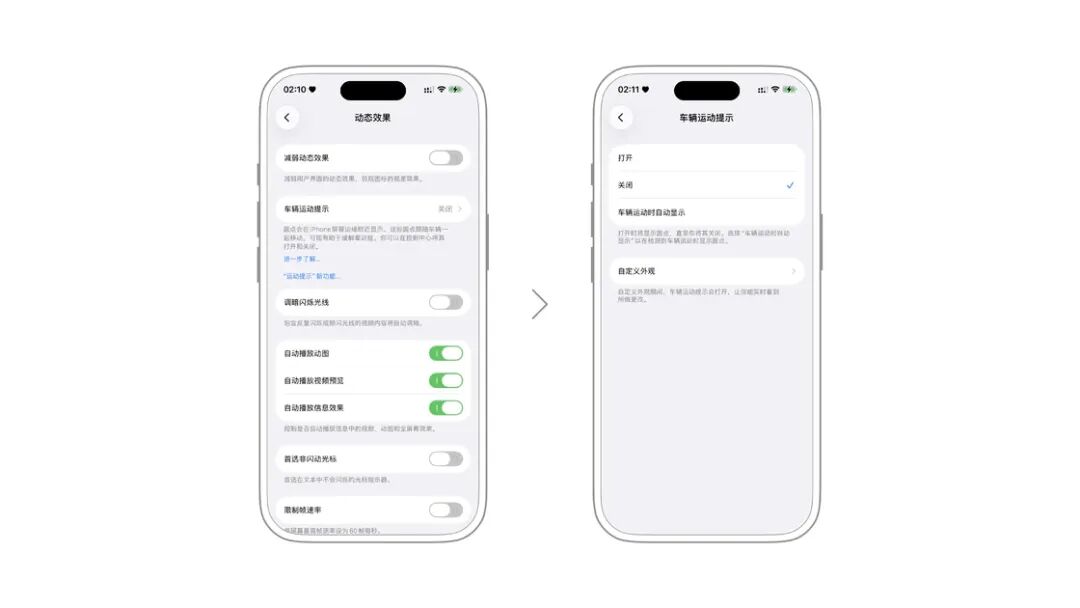
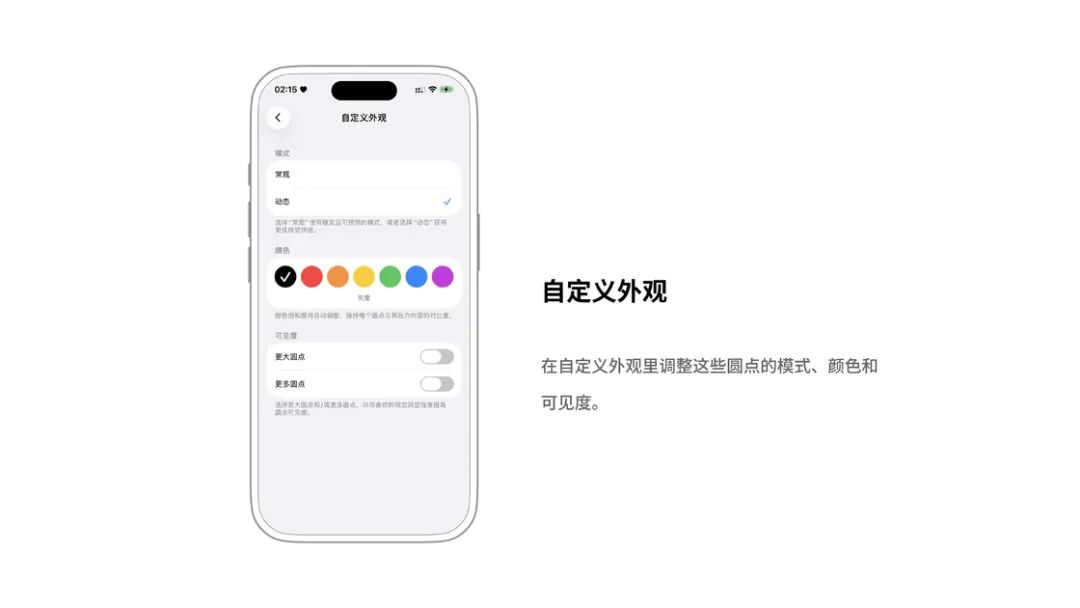
You can also adjust the mode, color, and visibility of these dots in the custom appearance settings.
Limit Frame Rate (Exclusive option for ProMotion devices)
Devices that support ProMotion adaptive refresh rate, such as iPad Pro, iPhone 13 Pro or later iPhone Pro models, as well as iPhone 17 and iPhone Air, can find the "Limit Frame Rate" switch in Settings > Accessibility > Motion. After turning it on, the device's frame rate will be limited to 60 frames per second.
