Is your taskbar still idle? This plugin helps you boost your work efficiency.
I don't know about your personal computer usage habits. Ever since I switched to a desktop PC, my screen has been "blank" for the vast majority of time. This does not mean I just like to leave the machine running idly; it is mainly because my actual attention range is far smaller than the full screen size, and the only part I really make "useful" use of is no larger than an iPad. I used to auto-hide the taskbar and tab bars on my laptop, but now I keep the side, bottom and top bars all visible. As long as I do not split the screen, these bars barely interfere with my daily work at all.
It is exactly for this reason that I have long wanted to make full use of those areas that only catch my peripheral vision, and WindowSill has helped me achieve this goal recently.
WindowSill is a command bar tool developed by Etienne Baudoux, a software engineer working at Microsoft. He regularly releases personal Windows application projects and is a huge enthusiast of the Windows system. He is very keen on developing small tools with strong practical functions. For example, his previous work DevToys is a collection of various mini utilities, and WindowSill follows the exact same design concept.
As its name suggests, WindowSill is docked to the bottom edge of the screen by default, and you can set it to auto-hide, so it will pop up automatically when your mouse hovers over the bottom edge of the display.

Essentially, it is still a collection of various small utilities. When you select a specific file or text, it will automatically identify the content type you are currently working on, and display the corresponding plug-in. The clipboard history feature in the middle is what I use most frequently: just click the corresponding entry and the content will be pasted directly to the current screen. You can also adjust the order of plug-ins in the settings to set their priority according to your own usage habits. WindowSill has its own independent plug-in system. Apart from the default pre-installed utilities, you can find more interesting and practical mini tools in its plug-in store.


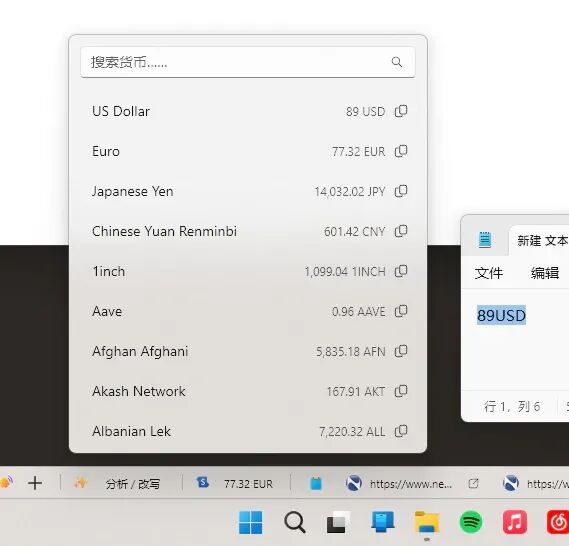
Its plug-ins can replace many standalone small utilities, helping you avoid opening heavy full-featured apps for trivial tasks, or opening a separate web page just for a simple search. For example, it can directly convert temperature and currency units. If the selected text content is a web address, it can also directly generate a QR code for sharing.


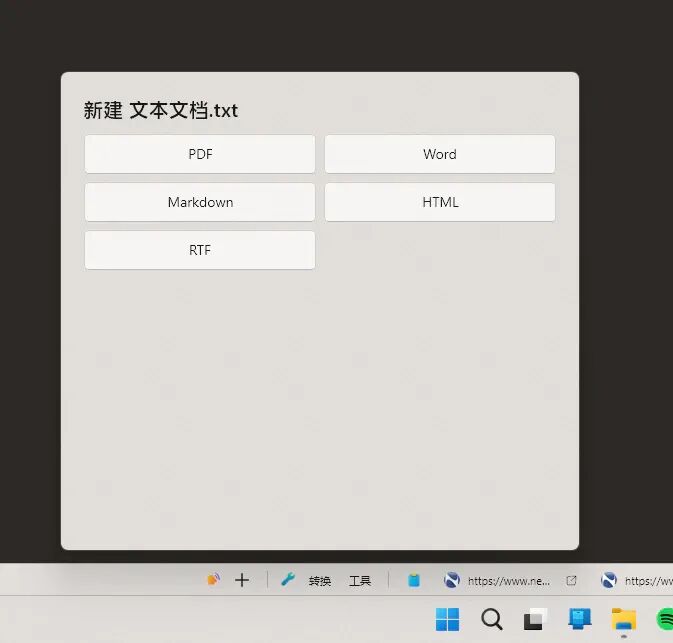
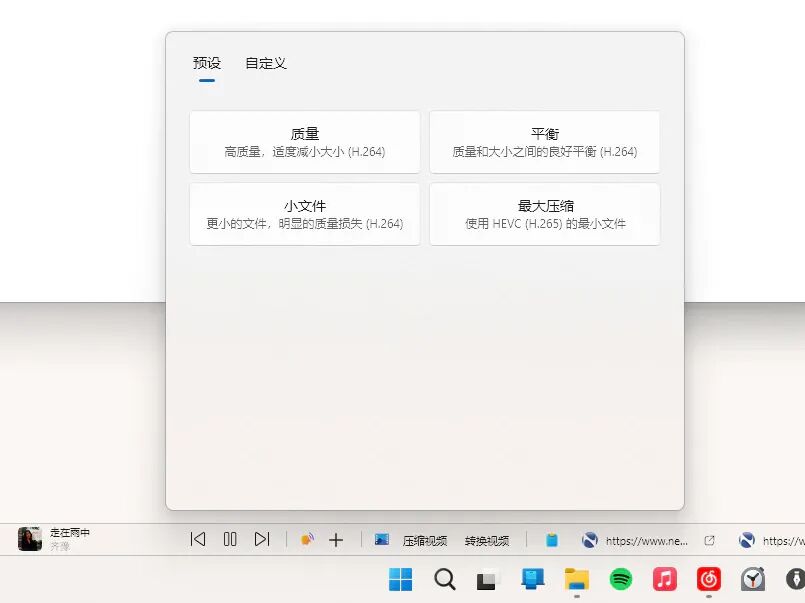
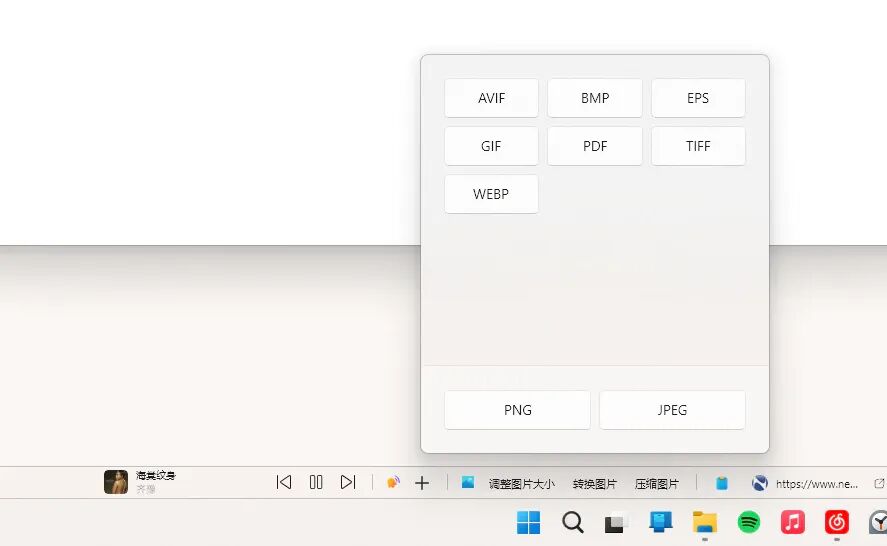
Its File Helper plug-in is also extremely powerful. When you select a file in the file manager, WindowSill will display the File Helper plug-in, where you can directly select the operation you want to perform. Apart from quickly converting the formats of text documents, spreadsheets, slides, videos and images, it also supports encoding conversion, file compression, size adjustment and many more functions. It can also split and merge PDFs, add or remove passwords for PDF files, and directly view the file list inside compressed archives. Basically all the tasks you would normally need online tools to handle can be completed with this tiny bar. In addition to the native Windows File Explorer, it also supports Files, the well-known third-party file manager.
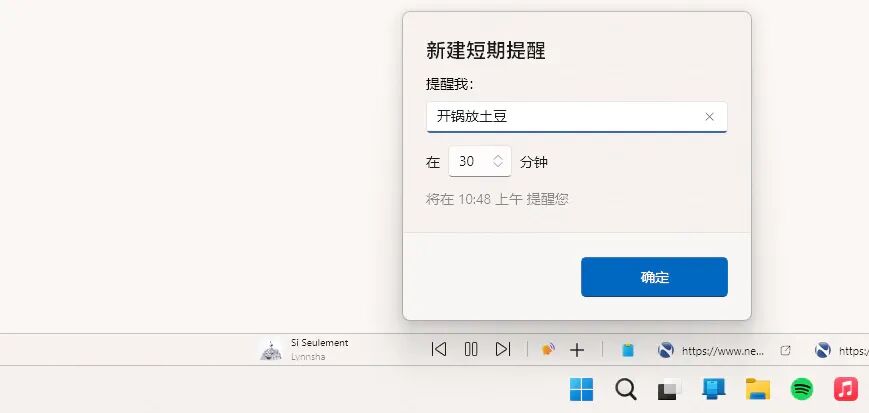
In addition, its calendar tool has a built-in world clock, where you can drag the progress bar to check the local time of the corresponding destination. The quick reminder tool allows you to set short-term reminders quickly, and a full-screen prompt will pop up when the set time is reached. There are many other features worth exploring in the plug-in store, such as one-tap to launch a group of programs, Pomodoro timer, custom command line shortcuts for specific applications, which are very fun to use. It even supports Microsoft Teams, allowing you to mute the microphone and send emoji reactions directly on the command bar.
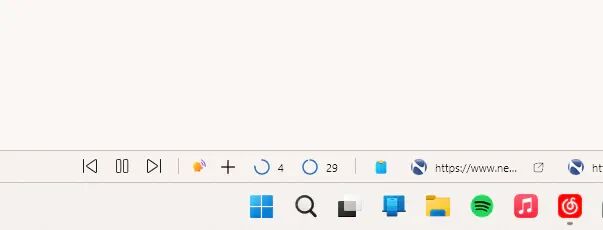

WindowSill also has a custom hotkey system. When you press Windows+Ctrl, every selectable element on WindowSill will display a corresponding number. You can directly enter the corresponding number to trigger the operation. Actual test shows that even two-digit numbers can be used as hotkeys normally. You can complete all operations without using a mouse, which greatly improves the use efficiency.
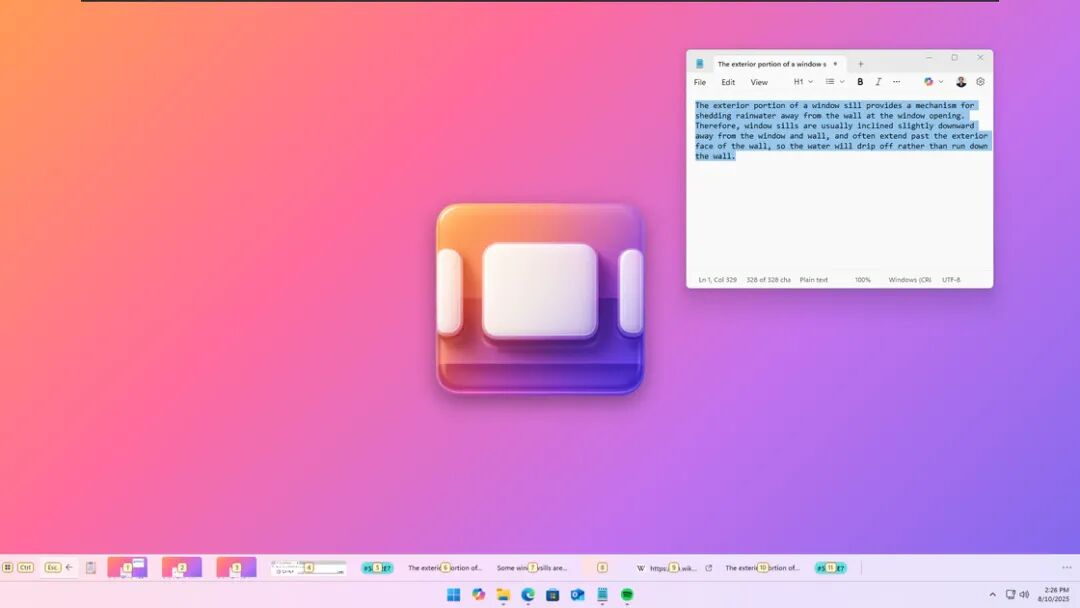
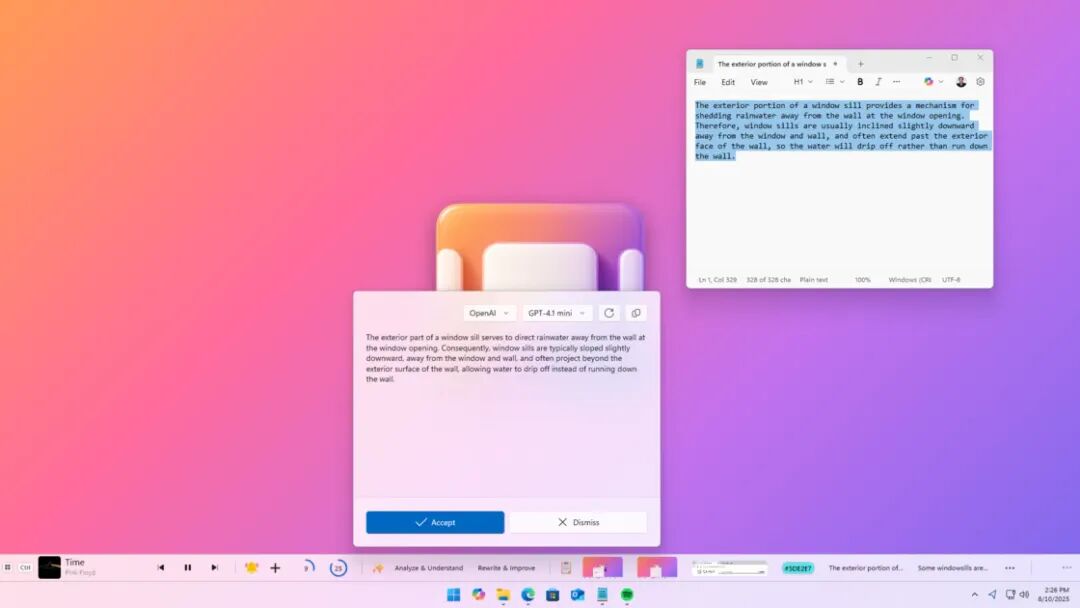
The main program of WindowSill and most of its extended functions are completely free, and the paywall is only set for AI and team collaboration functions. After subscribing to WindowSill+, you can use features including AI text analysis, AI rewriting, translation and grammar check, which brings all the AI text processing functions that Microsoft has been promoting on its various tools to the entire Windows system. You can use the built-in AI service provider, or use your own API Key.
If you also want to try this small but powerful tool, you can directly go to the Microsoft Store to install WindowSill, or visit its official website to learn more details.
Microsoft Store: https://apps.microsoft.com/detail/9PG6CJPXTPZ0?referrer=appbadge&mode=direct
Official Website: https://getwindowsill.app/
Original Link:
https://sspai.com/post/113438?utm_source=wechat&utm_medium=social
This article is from WeChat Official Account "sspai" (ID: sspaime), written by Bei Xiao, and is republished by 36Kr with authorization.