Take the full pack of bullet comments with you, and unlock the freedom of casual ranting on high-definition videos.
Editor's Note: This issue features a collection of community-submitted app recommendation articles from the Sspai Matrix platform. The content represents the personal views of the authors, who have direct vested interests in the products mentioned (such as being developers or owning the products themselves). Sspai has only made minor modifications to the titles and layout.

Table of Contents 1️⃣ Danmaku Play: Take your bullet comments anywhere 2️⃣ Tutti: One sound, playing across all your devices 3️⃣ DeskBox: Your desktop, finally organized the way you want

Danmaku Play
🧑💻 Belcheck | 💻 iOS / macOS / Android / PC / Web | Download Link
Bullet comments are one of the few things that make people keep coming back to Bilibili.
For some videos, I prefer to watch them on the original creator's YouTube channel or in my own high-definition media library: the picture is clearer, there's less compression, and it may retain more complete content. But without the burst of comments that scroll across the screen at the exact same timestamp on Bilibili, the viewing experience feels like something is missing.
Sometimes, what makes me laugh isn't the video itself, but the interaction between the footage and the bullet comments: a familiar line of dialogue, a recurring prop, or the moment a creator sets up a plot twist only for viewers to reveal the answer in the comments before it even happens on screen.
You can watch the video somewhere else, but that shared, collective viewing feeling is hard to bring along.
That's why I made "Danmaku Anywhere": paste a Bilibili video link, it only fetches the bullet comments without downloading or playing the video, then uses a transparent always-on-top window to overlay the comments on top of players like YouTube, Infuse, IINA, and QuickTime.
It now supports macOS and Windows, and is open-sourced on GitHub.
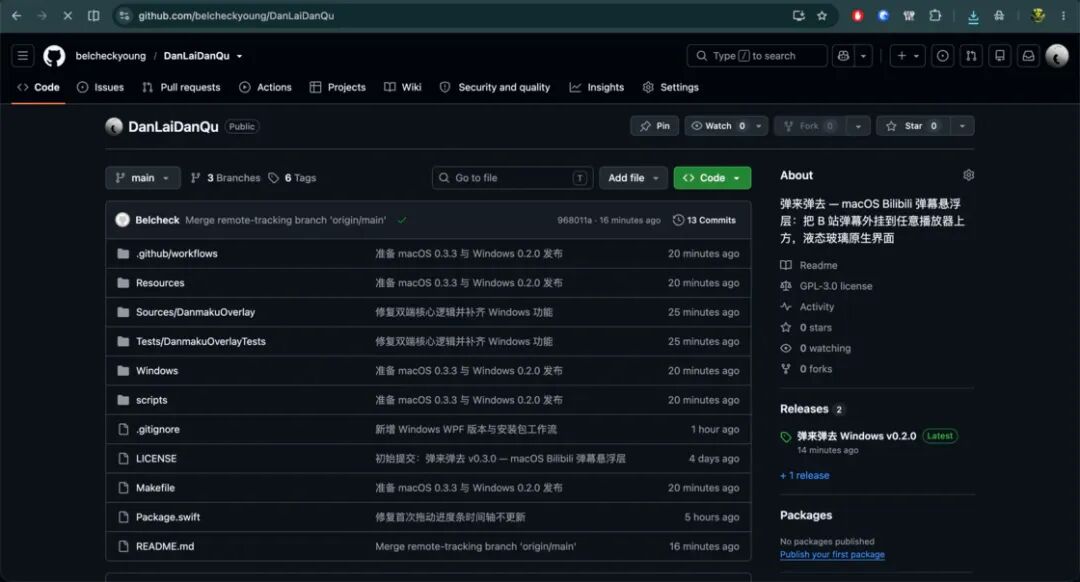
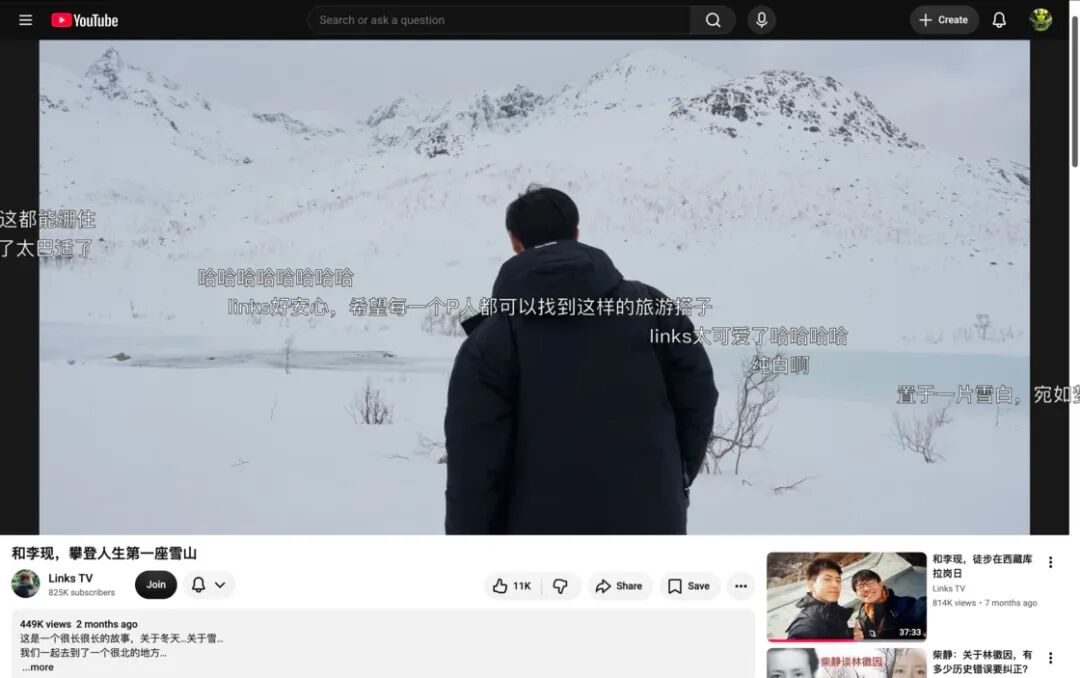
▍ Why choose between picture quality and bullet comments?
From a data perspective, videos and bullet comments are essentially two separate sets of content.
The video handles the visuals and audio; the bullet comments only need two pieces of information: what text to display, and at which second it should appear. That being the case, bullet comments don't have to be locked to a specific webpage or a single media player.
As long as you place a transparent, always-on-top bullet comment window above the video player, it makes no difference in windowed playback scenarios whether the content below is YouTube in a browser, your personal media library in Infuse, or local files in IINA or QuickTime.
At first, I thought this was a problem that should have been solved long ago.
But after searching, I found there are similar existing solutions: Danmaku Play on Windows supports overlaying bullet comments on designated players like PotPlayer, mpv, and MPC; Danmaku Anywhere can load comments for web-based videos; IINA and mpv also have their own dedicated bullet comment plugins.
But my specific needs fell right in the gaps between all these tools:
I don't want to switch away from my preferred player just to watch bullet comments;
I don't want the tool to take over or re-encode the video;
I want it to work both with browsers and native apps like Infuse and QuickTime;
Since none of the existing solutions fully met this overlap of requirements, I decided to build my own.
▍ An app that does nothing but bullet comments
The workflow for "Danmaku Anywhere" only has four steps:
Paste a Bilibili video link, supporting BV, av, multi-part episodes, and b23.tv short links;
Fetch the bullet comments corresponding to that video;
Enable the transparent bullet comment layer and position it over the video footage;
Open the matching video in any player, and complete a one-time time synchronization.
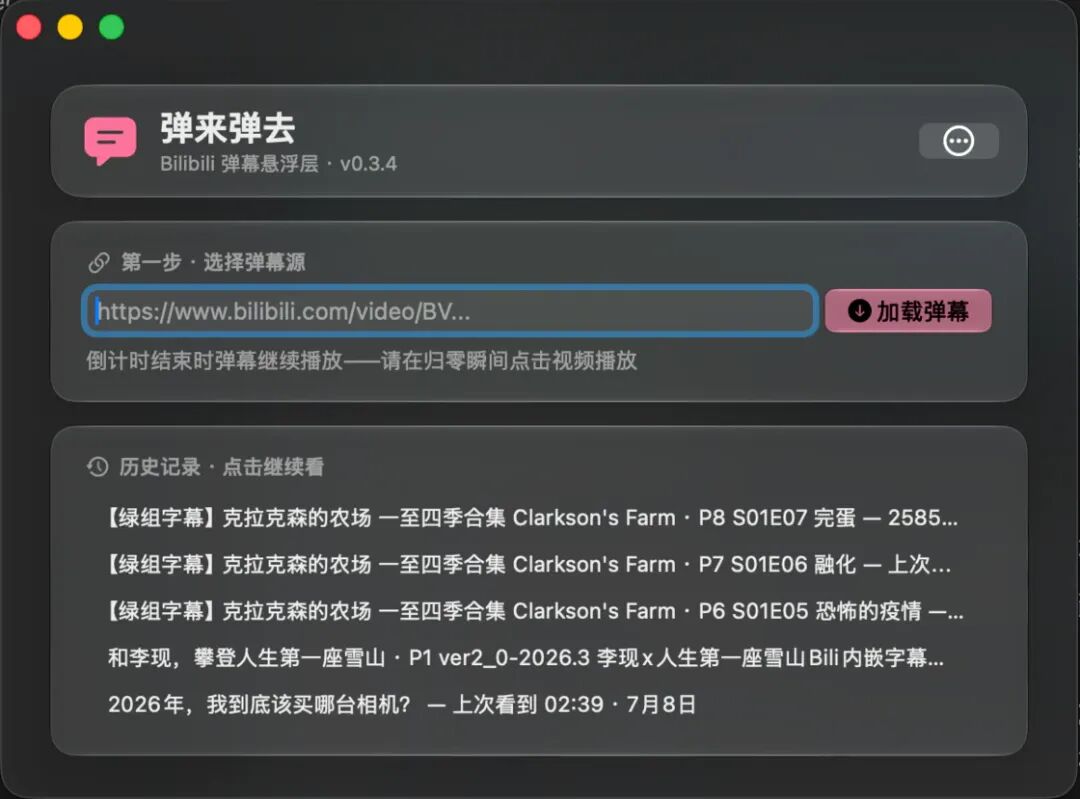

It never reads the video content itself, and has no idea what's playing underneath the bullet comment window. You can play your media library with Infuse, open local files in IINA, or watch YouTube directly in the browser. As long as the two versions of the video roughly match in content and timeline, you can combine them seamlessly.
The benefit of this design is its universality: I don't need to implement separate video loading logic for every single player, and I'll never run into issues with picture quality, subtitles, HDR, audio tracks, cloud disk protocols, or playback permissions.
It only handles the bullet comments, and leaves everything else to the player you've already chosen to use.
But this same universality also created the most troublesome problem of the entire project.
▍ How does it know where the video is playing?
The answer is: it doesn't.
Because "Danmaku Anywhere" doesn't read the status of the underlying player, it can't automatically detect if the video is playing, paused, or scrubbed to a specific second.
The ideal experience would of course be full automatic synchronization: when you pause the player, the comments pause too; when you jump to a new position, the comments jump along; when you adjust playback speed, both timelines stay perfectly aligned.
But to achieve that, I would need to build separate adapters for browsers, Infuse, IINA, QuickTime, and every other player out there. Some can expose their status via scripts or accessibility APIs, others can only be indirectly inferred, and some system-level full-screen modes don't allow external windows to overlay at all.
For a small tool built solely to solve my personal viewing needs, that could easily turn into a never-ending development task.
In the end, I chose a much simpler approach: let the bullet comments run on their own independent timeline, and sync it to the video with a single manual operation.
After loading the comments, click "Sync from 0 in 5 seconds", and a countdown will appear in the center of the comment layer. All you need to do is hover your mouse over the player's play button, and hit play exactly when the countdown reaches zero — this design means users never have to fumble awkwardly trying to line up the timestamps.

If the two timelines are slightly off, you can fine-tune them with ±1 second and ±5 second buttons, or enter an exact offset value directly. In my own use, as long as the two video versions don't have obvious differences in opening credits or editing, alignment usually only takes about ten seconds.
Once synchronized, the app saves the playback position and time offset for that video. Next time you open it from the history records, you can pick up right where you left off without recalibrating from scratch.
It's not as elegant as automatic sync, but it's simple enough, and reliable enough.
Of course, this solution has clear boundaries: if the opening credits differ between the two versions, you can fix that with an offset; but if there are cuts or re-edits in the middle of the video, the comments might drift out of alignment again later. Universality isn't free — it just swaps the complexity of "adapting to every single player" for the occasional quick manual calibration by the user.
▍ A truly great tool should try its best to "disappear"
The bullet comment layer sits on top of the player, but it shouldn't interfere with normal player operations under normal circumstances.
That's why I added "mouse penetration": when enabled, clicks, dragging the progress bar, toggling full-screen, and all other interactions will pass straight through to the player below. When you need to adjust the position or size of the comment layer, you can temporarily disable penetration — a border will appear around the window, letting you drag and resize it freely.
The main app window is also streamlined into just two core steps: the first page lets you select a comment source, either by pasting a link or resuming from your viewing history; the second page only keeps play/pause, progress control, sync, and fine-tuning controls. Less frequent functions like playback speed adjustment, clearing the screen, mouse penetration, and import/export are all tucked away in secondary menus.
While watching a movie, I almost never switch back to the main window — I use global keyboard shortcuts to control the bullet comments instead:
Play or pause the comments;
Fine-tune the timeline forward or backward by 1 or 5 seconds;
Resync from the current timestamp;
Show or hide the entire comment layer.
These seem like tiny little features, but they directly determine whether an app is something you only demo once, or something you'll actually choose to open every time you watch a video.
▍ From "it runs" to "I want to keep using it"
The very first version only did four basic things: parse the link, fetch the comments, render the comments, and start or pause the comment stream.
Nearly every other feature was added in response to frustrations I encountered during actual daily use.
When dragging the progress bar, the timestamp number wouldn't update in sync; after clicking play, the button icon wouldn't switch to the pause state; the main window had too much unnecessary information; after enabling mouse penetration, it was hard to find the control window again; after long viewing sessions, the two timelines would drift slightly out of sync.
None of these issues were severe on their own, but they made all the difference between a "working demo" and a tool you actually want to keep opening over and over.
So I added proper playback state tracking, viewing history, progress saving, global shortcuts, offset fine-tuning, window position memory, display area controls, density adjustment, and filtering functions. The timeline and window states also went through automated testing, to make sure fixing one bug wouldn't break another existing use case.
The most easily overlooked part of utility apps is almost never the core feature itself — it's the dozen or so tiny little actions that happen right before and after that core feature.
▍ macOS's Liquid Glass, and the later Windows version
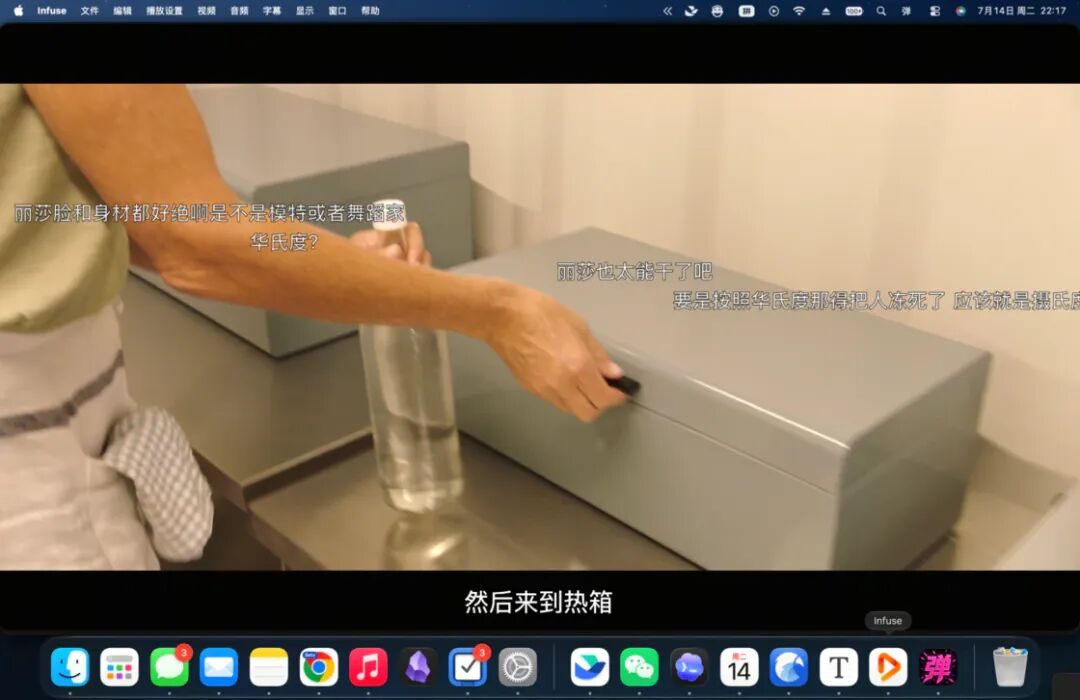
The macOS version is built natively with AppKit, and uses the Liquid Glass interface from macOS 26 Tahoe. The main control window uses glass-material cards and buttons, with a pink-tinted accent color in dark mode — I wanted it to feel like a native system utility, not a player wrapped in a web shell.
The tradeoff for using new system APIs is straightforward: the macOS build currently requires macOS 26 or later. Rebuilding the entire interface to support older operating systems would add a lot of maintenance overhead for this personal project, so in the first phase I chose to prioritize perfecting the user experience first.
Later, I also built a native Windows 10/11 x64 version. It's developed with .NET 8 and WPF, and includes all the same features: transparent always-on-top comment layer, mouse penetration, multi-part video support, timeline sync, filtering, viewing history, and global shortcuts. The installer is self-contained, so users don't need to install the .NET Runtime separately.
The two versions don't aim for identical visual designs, but they work the exact same core way: your original player handles the video, and an independent dedicated window handles the bullet comments.
▍ Bullet comments don't have to cover up the picture
A friend tried it out and mentioned a use case I hadn't thought of at first.
When you're watching a classic movie, or an animation with exceptionally beautiful cinematography and art direction, you want to fully appreciate the composition, lighting, and fine details. The comments are still fun, but having lines of text constantly drift across the characters and carefully crafted shots can sometimes ruin the viewing experience.
On the Bilibili native player, the comments and video always share the same canvas. Even if you adjust opacity and the display area, you usually still have to manually toggle comments on and off to keep key shots completely unobscured.
But the comment layer in "Danmaku Anywhere" is itself a fully independent window that you can freely move and resize to any proportion, and position anywhere on screen. That means bullet comments don't have to sit on top of the video at all.
If you only have one screen, you can place the video window on the top half of the display, and the comment layer on the bottom half: the top shows the full un