Integrating an infinite canvas into Codex, AI image editing can now precisely modify any targeted area as intended.
Communicating with Coding Agents like Codex and Claude Code is often like standing by a wishing well, tossing coins at the turtles in the pond while mumbling to yourself. And surprisingly, it actually fulfills your wishes.
Therefore, for many people who don't understand code, the excitement brought by Codex is obvious to the naked eye —
It makes people feel for the first time that they can also command the computer to do work.

https://x.com/zhongerxin/status/2068027614300893383
In the past six months, on social media, the ways to use Codex have become more and more wild. Some people ask it to write web pages, some ask it to create reports, some ask it to manage files. And a netizen @zhongerxin has come up with a more intuitive way to use it:
Put the canvas into Codex.
He modified a local infinite canvas plugin called Cowart based on tldraw, allowing Codex not only to read text prompts but also to see the arrows, annotations, and position markers that users make on the canvas. Its function is to enable the AI to make targeted modifications when altering images.
Escape from the chat box. The canvas is the promised land for AI.
Before introducing Cowart, we need to mention tldraw.
tldraw can be understood as an infinite whiteboard running in the browser.
It is built on React, providing a complete canvas engine with built - in whiteboard tools, pressure - sensitive drawing, geometric shapes, rich text, arrows, shape adsorption, support for pictures and videos, and the ability to export images.
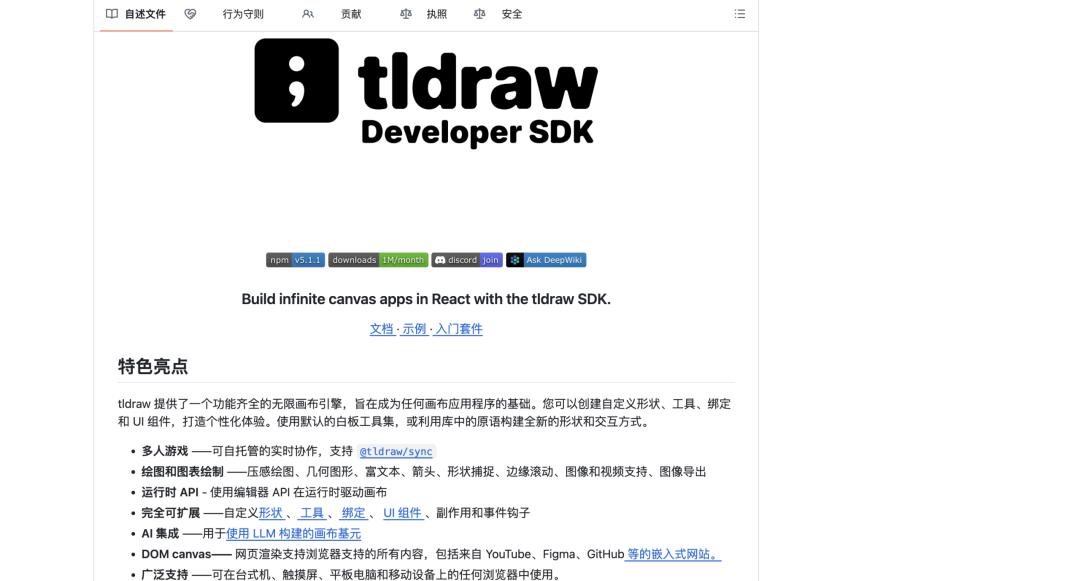
Github address 🔗 https://github.com/tldraw/tldraw
Developers can customize shapes, tools, binding relationships, and UI components based on it, and expand it into various types of canvas applications.
What Cowart does is build a local visual canvas based on tldraw, allowing users to conceive, annotate, and generate pictures on the canvas, and then hand the annotations to Codex for further modification.
The way to use it is not complicated.
When installing Cowart, you can directly send the following text to Codex and let it automatically complete the plugin installation:
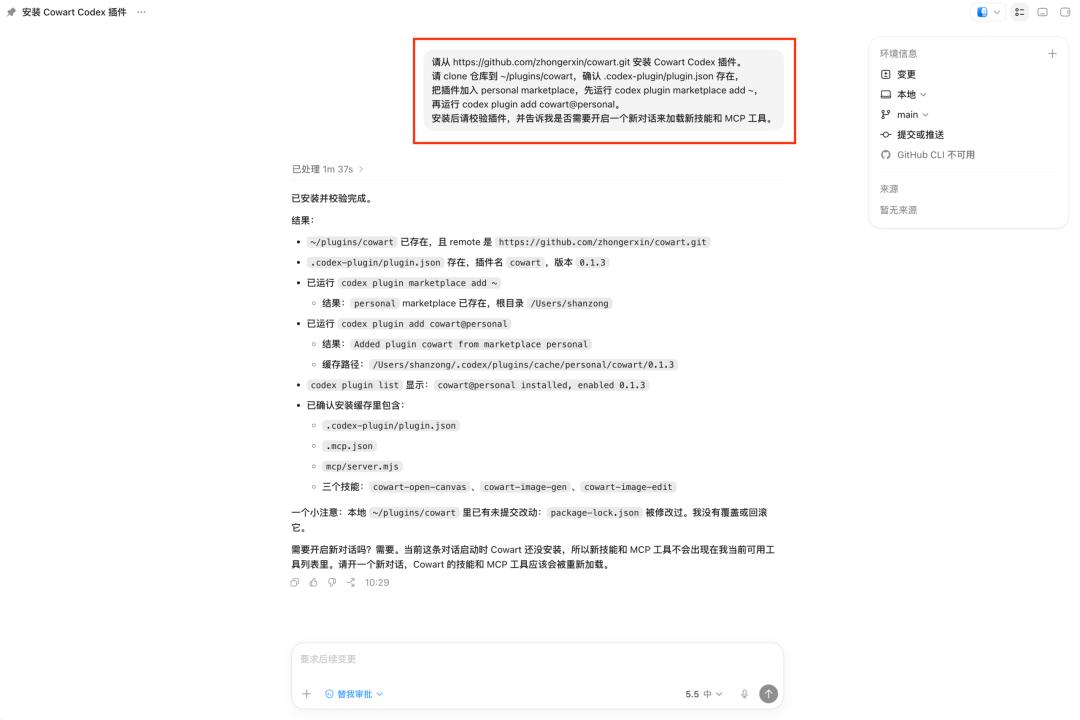
Please install the Cowart Codex plugin from https://github.com/zhongerxin/cowart.git.
Please clone the repository to ~/plugins/cowart and confirm the existence of .codex - plugin/plugin.json.
Add the plugin to the personal marketplace. First, run codex plugin marketplace add ~.
Then run codex plugin add cowart@personal.
After installation, please verify the plugin and tell me if a new conversation needs to be started to load new skills and MCP tools.
After the installation is complete, usually, you need to start a new Codex conversation to fully load the new skills and MCP tools. When using it, you can directly enter in Codex:
Help me open the Cowart canvas.
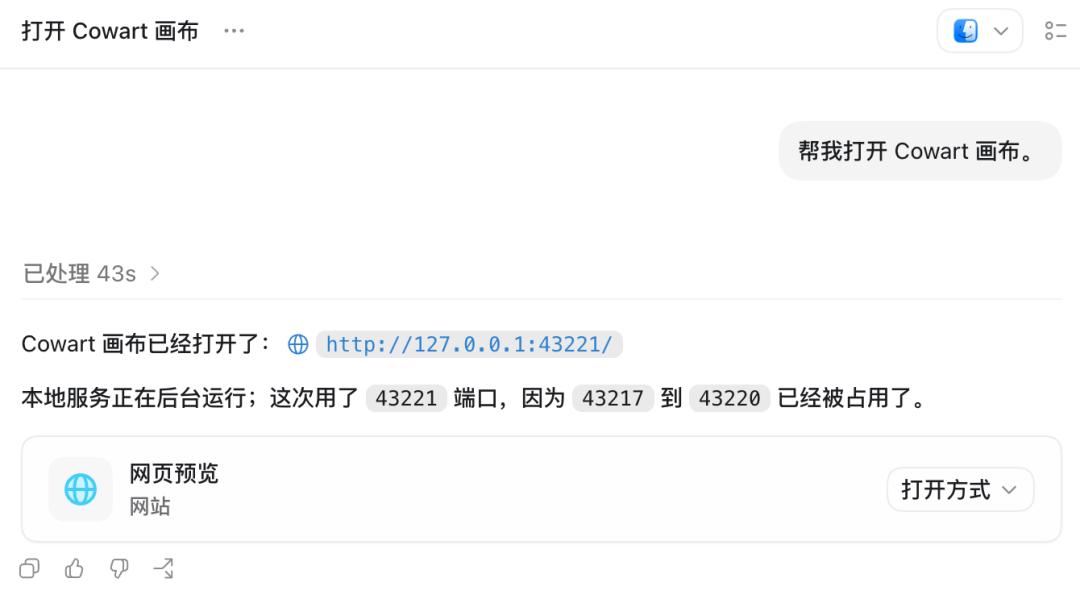
In actual tests, Cowart will start a local web service and provide a preview entry in the conversation. Then the subsequent operations are very simple.
For example, to call the Cowart plugin, continue to enter in the conversation:
Help me generate an oil painting of "Mona Lisa" in the original style of Leonardo da Vinci.
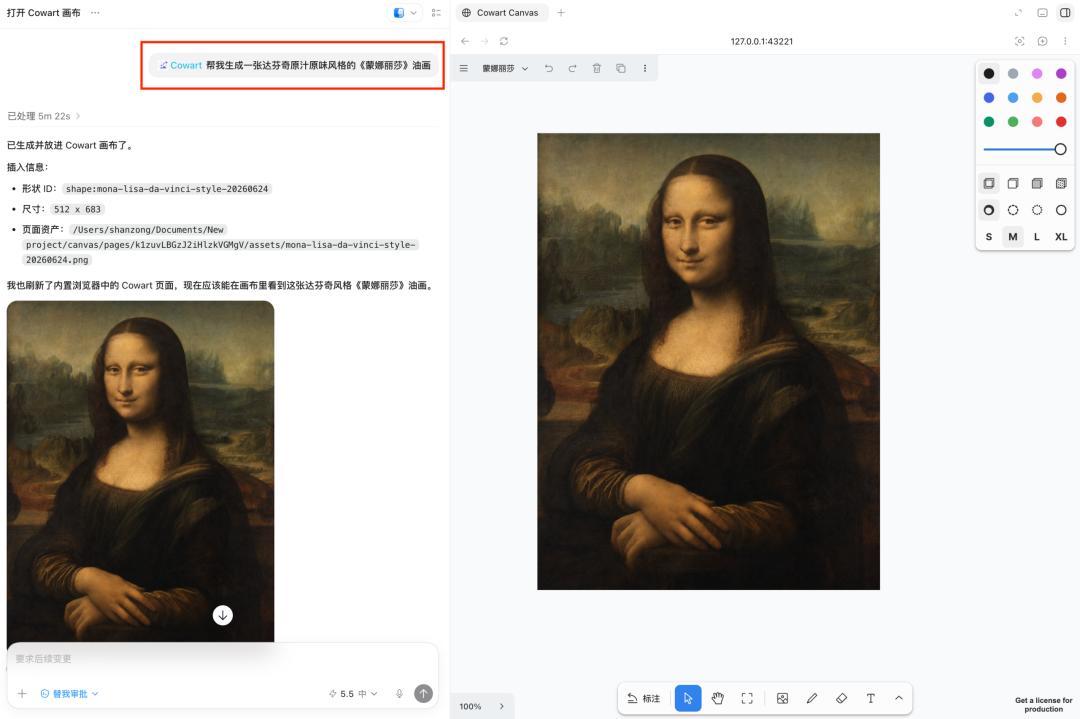
Subsequently, Codex will generate an image and put it into the Cowart canvas. You can see the generated "Mona Lisa" image on the right - hand side of the canvas. Subsequent modifications can be made directly around this image.
Next, I make two annotations on this image in the Cowart canvas.
For the first annotation, draw an arrow at the position of the character's eyes and write "Put sunglasses on the eyes". For the second annotation, draw an arrow at the position of the hands and write "Hold a glass of juice in the hand".
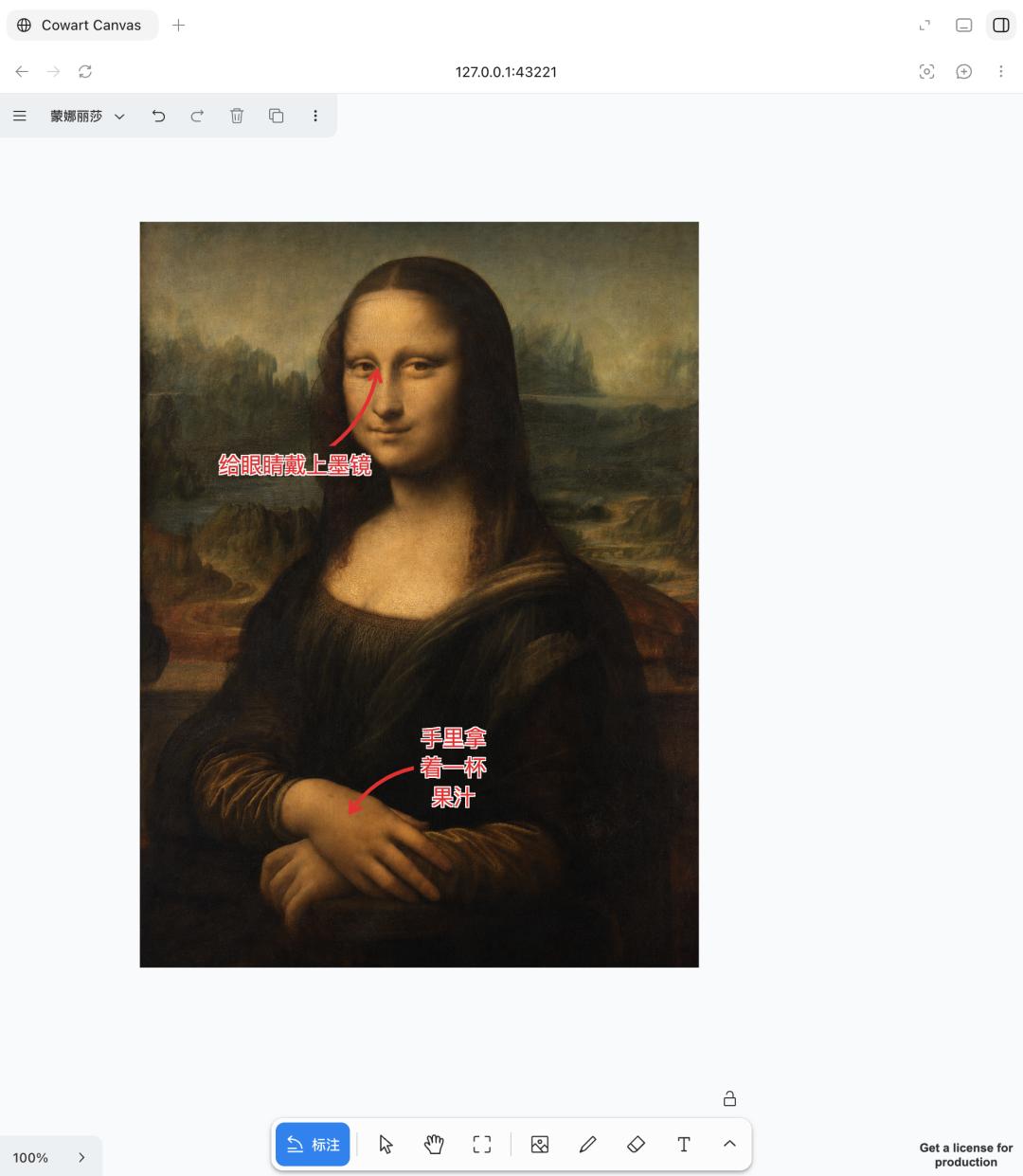
After completing the annotations, send this Cowart annotation screenshot to Codex and enter:
Use my Cowart annotation screenshot to generate a clean revised image and place it next to the original image.
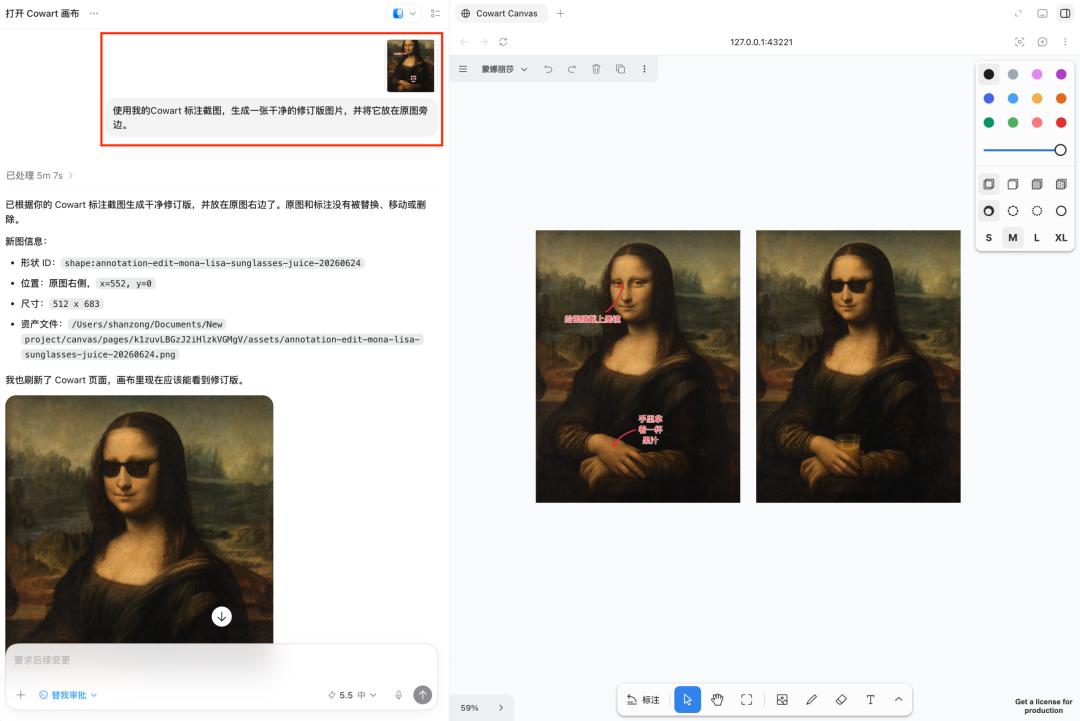
Codex will then generate a new revised image based on the annotation screenshot.
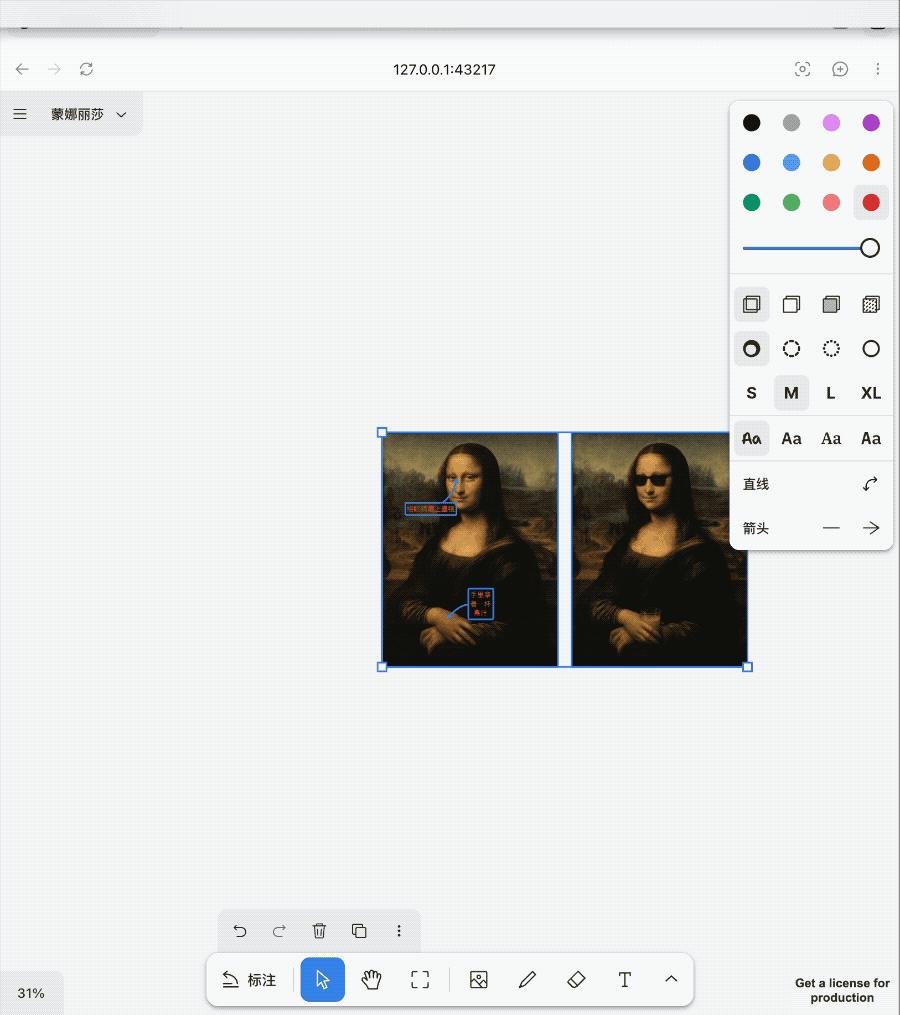
In the 2002 movie "Minority Report" by Steven Spielberg, the character played by Tom Cruise stands in front of a floating screen, using gestures to drag, select, and retrieve data. What was originally abstract retrieval, judgment, and information organization is filmed as a direct spatial operation: wherever you look, when you reach out your hand, the information moves accordingly.

Of course, the canvas annotation of Cowart is not as sci - fi as that, but the corresponding interaction intuition is the same.
In the past, users had to translate the pictures in their minds into a long string of prompts. Now, they just need to draw an arrow on the picture and write the requirements beside it. What the AI sees is no longer just a vague description like "modify this place", but also the position, direction, and context relationship.
Let's look at another case of product image production.

First, let Cowart generate a minimalist - style take - away coffee cup on a blank kraft paper placed on a wooden table. Then, annotate "Change the background to a campsite" in the background area and "Add a Shiba Inu logo" in the middle of the cup body.
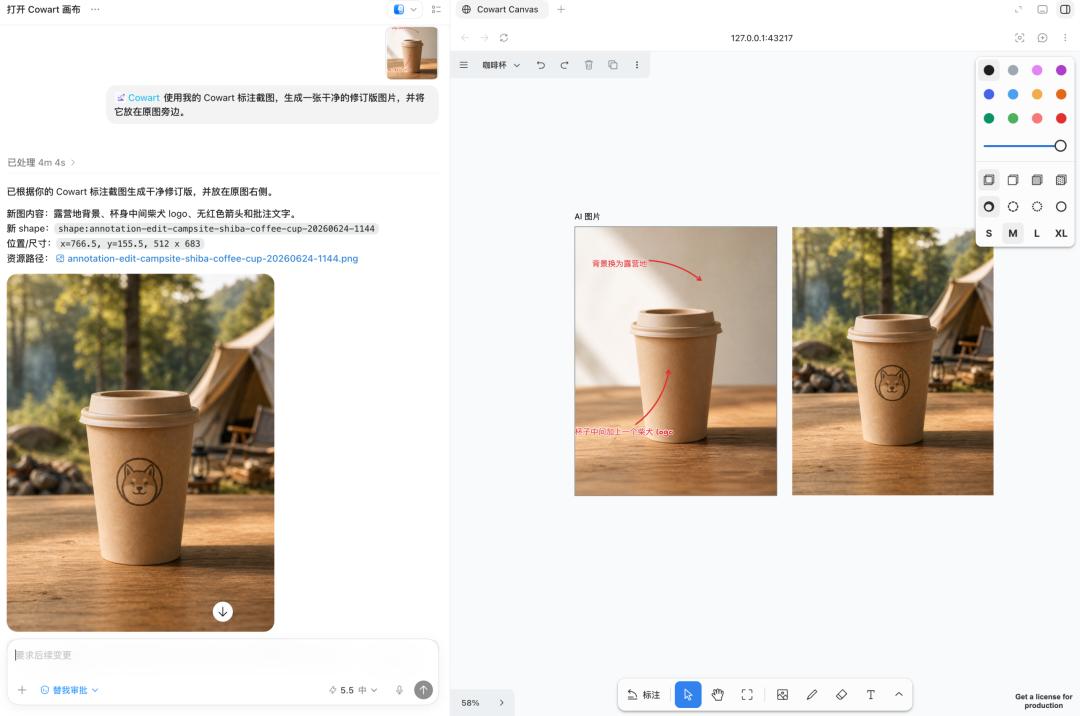
The final result is as expected.
When Cowart turns the position description in AI image modification into canvas annotation, users no longer need to repeatedly explain spatial relationships like "upper left corner", "slightly to the right in the middle", or "the position of the hand". They can just point it out on the picture to Codex.
This "canvas + annotation + image generation" interaction of Cowart is not only bound to Codex. As long as the Agent client can call the local MCP tools, access the local canvas service, and use the image generation ability, a similar way of use can be migrated.
The developer Chloe Tian (@tllll64) has created an adapted version of WorkBuddy. Those who are interested can give it a try.
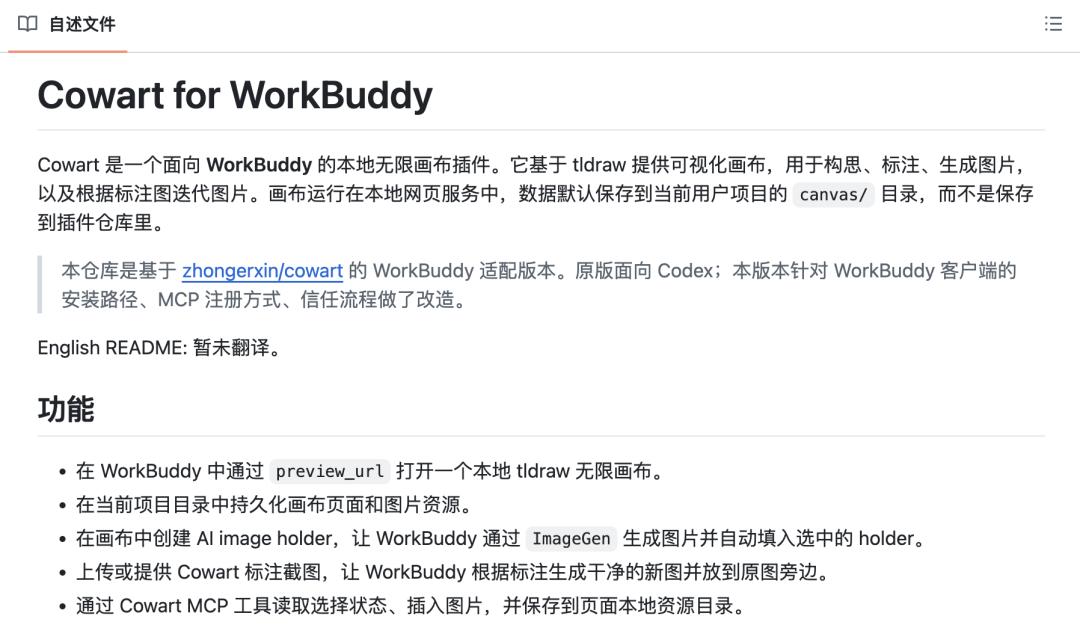
Github address 🔗 https://github.com/tllll64/cowart_workbuddy
However, although Cowart has a promising future, the current experience is still relatively rough:
It has a slow response. You have to wait from opening the canvas to generating and modifying. It consumes a high quota. The cost will visibly increase if you try a few more versions. It is also prone to disconnection — the canvas, local service, and MCP tools are occasionally out of sync. Codex cannot read the selected area or insert the result, and you have to reopen the canvas or restart the conversation to fix it.
Codex is becoming the AI "workbench" for office workers.
The plugins and application cases of Codex have actually been underestimated by the market. If you look through the OpenAI official website, you can find many interesting cases covering a series of scenarios such as inbox management, automatic computer operations, front - end development, game development, native application development, and production system maintenance.
In these cases, the tasks undertaken by Codex are no longer just writing a few lines of code. It can help users manage their inboxes, find important emails, and draft replies in the user's tone. It can click, input, and operate applications on a Mac.
It can follow a long - term goal and continuously handle complex tasks. It can also clean table data, query CSVs and spreadsheets, review GitHub pull requests, generate front - end interfaces based on screenshots, and even automatically generate slide decks.
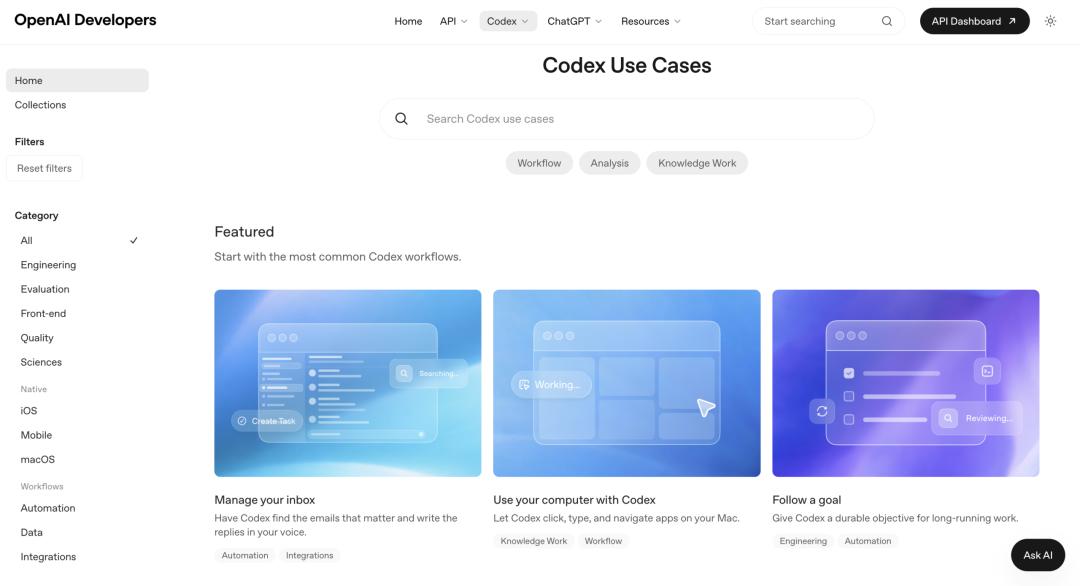
https://developers.openai.com/codex/use - cases
The white paper "How OpenAI uses Codex" published by OpenAI shows that Codex is already in daily use in teams such as security, product engineering, front - end, API, infrastructure, and performance, based on internal interviews and data summaries. Its main applications can be classified into seven categories:

https://cdn.openai.com/pdf/6a2631dc - 783e - 479b - b1a4 - af0cfbd38630/how - openai - uses - codex.pdf
Best practices include: First, plan in Ask Mode and then execute in Code Mode. Optimize the operating environment and permission configuration. The prompt should be similar to a GitHub Issue and provide sufficient context. The team also uses the task queue as a lightweight backlog, provides long - term context with the help of AGENTS.md, and uses Best - of - N to generate multiple solutions for complex tasks and then selects the best one.

Function plugins like Cowart are essentially in line with this direction.
Conversations are linear, while creation is often spatial and divergent. Users point out positions on the canvas, and Codex calls local tools to read the status, generate images, insert them into the