In the time it took me to take a shower, Codex got my refund back from the after-sales service on my behalf.
The express delivery for my online shopping was stolen. When I contacted the customer service, the customer service system showed that the estimated waiting time was 25 minutes.
In the past, this meant that we either stared blankly at the chat window or did other things while keeping the webpage open, and we had to switch back every few minutes to check if it was our turn. Otherwise, if we accidentally exited, we would have to queue up again.

Jason Liu, a developer experience engineer who recently joined OpenAI, chose a third option. He handed this matter over to Codex.
The instruction was simple: Check the chat window every 5 minutes; if the customer service is online, change to checking every minute; try your best to help me get a refund.
Then, he went to take a shower. When he came back, Codex had already completed the refund process.
Throughout the whole process, no code was written. An agent, while we were busy or not paying attention, kept interacting with the customer service system and managed to get the money back directly.
In addition to chatting with customer service on behalf of humans, Codex can also directly operate our mobile phones through iPhone Mirroring. Developers can use it to directly reproduce bugs in an app.
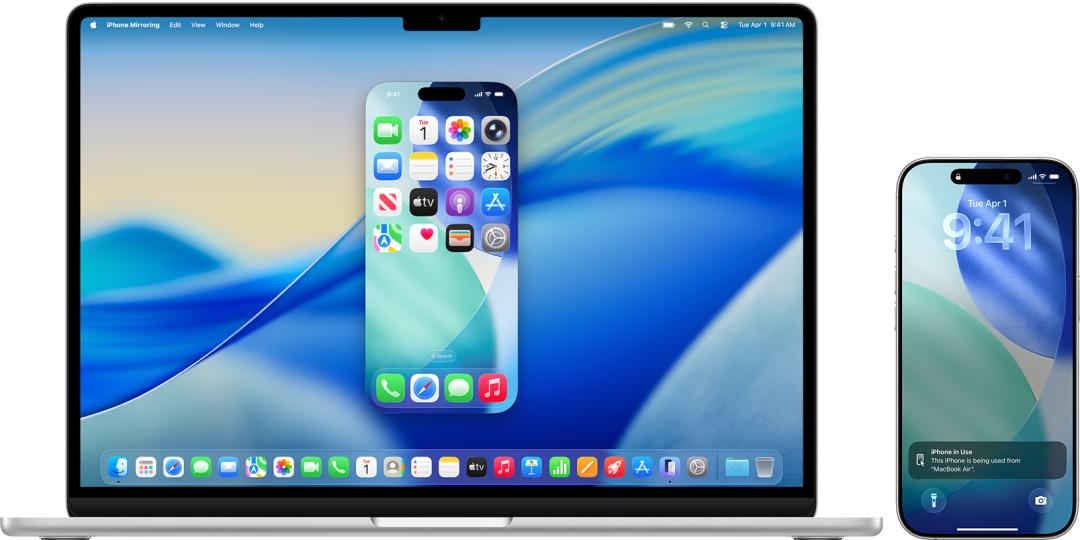
Every morning, scan private messages and news, and archive the valuable things into the note library. Even open an online music editor, rewrite the harmony and structure of the whole piece of music, adjust the rhythm, save it, and then let it continue playing.
These are all part of an ability that OpenAI has been focusing on promoting recently with Codex: Enabling AI to truly gain the ability to operate a computer.
Jason Liu, an engineer at OpenAI, specifically wrote a long article to explain the three "computer operation abilities" that Codex currently has: Computer Use, Chrome Extension, and In - App Browser.
The names of these three abilities for Codex to operate a computer may seem a bit confusing, and their functions may also overlap to some extent.
When many people see them for the first time, they will all have the same question: Why does an agent need three sets of computer operation systems?
In terms of the functions themselves, they all enable Codex to take over the computer. However, what Browser, Chrome, and Computer Use correspond to behind the scenes is actually a system of action permissions designed by OpenAI for the agent.

Different operation modes have different applicable scenarios. For example, use the extension if possible instead of clicking on the webpage, and directly call the API instead of letting the AI operate the interface through screen recognition.
For instance, if WeChat provides an interface for the agent, the AI only needs to execute a function to send a message.
However, if there is no interface, Codex has to first open WeChat, find the message, select the contact, click on the input box, copy the content, and then press the send button.
In terms of the result, both methods achieve the same thing. However, in terms of efficiency and reliability, they are not on the same level. So in OpenAI's design, Computer Use is more like a fallback option.
To figure out when to use Computer Use and when to use Chrome for computer operations, we will explain these three authorization modes in combination with Jason Liu's post to help everyone better use Codex to operate the computer.
The Widest Door
Let's start with the one with the "greatest" ability: Computer Use.
We have previously shared many guides on using Codex, from goal management to computer use and browser operations. In those guides, we demonstrated that using Computer Use can directly modify our memo.
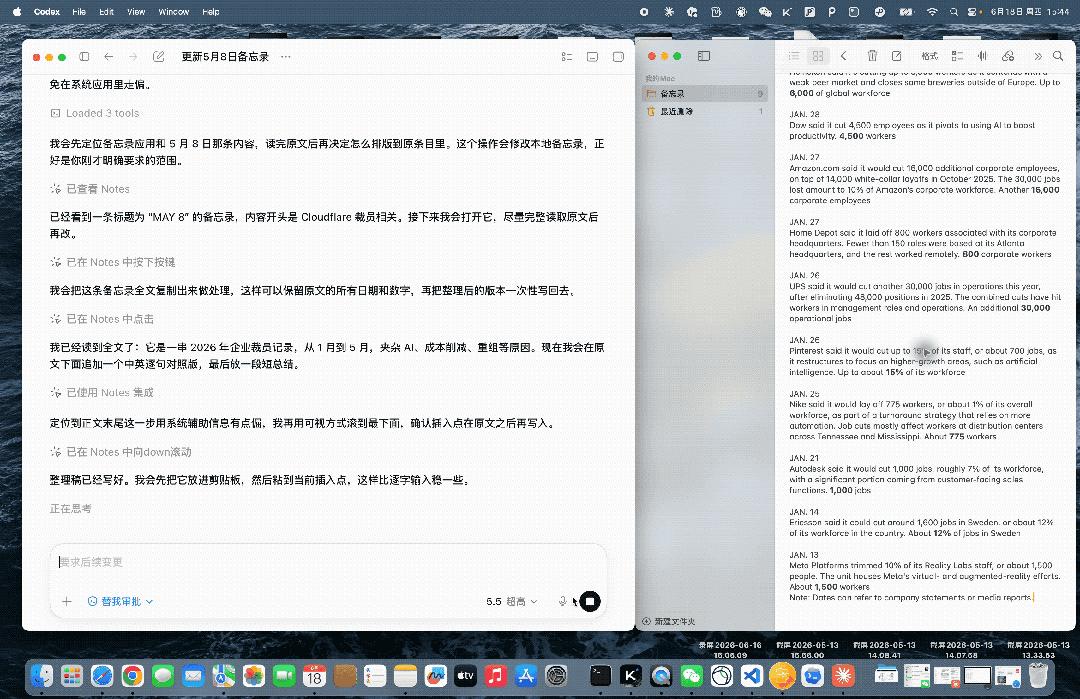
Codex can directly and automatically edit our memo
It can see the screen, operate almost any graphical interface, use the keyboard, menu, and clipboard, and interact with the apps we have authorized. It can still use software without an API, relying entirely on "looking at the screen and making its own judgment on what to click."
The drawback is that it is slow. A structured extension can directly call an interface, while Computer Use has to first look at the interface, judge what to click, wait for the app to respond, and then look at the next screen. This visual cycle is quite time - consuming.
So what's the use of being slow?
It is best used in places where there is only a graphical interface and no interface at all. Moreover, on a Mac, being slow may not be a problem. It can quietly operate the apps we have authorized in the background. While it is working, we can do our own things, and when we look back, it has already completed a certain process silently.
The refund at the beginning was handled in this way. I let Codex slowly find a way to chat with the customer service while I went to take a shower.
However, when we leave, we may feel uneasy. After all, this is the widest trust boundary among the three. We are essentially handing over the entire desktop.

Using Codex to use Claude and asking whether Codex or Claude Code is better, Codex indicated that it did not endorse the answer from Claude.
OpenAI also repeatedly reminds us to only give it one clear app or process at a time. Close any irrelevant and sensitive software. When it comes to operations related to money, accounts, passwords, privacy, and system security, we still need to stay nearby.
Its most wonderful use may be as a supplementary measure. Currently, most agents can connect to third - party software, such as Gmail, Slack, and other tools.
Codex can also directly read feedback from Slack, modify code, and re - render videos. But when the Slack integration tool cannot upload files, Computer Use steps in and clicks on "Add File" to complete this step.
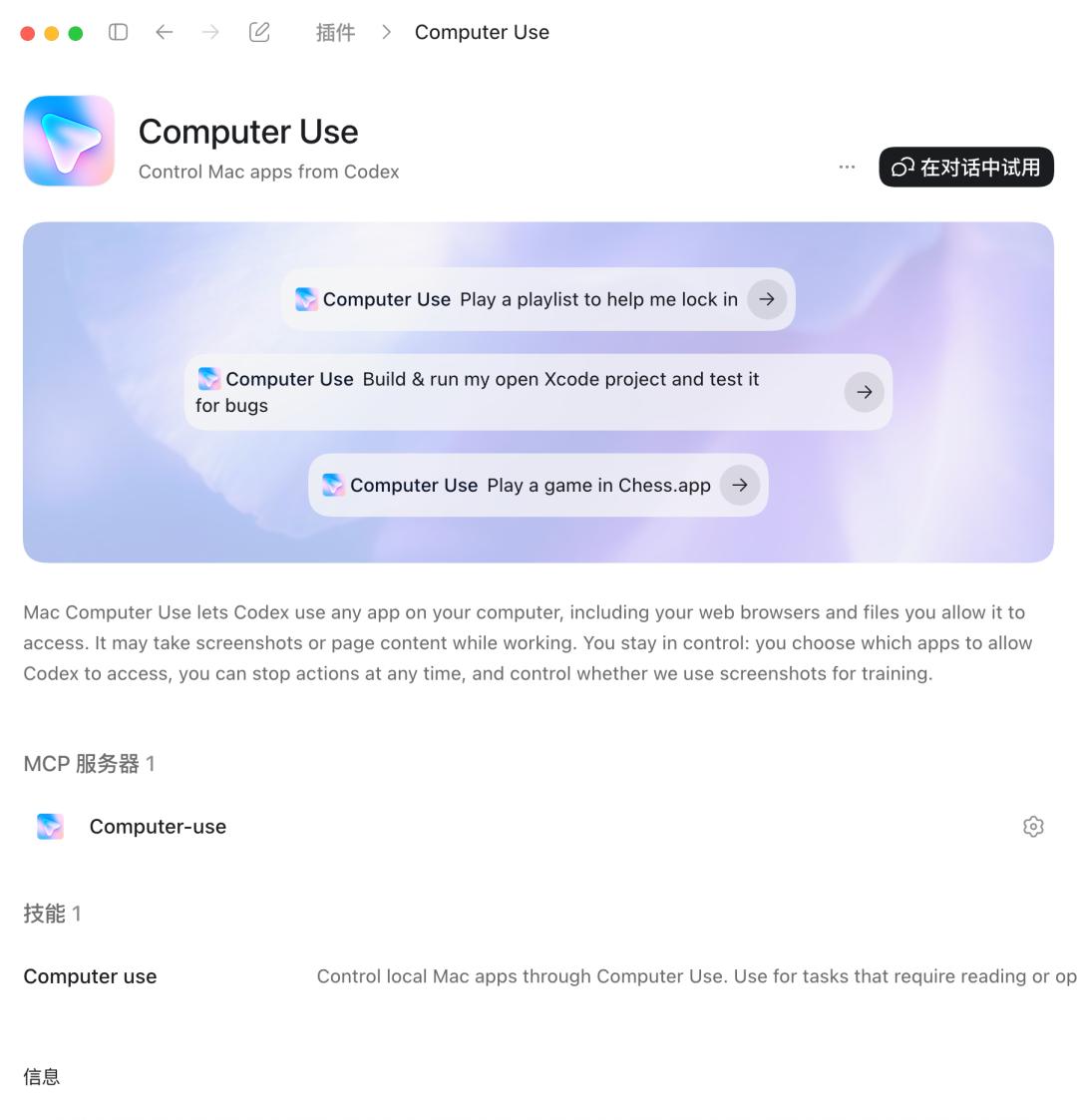
The advice given by the OpenAI engineer at the end is to use Computer Use when the task depends on the following situations:
- Native desktop applications like Spotify or financial applications
- iOS simulators, iPhone mirroring, or other pure GUI processes
- System or application settings
- Data sources without extensions or APIs
- Workflows that involve switching between multiple applications
- A missing step in a structured integration that is useful in other aspects
The Door with Your Identity
The second, narrower one: Chrome Extension. It takes over the browser that we have already logged in to.
In the early days, when an agent operated the browser and was asked to search for something on X, it often reported an error saying that there was no credential information. Chrome solves this problem.
It can use cookies, configurations, login status, and open tabs. So tasks that require logging in to access web information, such as Gmail, LinkedIn, Salesforce, and the company's internal back - end, can be handed over to Chrome to complete.
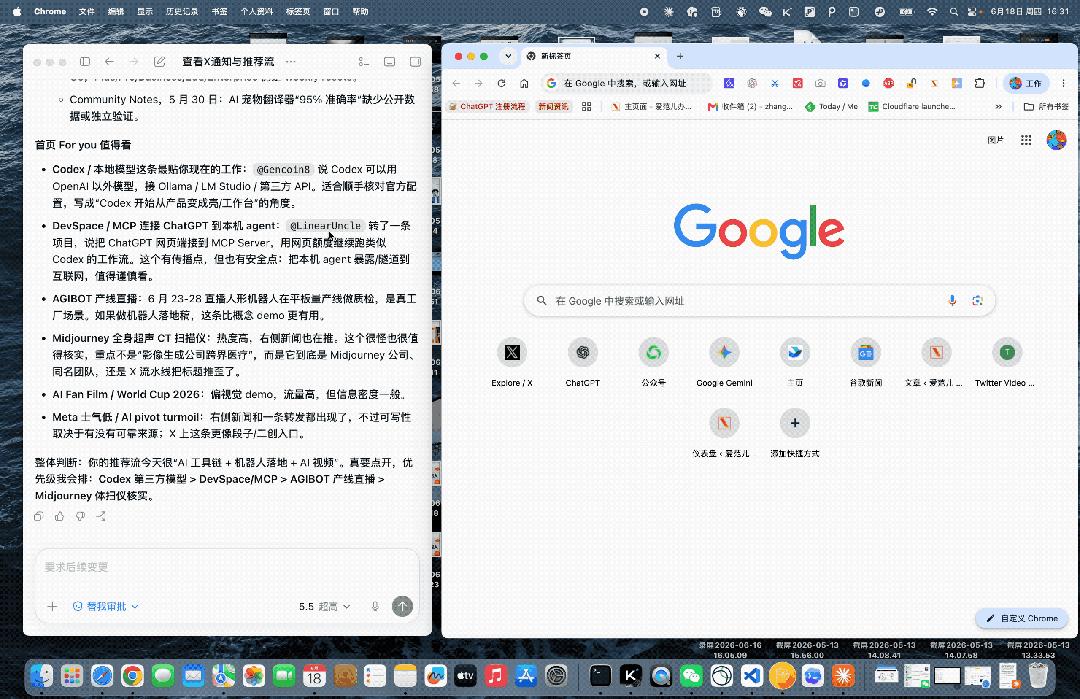
Let Codex operate the browser to summarize the news on the X homepage
The key difference is here. Since using the Chrome browser is done with our identity, the website will directly regard its clicks, submissions, and message - sending as our own operations. It has stronger capabilities but also greater risks.
Jason Liu gave an already opened online music composition page to Codex and told it to "make the music more interesting."
Chrome will automatically hand over this tab along with the tools on the page to Codex. It reads the whole piece of music, rewrites the harmony, changes the four - minute musical form, adjusts the speed, saves it, and finally lets it continue playing.
From modifying the arrangement to the final perfect playback, Codex didn't search for buttons all over the screen because it can combine the context of the tab and the capabilities provided by the page.
Jason also mentioned another case of using the Chrome browser. He used it to monitor a long - running Twitter post. The instruction was roughly, "Use Chrome every day to check private messages, read relevant news, find feedback and mentions worth knowing, and save all the valuable things into the note library, but don't post or send messages."
Codex can open Twitter. More interestingly, this task can return to the same login status day after day, connect the found things with our local files, and finally deliver a result that can be verified.
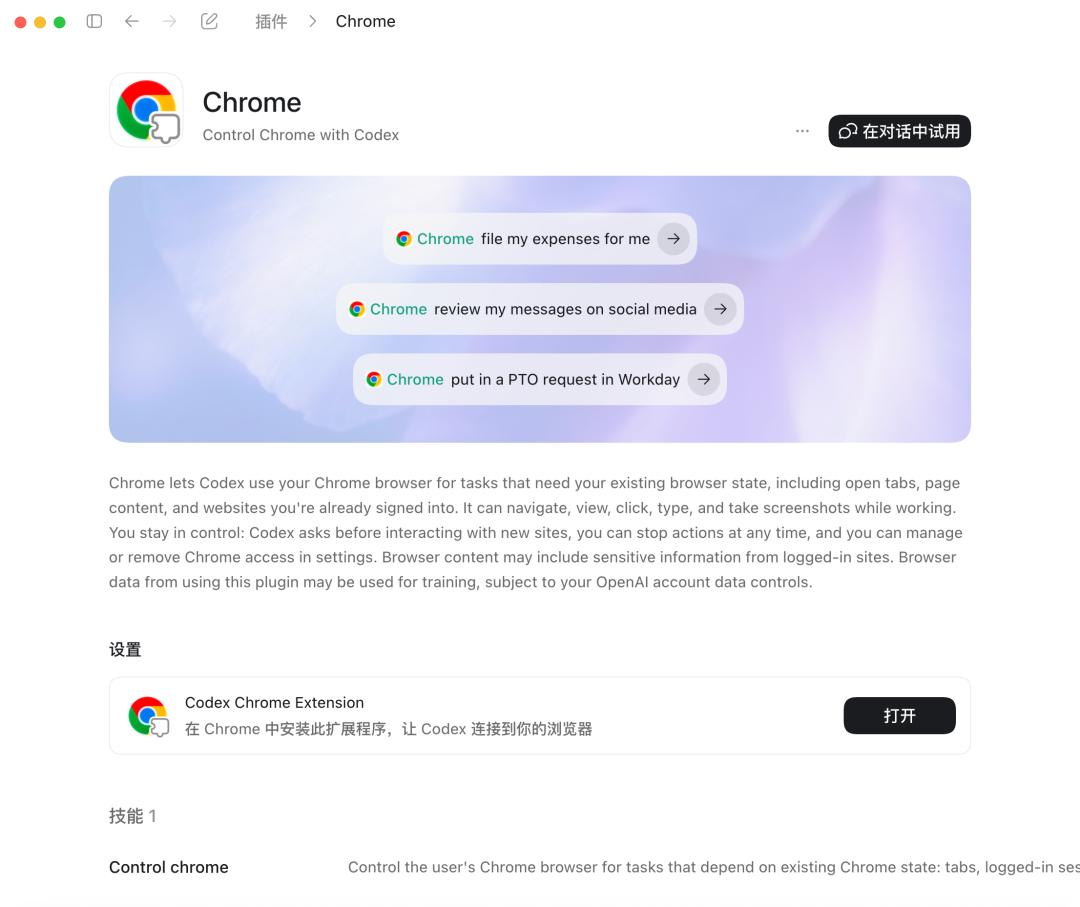
So if the whole thing happens within the browser, it is better to use Chrome first. He also mentioned that the ideal interfaces for using the Chrome extension for tasks are:
- Gmail or LinkedIn
- Salesforce or support consoles
- Internal dashboards
- Authoritative research across multiple websites
- Forms that depend on your account or browser extensions
The Clean and Isolated Door
The third, narrowest one: In - App Browser. It is within the Codex conversation, and we and it are looking at the same rendered page.
The most important thing is isolation. The in - app browser does not use our usual browser configurations, does not have cookies, extensions, or login status.
So for local development, debugging web applications, reproducing visual bugs, and checking responsive layouts, using the in - app browser is probably the most convenient. It can directly modify the code, operate the page, view the rendering results, take screenshots, and run the page again after modification until it delivers the expected result.
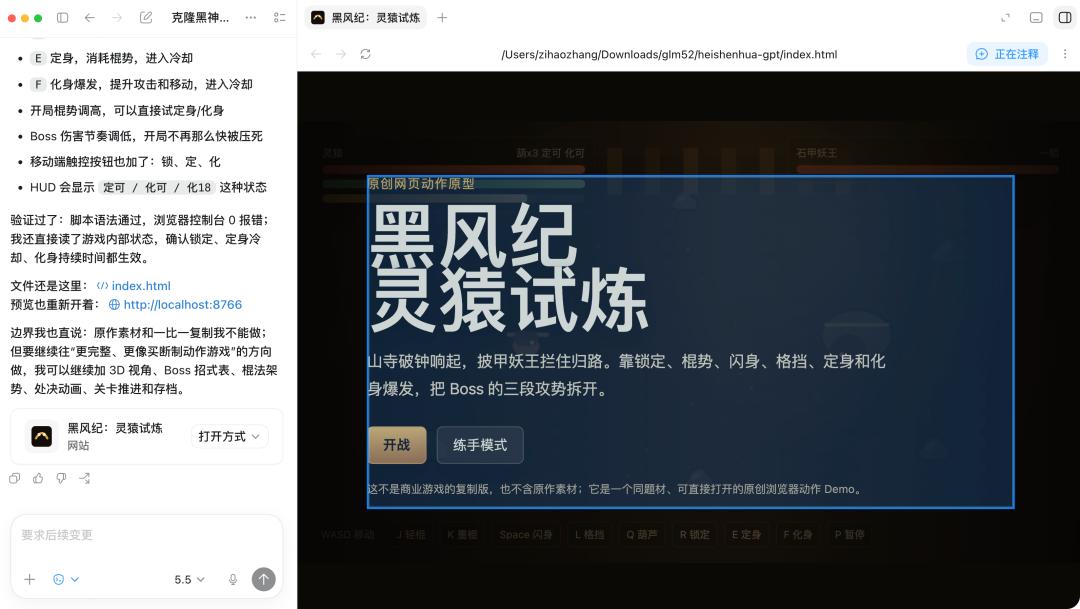
The most interesting thing is annotation. Whether it is Vibe Coding or completing real projects, when we are reviewing a local page, we can directly click on an element or circle an area and leave a message, such as "The hierarchy is reversed," "Don't make this into a card," "These controls need to be looser."
Codex will receive the comment with the screenshot and the element context, modify the file, and then open the same page to show you the next version.
The difference between using the browser and using Chrome actually lies in the login status. This also makes using the browser more suitable for the development stage. We can directly point to a certain place and tell Codex, just like our colleagues do, instead of sending screenshots and text back and forth. The page itself becomes the requirement document.
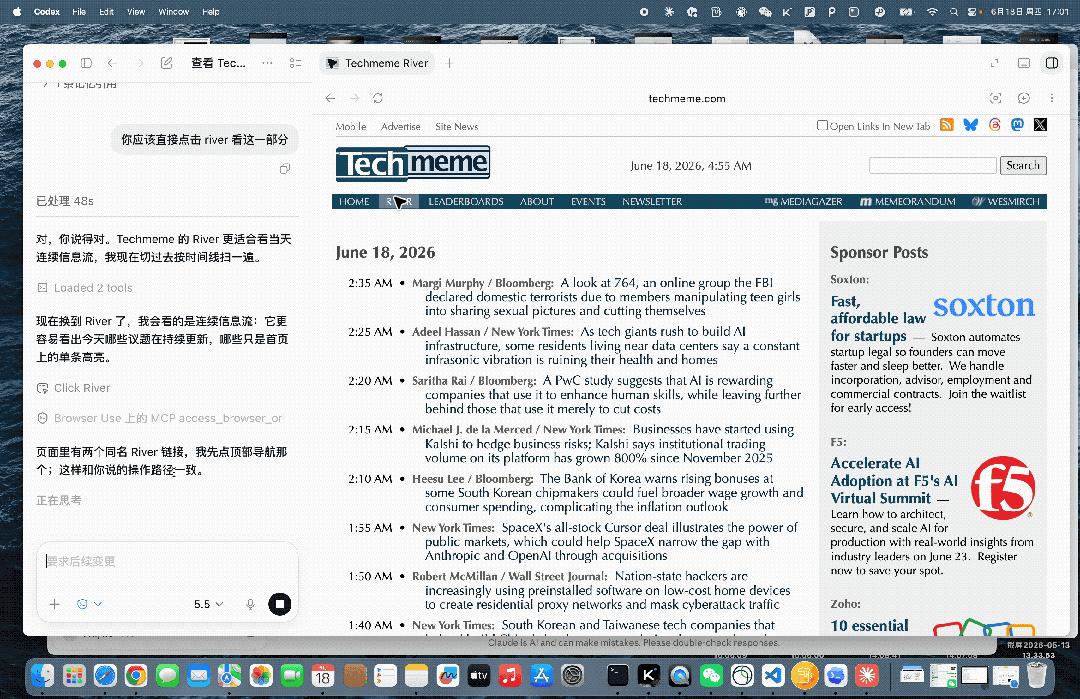
Its drawback also comes from isolation. It is almost impossible for this built - in browser of Codex to handle Google login, passkey, or websites that depend on our browser extensions.
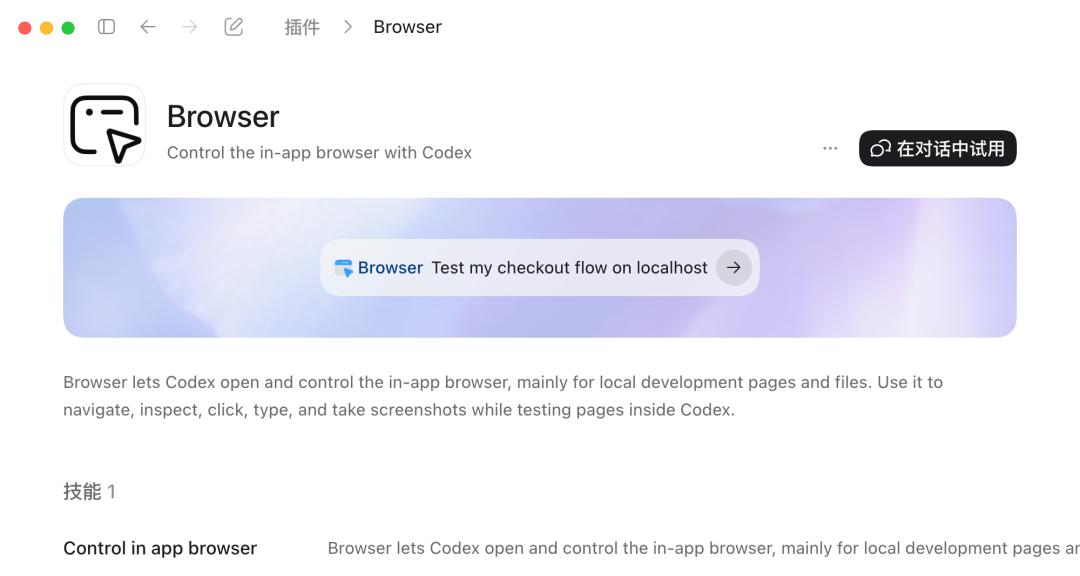
According to Jason's summary in his blog, the in - app browser is particularly suitable for building and debugging web applications.
Local development servers
Previews supported by files
Public pages that do not require login
Reproducing visual errors
Checking responsive layouts
Leaving element - level design feedback
In addition to these three functions, the OpenAI engineer also mentioned a fourth function related to computer use, which is Appshots. We have also introduced this function before. On the macOS platform, if you press the two Command keys on both sides of the space bar simultaneously in any scenario, the window screenshot and window context information will be automatically sent to Codex.
