Notable feature updates in the official version of Android 16
Preface
With the release of the second quarterly update (QPR2) of Android 16 this month, the complete Android 16 experience from a "Google perspective" has been officially delivered to Google Pixel users. In the context of the growing trend of domestic customized Android systems decoupling from AOSP, the experience gap between the Android system experienced on Google Pixel devices and the customized Android systems familiar to Chinese readers is likely to widen.
What does the relatively pure Android system experience from a Google perspective look like currently? And what new directions can domestic customized Android systems refer to and adapt? The following is a summary of the new features in the official version of Android 16 based on the Google Pixel 9 Pro.
Material 3 Expressive
From a consumer's perspective, major updates often come with significant changes in design style. Although the Material 3 Expressive presented in the official version of Android 16 is not as "eye - opening" as the Liquid Glass in iOS 26, it still has many commendable features.
In the official version of Android 16 QPR2, most system interfaces and Google - developed apps adopt the new control styles of Material 3 Expressive. More and bolder colors are used, and the overall visual experience is no longer as "dull" as in the Material You era. Appropriate glass blur effects have even been added to areas such as the notification and control center panels, the multi - tasking interface, and the app drawer to enhance the sense of hierarchy.
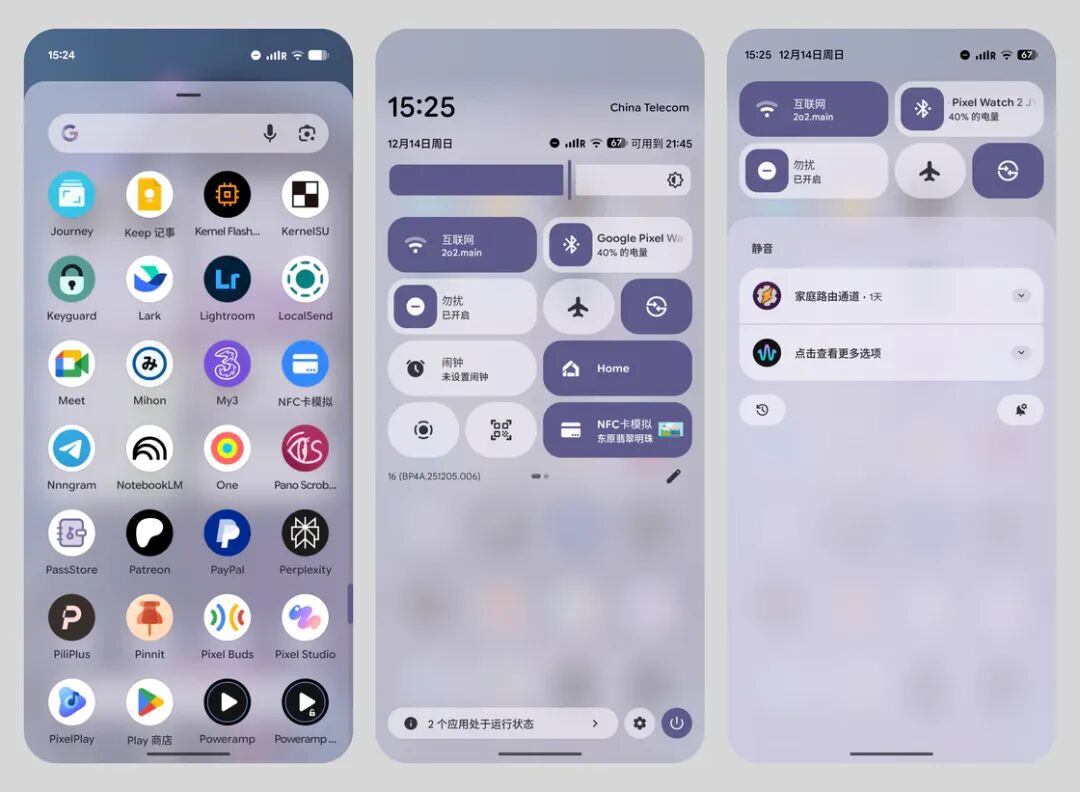
The concept of using geometric shape deformation to represent interaction feedback in Material 3 Expressive is also reflected in many system operation controls in the official version. For example, the control center buttons have uniform rounded corners when closed, and when opened, they are presented as rounded rectangles with smaller rounded corners. At first glance, it may seem a bit messy, but it's not difficult to get used to after understanding the shape - hinting logic that clearly indicates the current state.
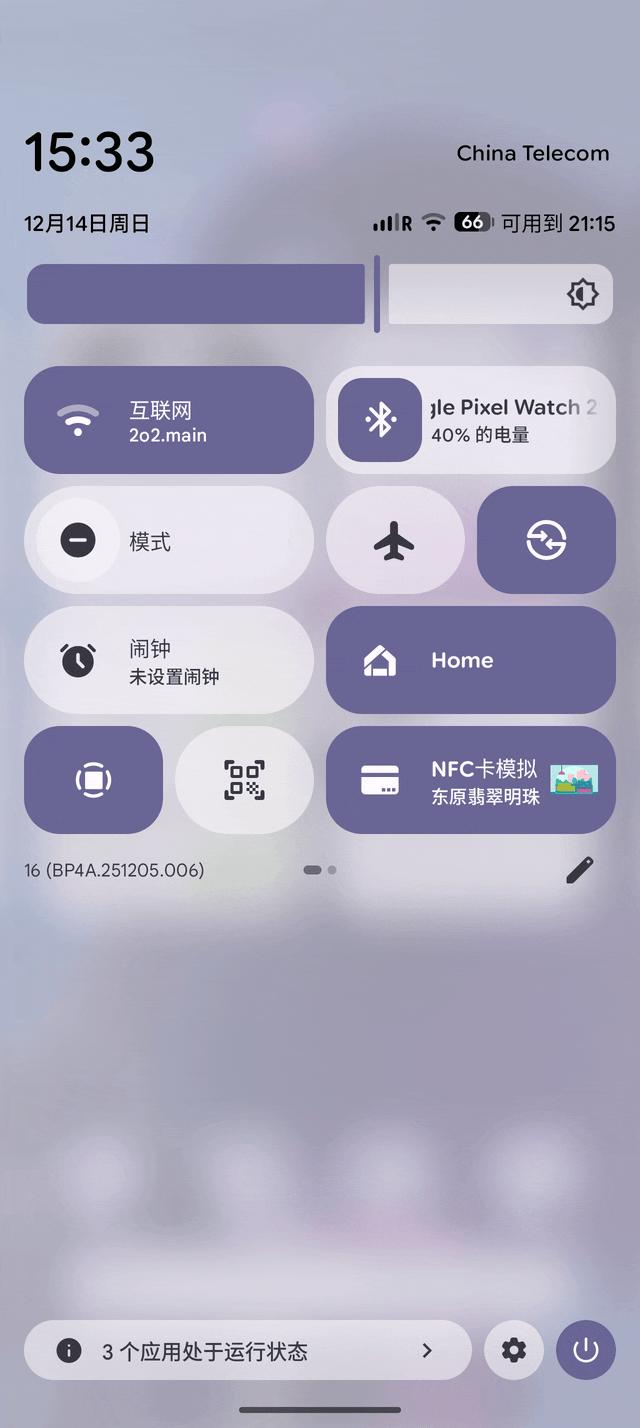
The renovation of the animation mechanism in Material 3 Expressive also makes the official version of Android 16 full of lively, agile, and non - sluggish small animations everywhere.
Finally, along with the update of Material 3 Expressive, there are also many adjustments in details such as icons and color schemes. The most obvious change is probably the status icons. Google has integrated the signal indicator styles for multi - SIM cards, and the battery and Wi - Fi icons have become more rounded. As a result, for a long time after the official release of QPR1 in June, many friends were confused when looking at the screenshots I sent, asking, "Is this iOS?"
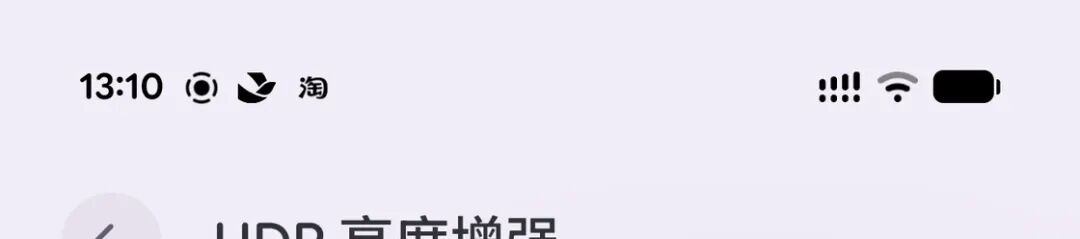
New status bar icon styles
The 9:1 Split - Screen That Should Be the "Default"
In the official version of Android 16, small - screen devices have also benefited from Google's development efforts on large - screen devices such as foldable phones in recent years. In addition to the common 1:1 and 1:2 split - screen ratios, two apps in split - screen mode can now be presented in a new 1:9 ratio in the official version of Android 16.
This seemingly impractical ratio first appeared in the "Panoramic Virtual Screen" function of the OPPO Find N3. Its interaction logic on Android 16 remains largely unchanged. The app occupying the larger screen area is the visual focus and the main operation area, while the app occupying only 10% of the screen area will dim. When clicked, it will automatically "push out" the app in the other area:
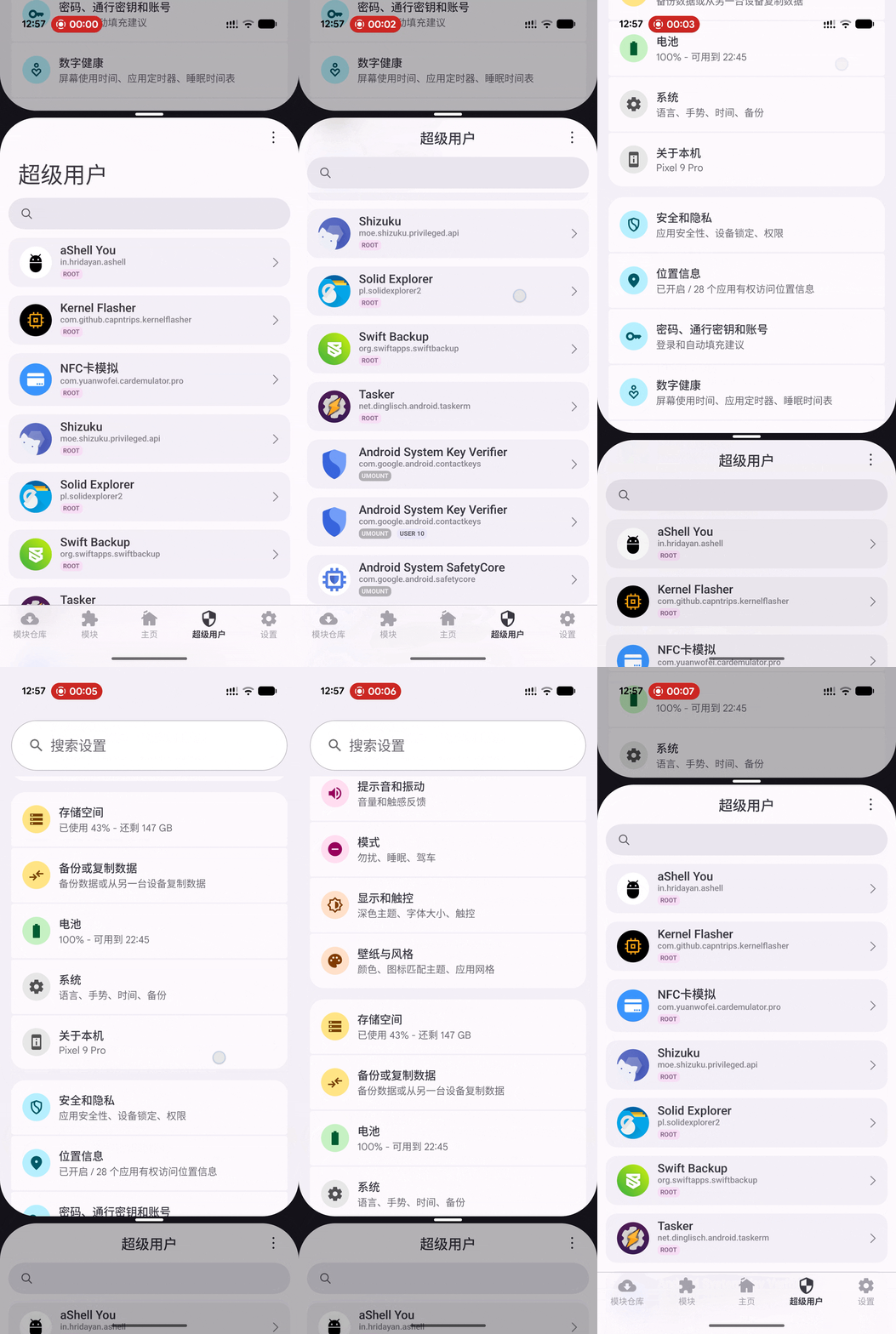
9:1 split - screen operation
In fact, since the display area of mobile phone screens is limited, most apps do not consider the usage scenarios of square or small - sized screens during development. Therefore, in my opinion, the 9:1 split - screen provides a more practical and reliable experience than the default 1:1 vertical split - screen.
HDR Brightness Adjustment
In the past two years, the HDR content ecosystem at home and abroad has finally shown signs of improvement. At the system level, both iOS and Android have recently addressed the issues related to HDR screen captures. At the software level, apps such as Weibo in China and Threads abroad support sharing photos in HDR format.
However, personal preferences vary. I may really like the visual impact brought by HDR content, while my colleague @Lu Zhongnan often complains that HDR photos are too bright and look fake. In the official version of Android 16, a new "HDR Brightness Enhancement" option has been added to the brightness settings under "System Settings > Display and Touch". Friends who don't like HDR content can adjust the brightness of HDR content here and preview the effects in real - time. They can also turn off the HDR brightness enhancement function to make all content display within the SDR brightness range by default.
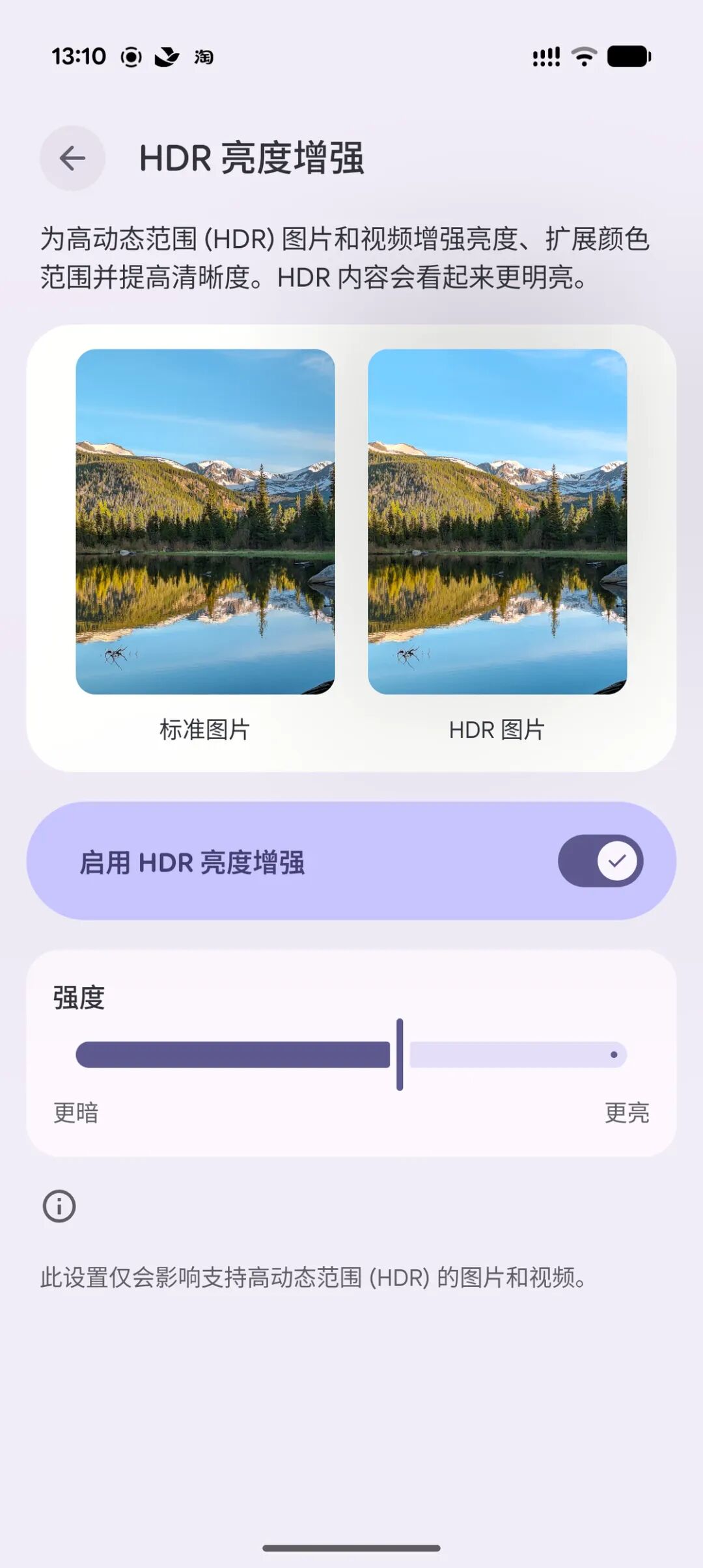
Does anyone really want to turn this off?
However, this also raises a small issue. In apps like Threads, developers provide an option to "upload media content in high - definition quality". When this option is turned off, the uploaded photos will be compressed to the SDR brightness range. Whether this task should be managed at the system level or left to the apps themselves, neither Google nor Apple seems to have a clear standard at present.
The Return of Lock Screen Widgets
The lock screen widgets that were removed after Android 5.0 have finally returned after eleven years. In the lock screen settings of the official version of Android 16, you can find a setting entry called "Lock Screen Widgets". After entering, you'll see that this feature is currently in the Beta testing phase, and there are no other options except for turning it on or off.
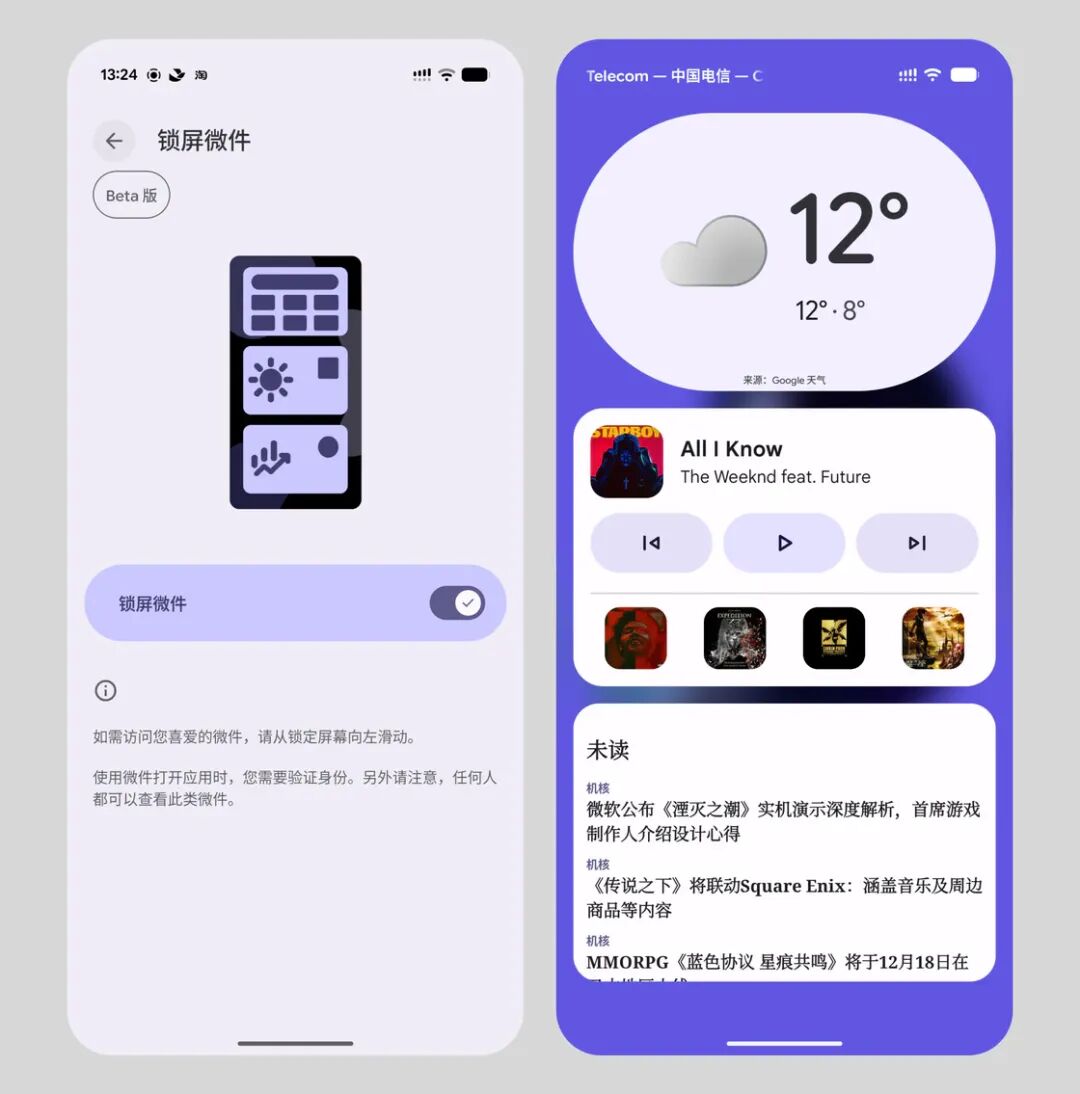
Settings and lock screen display effects
The overall usability of lock screen widgets is average. After enabling them, you can swipe right on the lock screen (opposite to the operation in iOS) to access them. The long - press editing logic is the same as that on the home screen. However, lock screen widgets only support adding full - width widgets. Small - sized widgets will have their layouts automatically adjusted or be forcibly stretched after being added. Additionally, lock screen widgets have not yet been integrated into the system's charging screensaver function, which further limits their practical use.
It's understandable that this feature is still in the Beta testing phase. However, unlike most features in testing, it is not hidden in the "Developer Options". In fact, the experience of lock screen widgets is almost the same as when they were exclusively launched on the Pixel Tablet in March this year. The limitation of only supporting full - width widgets is also one of the results of copying the logic of large - screen devices.
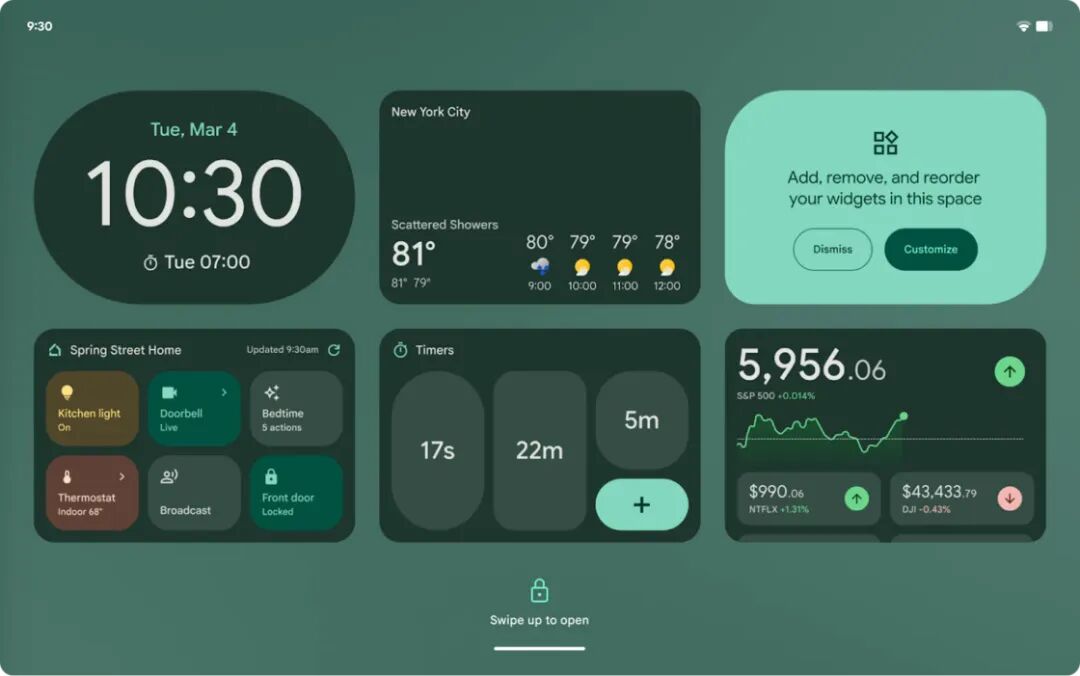
Lock screen widgets on the Pixel Tablet
It can only be said that this is probably one of the least polished official features in Android 16.
Forced Themed Icons
Another feature that has been in Beta testing in the Android system for a long time, "Icon Theming", has received a relatively major upgrade in the official version of Android 16. In addition to re - supporting custom icon shapes (providing five options), the icon theming function, like in iOS 26, is now globally applied to all icons on the home screen by default.
To some extent, Google's forced icon theming solution works even better than that of iOS 26. Its actual application effect is divided by "whether the app supports adaptive icons". Domestic leading apps such as WeChat and Alipay, which have already supported adaptive icons and have icon materials that can be forcibly applied with theme colors, can directly apply almost perfect theme colors in the official version of Android 16. However, apps that do not support (such as Hema in the following picture) or have false support (such as Google's own NotebookLM) for adaptive icons will have some obvious visual flaws due to the color - inversion mechanism.
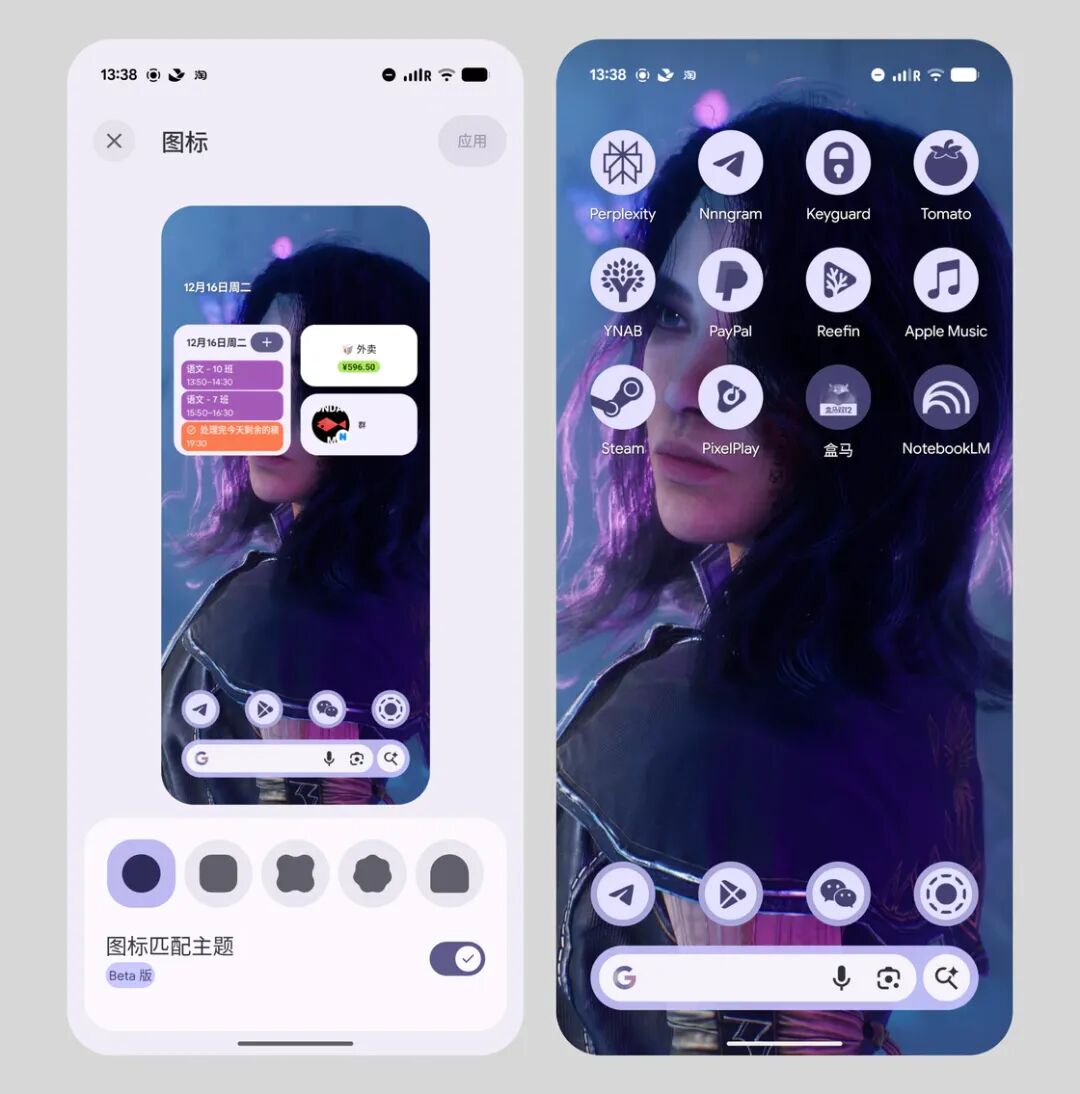
This makes the icon theming function in the official version of Android 16 a kind of "adaptive icon detector" to some extent. You might as well take a look at which developers are still relying on customized systems to handle their icons in 2025.
Extended Dark Theme
Similar to the forced icon theming, the dark theme has also become more standardized. Although thanks to the promotion of iOS, most domestic apps have already adapted their dark themes to a large extent. However, there are still stubborn apps like the official Weibo client, which only provides a dark theme for the iOS client. The Android client has only a light theme, relying on domestic customized systems to "cover up" its shortcomings.
Well, Weibo finally got what it deserved.
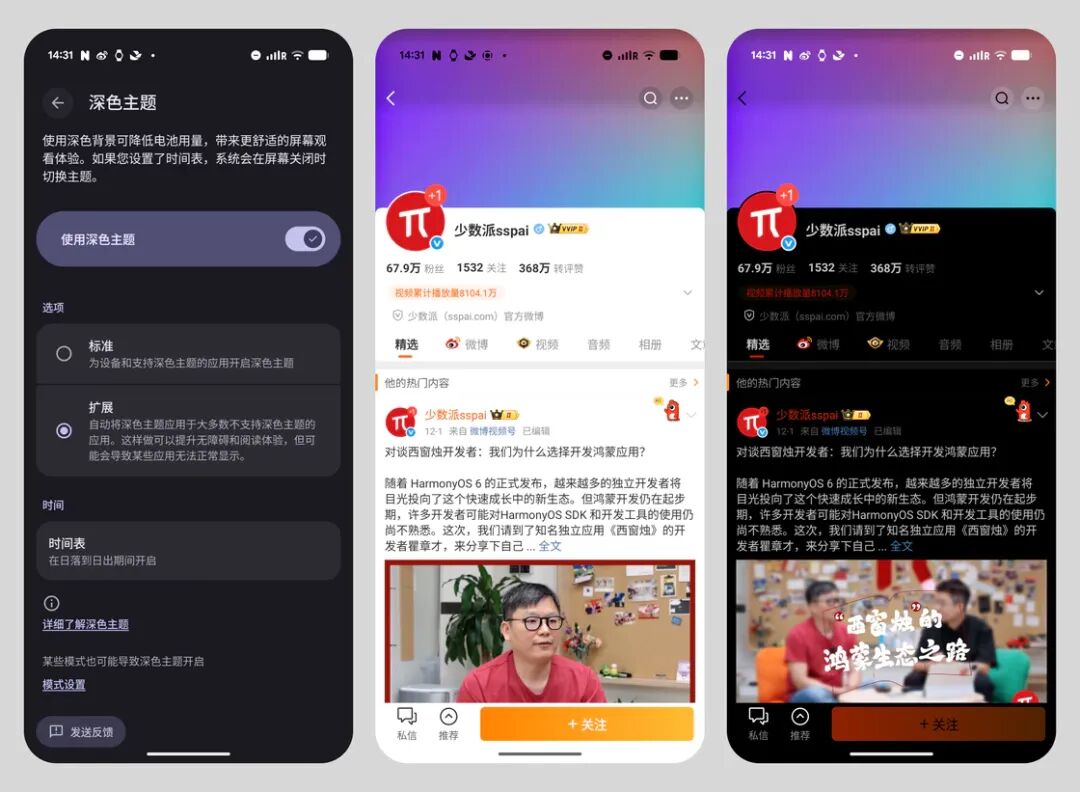
In the official version of Android 16, in addition to the default "Standard" mode, an "Extended" mode has been added to the dark theme. The extended mode applies the dark theme to most apps that do not support it. This has been tested and proven effective on the Weibo client.
Keys - Supported Predictive Back Gesture
The original intention of the predictive back gesture is to provide more certainty for the swipe - back gesture in the Android system, where activities are stacked across apps. It allows us to "glance" at the "destination" we are about to jump to during the decision - making process of this operation.
After more than two years of improvement, Google has completed the "last piece of the puzzle" for it in the official version of Android 16 this year. In the mysterious East, there is still a company called Samsung that adheres to its love for the "Three Button Navigation", that is, the button - based navigation operation. Since the platform cannot ignore the "big customers", the official version of Android 16 is also expected to benefit the One UI 8, which is currently being intensively developed.
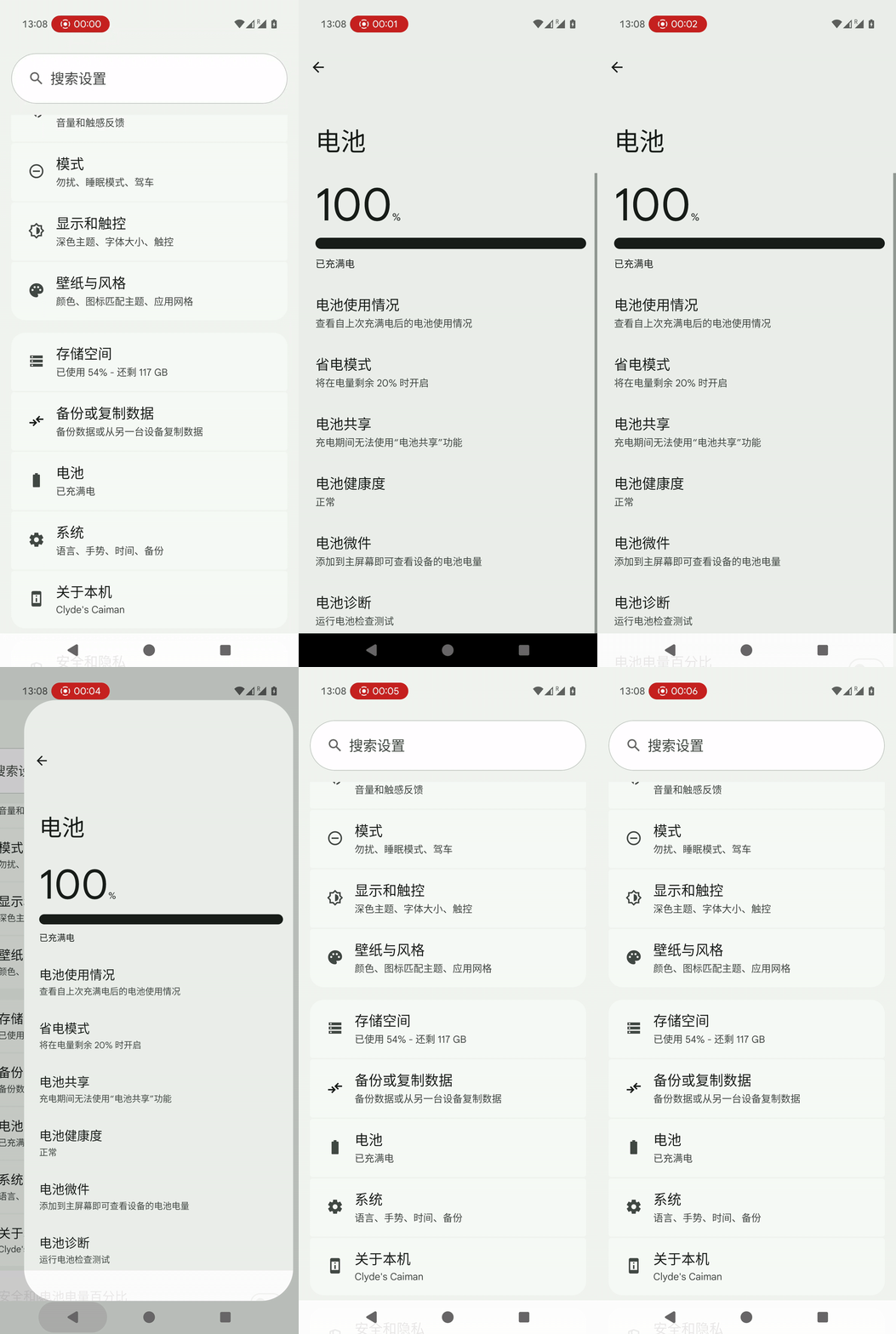
Press and hold to preview
The specific interaction method is quite intuitive. When using the "Full - screen gesture" to swipe back, don't release your finger immediately. In the "Three Button Navigation" mode, press and hold the back button. However, if the preview does not match what you expect, the latter situation can be a bit tricky. After all, the trigger threshold for the swipe - back gesture is based on the horizontal sliding distance on the X - axis, so you can stop halfway if you feel it's wrong. But strictly speaking, there is no pressure threshold on the Z - axis for the tap - back operation. In this mode, the way to cancel the back operation is to move your touch position outside the back button area without releasing your finger...
Wait, isn't this still changing from tapping to swiping? Can the purist users of the "Three Button Navigation" really accept such a mechanism? After all, if it weren't for special usage scenarios such as accessibility operations (and there isn't much need for "predictive back" in such scenarios), I think the "Three Button Navigation" with the core concept of tap operations should really exit the historical stage. Friends who disagree should first convince Apple to revive the iPhone mini.
Progress - Centered Notifications
Let's just call it the "Native Android's 'Live Activities'", which is easier to understand.
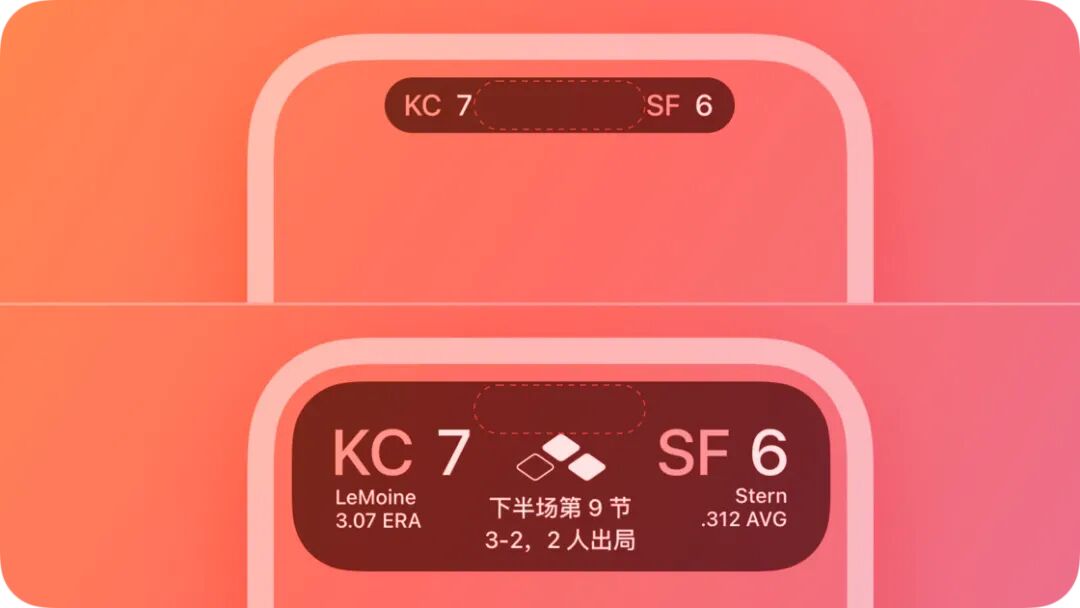
iOS Live Activities
To put it simply, for scenarios such as taking a Didi ride, ordering food on Ele.me, waiting for a JD Express delivery, or waiting for a hero to respawn in Honor of Kings, notifications that can provide real - time progress and status may relieve some anxiety. After iOS introduced this feature, it quickly received responses from many domestic manufacturers. Even ColorOS, a pioneer that has developed the "Flash Back Key" and should be most aware of the difficulty of promoting third - party adaptation, had to follow the trend. When even Samsung starts to "borrow" a feature, Google, as the platform provider, has to come up with a standardized adaptation solution.
This is the "Progress - Centered Notifications":
