"Don't rush to replace your TV!" His 4-year-old TV was so laggy that it ran like a stuttering slideshow, so he asked Claude to "fix" it: no rooting, no uninstalling of any apps, and in the end, the TV surprisingly "runs even faster than when it was just bought".
Have you ever had this feeling: your smart TV was very fast when you first bought it, but after three or four years of use, it starts to lag so badly that it drives you crazy? Pressing a remote control button makes you wait for several seconds, you have to flip through menus for ages to find the App you want to watch, and the full-screen recommended content is dazzling.
Turkish AI engineer Mert Cobanov also encountered the same problem. His 4-year-old Android TV had very typical symptoms: stuttering operations, messy menus, bloated system, and endless recommendation streams.
Other people might just put up with it, or buy a new TV directly. But Mert Cobanov is different — his job is all about working with AI. So he decided to do something that sounds a little crazy: let AI fix the TV.
He didn't manually adjust the settings, didn't root the TV, nor did he install any so-called "TV accelerator". His approach was: turn on the developer options of the TV, connect Claude Code to it through Android Debug Bridge (ADB), and then assign a cleaning task to the AI.
The result was surprisingly good — after cleaning, this 4-year-old old TV was unexpectedly "smoother than when it was just bought".
What on earth makes TVs slower and slower?
Generally speaking, after a smart TV has been used for several years, all kinds of applications and background services will keep accumulating in the system: manufacturer pre-installed software, streaming media Apps, recommendation engines, screensavers, voice assistants, telemetry services and various system components. Not all of these things are "junk", but the problem is that many of these services may not have been used for years, yet they still take up system resources.
At the same time, the home pages of many smart TV systems are becoming more and more complex, and a large number of recommended contents, advertisements and dynamic UIs will increase the burden on the system — the typical problem of "software getting more and more bloated the more it is used" is exactly what Mert Cobanov wants to solve.
His idea is very simple: since the TV hardware can no longer be upgraded, just clean up all unnecessary software and background services, and reduce the extra overhead brought by system animations and home page recommendations at the same time.
Only this time, instead of typing ADB commands one by one himself, he directly assigned the task to Claude Code.
To laymen, this may sound very complicated, but the underlying principle is actually not difficult to understand. Android Debug Bridge (ADB) is originally an official debugging tool provided by Android, which allows computers to communicate with Android devices through the command line and perform various tasks including installation, debugging and Shell operations.
Mert Cobanov's approach is to first enable Developer Options and USB/Wireless debugging on the TV, then find the IP address of the TV, make the computer and the TV in the same network, and then establish a connection with the TV through ADB.
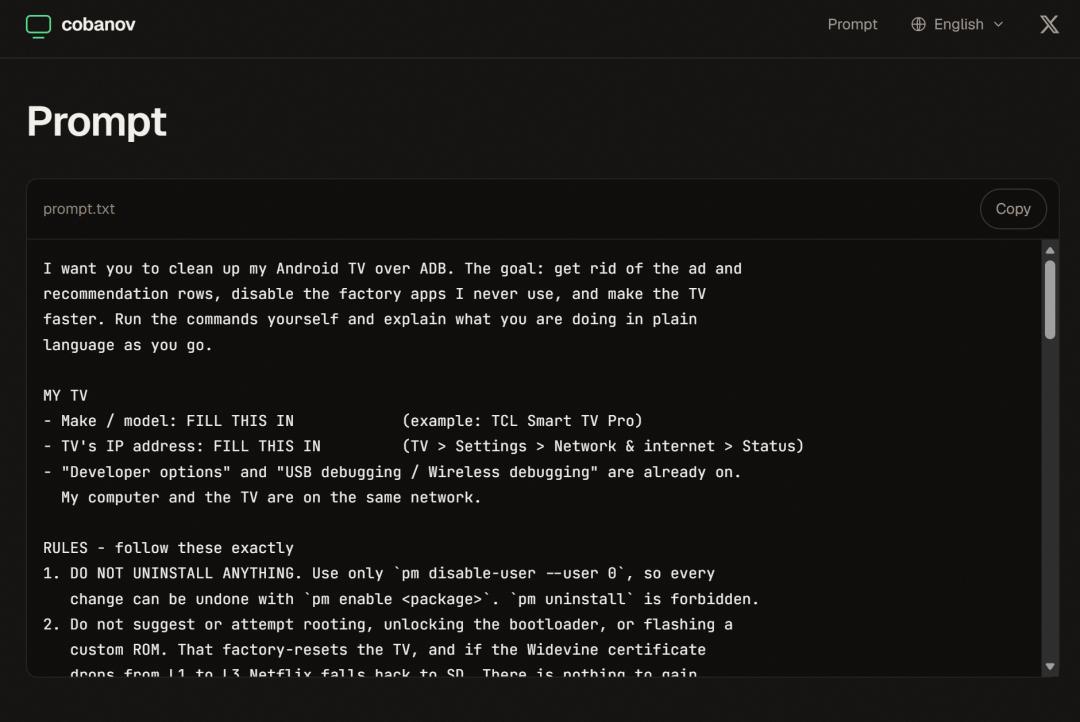
After the connection is completed, Claude Code gets an entry that can execute system commands. But Mert Cobanov did not simply tell Claude: "Help me make the TV faster" — on the contrary, the Prompt he wrote for Claude is so detailed that it is admirable: it includes rules, restricted areas, operation sequences, and various emergency plans.
● First of all, it is forbidden to uninstall any software, all operations are executed through the command pm disable-user --user 0, and you can use pm enable to restore everything with one click at any time. The AI also needs to record every step of the operation in detail, and write the disabled packages and restoration commands into the log.
● Secondly, Rooting, unlocking the bootloader or flashing third-party ROMs are not allowed.
● Finally, disable a maximum of 10 packages at a time, then stop to check if the TV is working properly. Only when everything is fine, continue to the next batch.
In general, the whole process is basically split into a complete closed feedback loop:
Disable a small batch of software → test the TV → check the remote control → test HDMI → open Netflix → open YouTube → test sound → test the on-screen keyboard → confirm that there is no problem and then continue.
His requirements are very clear: measure first, then operate; identify risks first, then deal with them step by step. If an abnormality occurs, immediately revoke the previous batch of operations — Mert Cobanov calls this approach "supervised automation".
The most dangerous ones are precisely the software that looks the most like "junk"
The most thrilling moment in the whole process happened with a package called com.tcl.suspension.
On the TCL TV used by Mert Cobanov, there is a software package named com.tcl.suspension — judging only by the name, it looks like an irrelevant pre-installed software from the manufacturer. As soon as Mert Cobanov disabled it, the "Input/Source" button on the TV remote control stopped working directly, and he could no longer switch HDMI!
This lesson is extremely profound: on Android TV, the name of a package does not explain what it is used for at all.
For this reason, Mert Cobanov specifically listed a "blacklist of things that must never be touched" in the Prompt: HDMI input services, remote control related services, Google Play services, location services (disabling it may cause infinite restart), on-screen keyboard, and the default home launcher.
This is also why Mert Cobanov would rather let Claude operate in batches instead of giving it "unlimited permissions" directly.
What Claude did is more than just "deleting junk"
After confirming the risks, Claude started to clean up the system for real.
The first step is to disable factory applications and background services that users do not use at all. Then it adjusted the system animation parameters: window_animation_scale, transition_animation_scale, animator_duration_scale. All three parameters are set to 0.5, which reduces the animation scaling ratio by half.
Then clear the cache, restart the TV, and re-measure the system status.
It should be noted here: these operations do not suddenly give the TV a stronger CPU or GPU, what they really change is system resource allocation and interactive experience. When there are fewer unnecessary programs running in the background, the system UI no longer processes a large amount of extra content, and the animations are shortened, the old hardware will naturally feel much more "responsive".
Moreover, Mert Cobanov made a more obvious change — directly replacing Google's default TV home page.
One feature of the default Google TV home page is that there are a huge number of recommended contents. If your needs are only to open a few commonly used applications such as Netflix, YouTube, VLC, these advertisements and recommendation information are actually of little value.
So Mert Cobanov chose FLauncher — FLauncher is an open source alternative Launcher for Android TV, which adopts a simpler application grid layout without the dense recommendation feed flow on the traditional home page. Its open source project information also shows that it focuses on functions such as no ads, customizable categories and application sorting.
But as mentioned above, there is a very important operation sequence here: install FLauncher first → open it and set it as the default Home → confirm that it works normally → finally disable Google's original Launcher.
The sequence must not be reversed, otherwise once the old Launcher is disabled and the new Launcher is not ready, a black screen may occur.
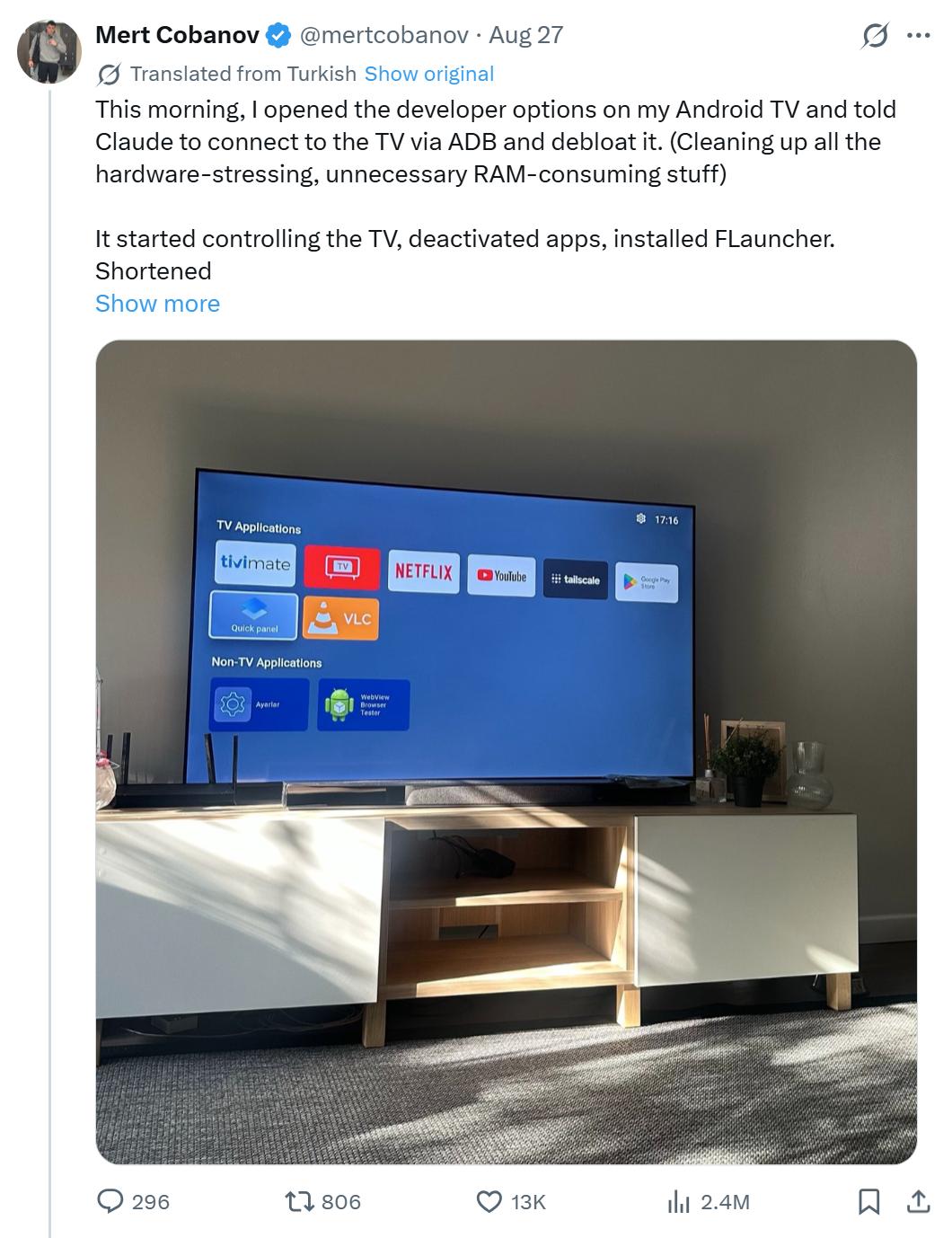
After completing these operations, Mert Cobanov's TV home page became much cleaner: it only retains the applications that he actually uses, such as TiviMate, Netflix, YouTube, Tailscale, VLC, Play Store and settings.
At this point, this 4-year-old TV has finally got rid of a large amount of "software burden". Mert Cobanov described the result as "unbelievable", and the final experience is even "smoother than when it was just bought".
You can try it yourself for free? Cobanov gives the complete process
At this point, many people may be curious, who exactly is this Mert Cobanov?
According to the introduction on his GitHub page, he is a senior AI engineer at Refik Anadol Studio. He started his career in data science and computer vision, and then worked his way up to generative AI and autonomous AI systems. He used to work at Bosch, and the projects he is currently working on include Dataland, AI agents with complex memory, back-end systems, vector databases, diffusion model training, etc.
But what really made him famous is that he likes to apply what he has learned to real life. He writes technical articles, builds projects by himself, maintains open source code, tinkers with his home lab, and often teaches rookie engineers how technology actually works.
This time is no exception — the problem was right in his living room, he solved it conveniently, and then shared it online.
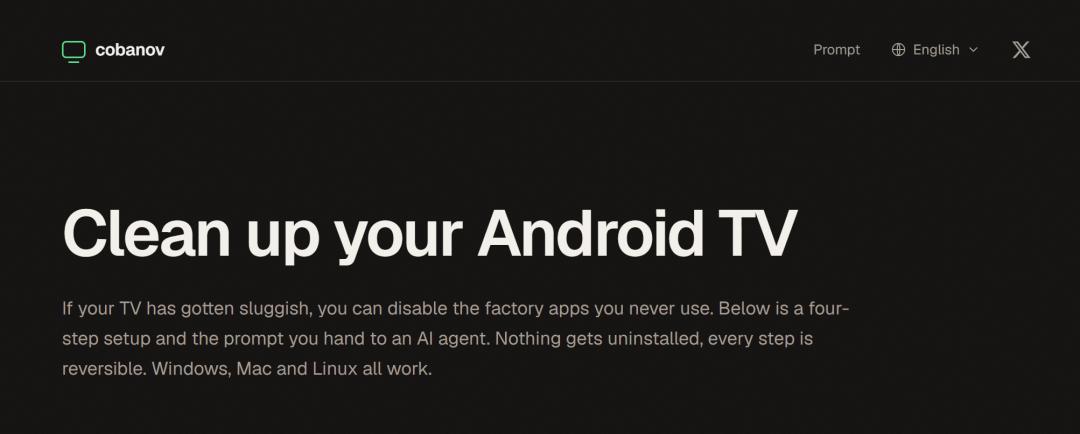
Mert Cobanov organized the entire process into a free tutorial and put it on a website (https://tv.cobanov.dev/). According to the introduction, the whole process only takes four steps and takes 20-25 minutes:
(1) Step 1: Turn on the developer options of the TV — go to Settings → System → About, press the OK button on the remote control seven times in a row on the "Build Number" option.
(2) Step 2: Turn on USB debugging (turn on "Wireless Debugging" if it is available), and write down the IP address of the TV.
(3) Step 3: Make sure the computer and the TV are under the same Wi-Fi.
(4) Step 4: Open Claude Code or Codex, paste the Prompt written by Mert Cobanov (you only need to fill in the TV model and IP address), and then assign the task to the AI agent.
Strictly speaking, what Mert Cobanov did is not a brand new Android black technology.
In the past, developers could also manually clean up Android TV through ADB; but what has really changed is that in the past you had to look up information, find package names, type commands, test and roll back by yourself, and now these tedious tasks can be handed over to the AI agent.
This is the case for a four-year-old TV, and perhaps more real-world devices in the future will be the same.
Reference link: https://medium.com/techx-official/i-made-my-four-year-old-tv-fast-again-with-claude-mert-cobanov-8757abae7cd1?sk=fe32ce4d015c3122725c57ef020d5cfa
This article is from the WeChat official account "CSDN", sorted out by Zheng Liyuan, and released with authorization from 36Kr.