The massive price cut for Codex is coming, this official guide will walk you through how to fully utilize your quota efficiently
Recently, Codex has received rave reviews on social media.
Some netizens have found that now, by inviting a friend to join Codex, you can reset the rate limit.
Even if the invited user is not a new user or a subscribed user, as long as the invited user sends a few messages after opening Codex through the link, they can get a chance to reset the rate limit.

In addition to the activity of inviting new users for benefits, the official Codex will also have a significant price cut.
According to foreign media citing sources familiar with the matter, OpenAI is considering significantly reducing the fees it charges users to win customers from its competitor, Anthropic.
The report mentioned that OpenAI may reduce the price of Tokens, but the discussion about the significant price cut is still ongoing.

After all, Codex is now OpenAI's best platform for attracting new customers.
As disclosed by OpenAI, the number of ChatGPT users has exceeded 1 billion, while the weekly active users of Codex have just reached 5 million. That means only 1 out of 200 ChatGPT users clicks on Codex in the sidebar.
One reason is that "it's not useful," but more likely, users don't know how to use it or what Codex can do, and which tasks ChatGPT can't do well and can only be done by Codex.
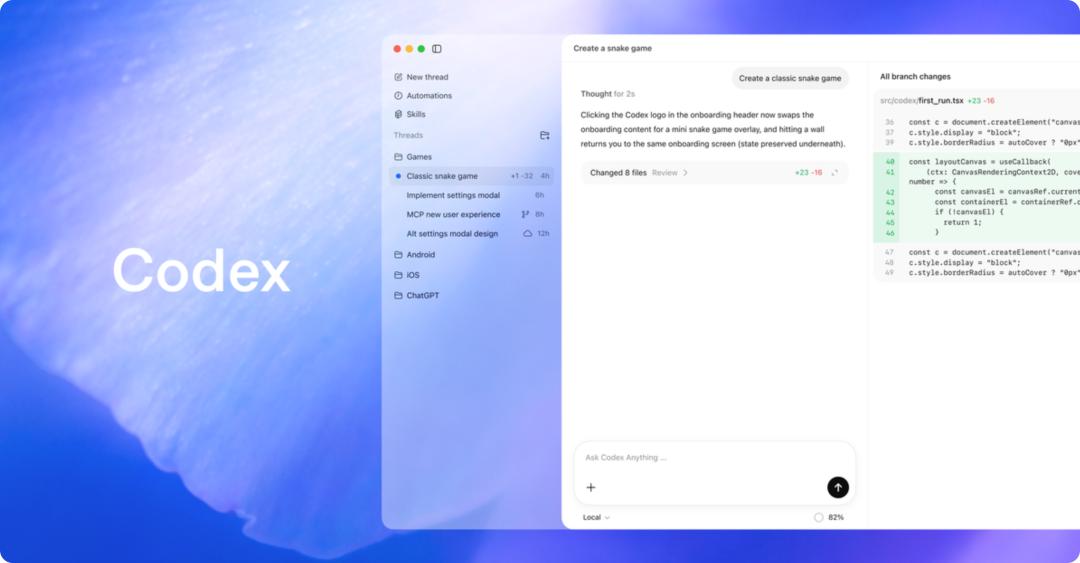
The Codex official has also heard the users' feedback. On one hand, they are highly promoting that Codex will be integrated into ChatGPT. In the future, when we open the newly redesigned ChatGPT app, we can choose to use Codex or ChatGPT to answer questions.
On the other hand, they have updated more than a dozen real - world work processes on the OpenAI official website in the past few days. From common tasks such as deploying web pages and applications, directly building a Mac or iOS application, to large - scale project management, 150 - hour scientific research tasks, and various trivial business in work, there are corresponding usage cases.
These tutorials are probably the best guides to help us quickly get started with Codex, which well solves the problems of what Codex can do and how to use it.
Computer Use, Let Codex Control the Computer
Hey Siri, open WeChat and send a message to Mom saying XXXX
Please unlock your iPhone first
Siri can't do it, and Codex can't operate WeChat either for now.
The Computer Use function of Codex mainly allows the AI to operate the computer interface like us, completing tasks through clicking, viewing, and inputting. This function is suitable for scenarios including cross - application tasks, such as collecting notes, updating records, copying details between different locations, and replying to messages.
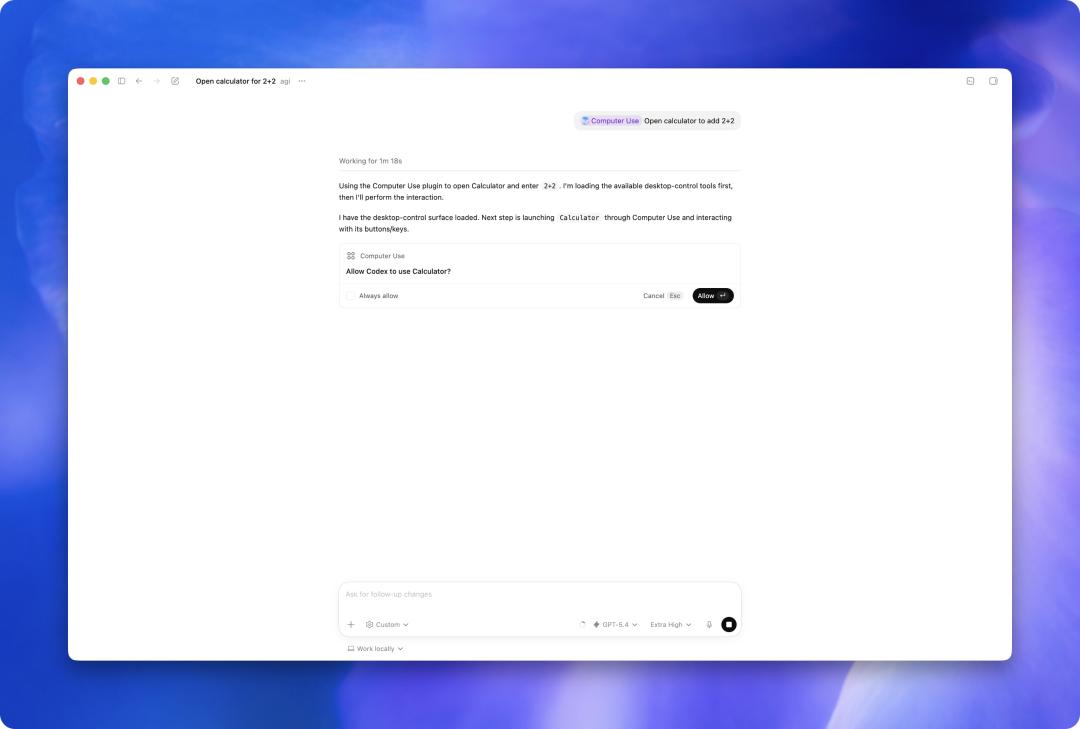
In the official usage cases, the examples they gave range from simply playing a piece of music to switching between different applications.
@Computer Play some music to help me concentrate.
@Computer Please add the interview notes in Notes to Feishu.
@Computer Please check my WeCom and add reminders for all the tasks I need to complete before the end of today.
For the specific usage method, first, we need to find Computer Use in the Codex App and confirm that it is enabled. Then, in the dialog box, add @Computer at the beginning of the instruction, or mention a specific application, such as @Slack or @Messages.
After selecting the Computer Use plugin, describe the task and the result we want. When Codex needs access permissions, approve the access and let it continue to execute the task in the background.
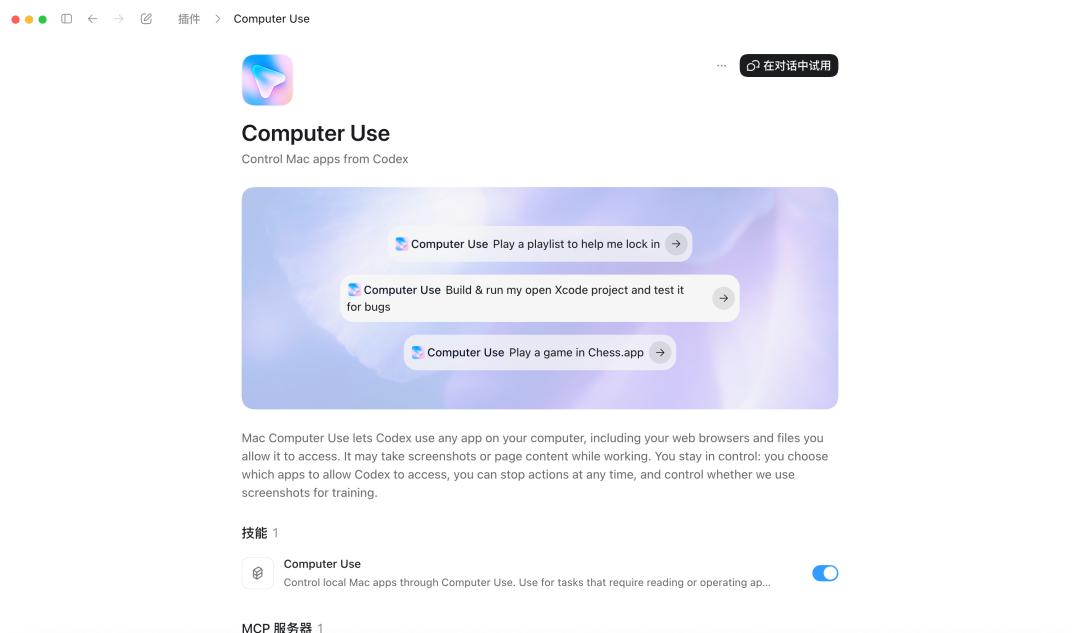
Some precautions when using Computer Use include ensuring that the Mac does not lock during operation, or enabling the "Lock Screen Operation" function in Codex. Also, when Codex uses applications on the computer, we can tell Codex which is the default browser in the custom settings.
And do not use two Computer Use task threads to control the same application. After each thread ends, we can ask Codex to summarize and optimize the task, and even turn this workflow into a repeatable pattern.
Give Codex a Goal to Keep Running
Normally, when we let the AI do work, we need to stand by and watch. It takes a small step and then stops, asking what to do next, and we have to keep guiding it.
/goal aims to solve this problem: Give Codex a long - term goal and let it keep working in this direction without stopping after one round.

In the official guide, some typical usages are tasks that are larger than a single prompt but smaller than a whole to - do list, with a clear goal, the ability to self - verify, and a clear definition of what constitutes completion.
Project migration: Whether it's moving a game to a new technology stack, moving a mobile application to a new platform, or changing the entire codebase to a new framework, you can use /goal to let Codex complete the migration all the way.
Prototype creation: When creating a new application, game, or function from scratch, you can use /goal to let Codex produce a polished first draft. You can write a PLAN.md to clearly describe what you want it to achieve and let it work accordingly.
Prompt adjustment: If you have a set of test sets, you can use /goal to optimize the prompts based on the evaluation results. Codex will check which cases failed, modify the prompts, rerun the evaluation, and keep iterating until the score improves or until you reach the set ending condition.
For writing a goal that can run smoothly, first give it a clear goal and an ending condition; tell it which files, documents, issues, logs, or plans to read first; determine which command or product to use to prove the progress; let it work in stages and keep a brief progress log; check the status with /goal at any time during the process; pause, continue, or clear when it finishes, gets stuck, or needs to change direction.
Use GPT Image 2 to Make PPTs
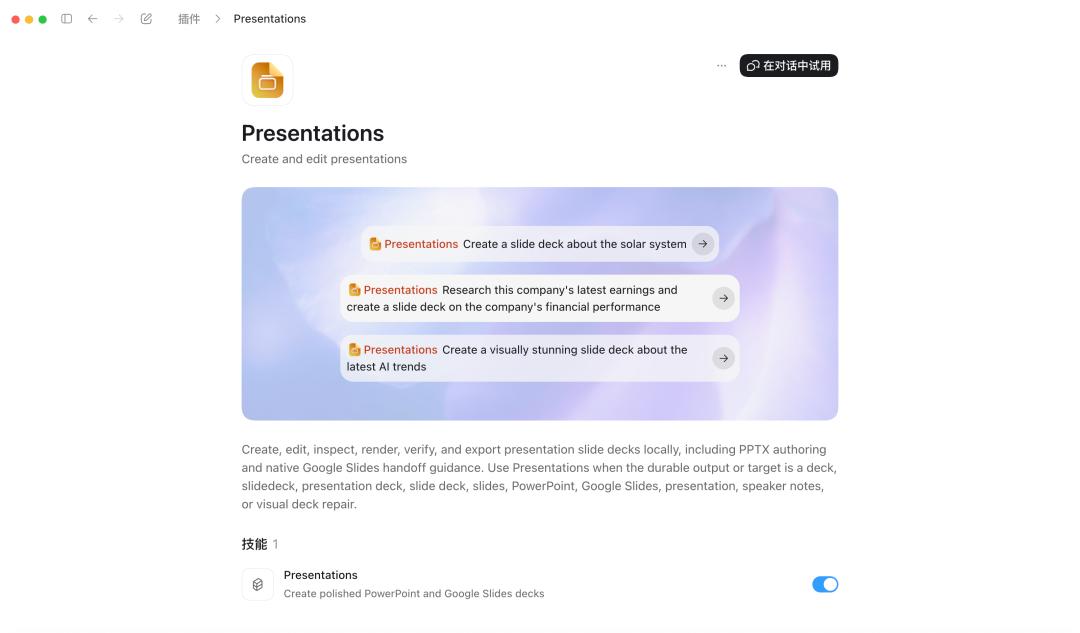
The most time - consuming part of making a PPT is often the layout. Codex has two built - in skills: $$slides can directly read and write .pptx files using PptxGenJS, and $$imagegen is responsible for generating illustrations.
The reference prompt provided by OpenAI is as follows:
Use the $$slides and $$imagegen skills to edit this slide as follows:
- If available, add the logo.png file to the bottom - right corner of each slide.
- On slides X, Y, and Z, move the text to the left and use the image generation function to generate illustrations on the right (style: abstract, digital art).
- Keep the text as text as much as possible and keep simple charts as native PowerPoint charts.
- Add the following slides: [Describe the new slides here].
- Use the existing brand identity (colors, fonts, layout, etc.) in the new slides and new text.
- Render the updated presentation into slide images, check the output, and fix layout issues before delivery.
- Run overflow and font replacement checks before delivery, especially in a dense deck.
- When creating a batch of related images, save the reusable prompts or generation instructions.
In addition to creating a PPT from scratch by describing the content and overall style page by page, if you have a logo or pictures, put them in the same folder for easy access.
We can also let Codex handle weekly, monthly, and quarterly reports. Update the templates regularly, let it summarize a guidelines.md to determine the content, structure, and update method, and then cooperate with other skills to pull corresponding data. For example, for a quarterly report to shareholders, just replace it with new numbers and insights.
When modifying an existing PPT, we can directly ask Codex in the dialog box to fix problems such as spacing and text misalignment.
Let Codex Create a Web Page Based on Screenshots
With a few screenshots, a brief design description, or a few reference images for inspiration, Codex can create a responsive interface following the existing writing style in the project, that is, using the original framework and language without creating a new one.
Combined with $playwright, Codex can open the page in a real browser and compare it with the uploaded screenshots at different screen sizes, adjusting it repeatedly until it is close.
The reference prompt is as follows:
Please implement this user interface in the current project based on the screenshots and annotations I provided.
Requirements:
- Reuse the existing design system components and markup.
- Convert the screenshots into the utility and component patterns of this repository instead of inventing a parallel system.
- The spacing, layout, hierarchy, and responsive behavior should closely match.
- Respect the repository's routing, state, and data acquisition patterns.
- Make the page responsive on both desktop and mobile devices.
- If any details in the screenshots are not clear, choose the simplest implementation that still conforms to the overall direction and briefly explain the assumptions.
Verification:
- Compare the final user interface with the provided screenshots, including appearance and behavior.
- Use $playwright - interactive to check if the UI matches the reference and iterate as needed until it matches.
Create a Browser - Based Game from Scratch
Making a game is probably one of the scenarios where we can see that Codex not only knows how to write code but also understands design. A real game requires a written gameplay concept, a rendering layer, a front - end shell, a back - end state, art materials, and continuous adjustment of the picture and feel.
Before starting to build the framework, let it write a PLAN.md to break the game down into specific parts: player goals, core loops, operations and inputs, win - loss conditions, difficulty and growth, visual direction, technology stack and deployment assumptions, and the sequence of milestones.
Then write an AGENTS.md. According to the official tutorial, you can refer to the following writing style.
Game name
<Game type>
Technology stack:
- Front - end: NextJS (deployed on Vercel)
- Rendering: <Fill in the technology>
- Back - end: Fastify + WebSocket (deployed on <Platform>)
- Database: Postgres, cache and pub/sub: Redis
- Generative AI function: OpenAI
Agreements:
- Use the build / test command to verify after each function is completed.
- Follow the PLAN.md when developing new functions.
- Record ideas and decisions in .logs for future reference during iteration.
- Use playwright to test the visual effects and make changes if they don't feel right.
- Use imagegen to generate art materials. Save the prompts in .prompts after each batch for future use.
- Use Context7 MCP to pull the documentation of <Rendering framework>.
Install all the skills mentioned in AGENTS.md: $$imagegen to generate art materials, $$playwright to test the game in a real browser, $openai - docs to pull the latest OpenAI API documentation, and add Context7 MCP to pull the documentation of the rendering framework if necessary.
Next, Codex will create the first version according to the plan. If a large number of images need to be generated, this version may take several hours to run, and the Tokens will start to be consumed rapidly. However, with the help of Playwright, Codex can test and verify the game effect in the browser by itself, and we basically don't need to intervene. The more detailed the plan is, the better the first version will be.
We let Codex write a Plan.md for the game by itself, input the prompt, and then it generated a small game that is almost ready to be launched.
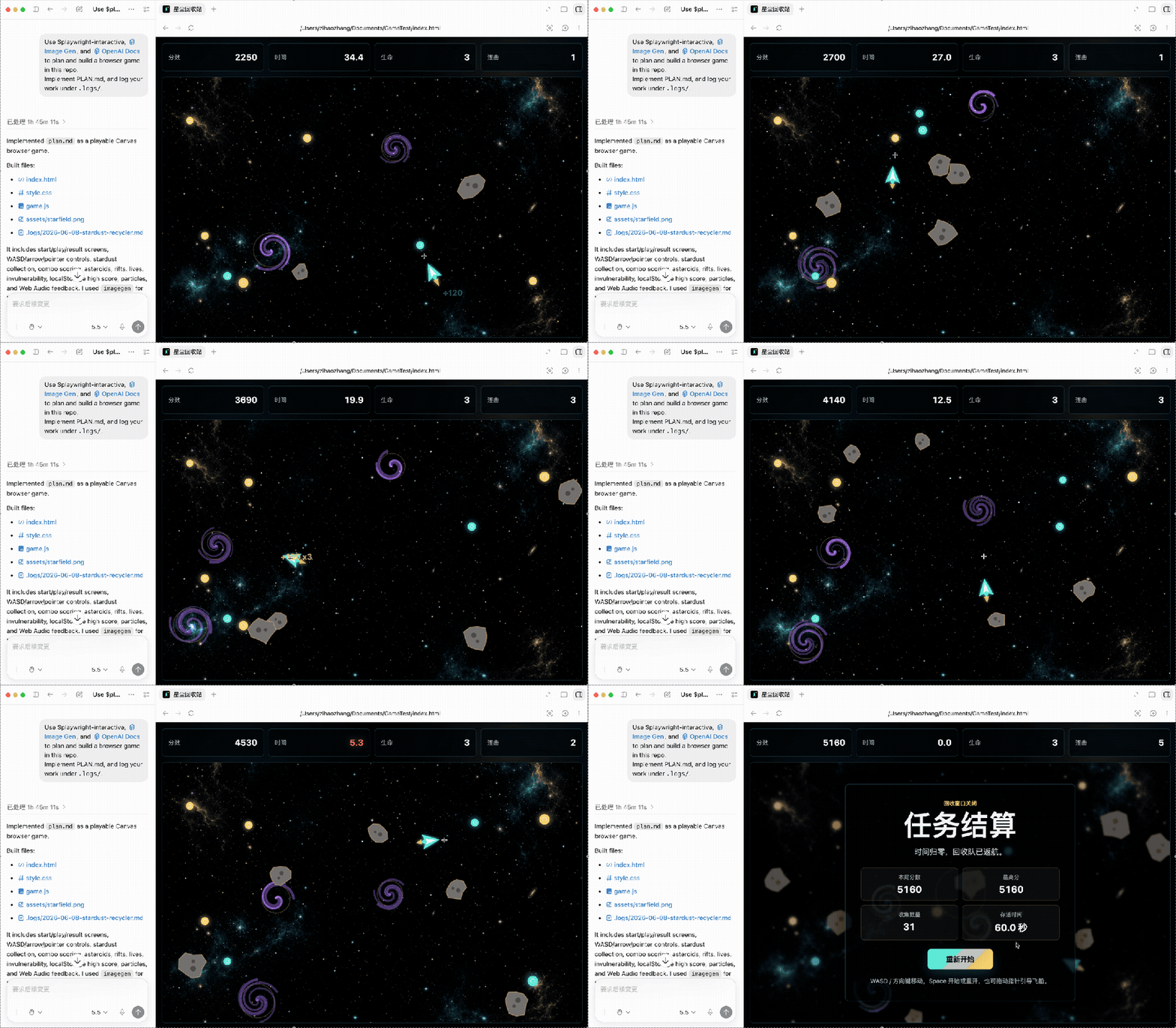
Use $playwright - interactive, $imagegen, and $openai - docs to plan and build a browser game in this repo. Implement PLAN.md, and log your work under `.logs/`.
In addition to small web games, by using the iOS App building plugin provided by Codex, we can view and test iOS Apps in Codex with just one sentence.
Let AI Conduct Scientific Research Independently
Codex can do more than just write code. It can also serve as a long - term research assistant in scientific research. The user provides the