Don't be deceived by the name Codex. It's even better to use than ChatGPT now.
Now, you can also use the time waiting for coffee to handle work on your computer.
In the past month, OpenAI has continuously added new capabilities to Codex. First, there was a desktop pet that can run autonomously in the background on the desktop, display its status in real - time, and offer a high emotional value. Then, a Chrome extension was introduced for real - time conversations in the browser. Today, Codex can also connect to mobile phones.
OpenAI announced that it has brought Codex to mobile devices and integrated it into the ChatGPT App. All planned users of iOS and Android can preview and use it.
Those workflows that could only be carried out in the Codex application on the computer, such as checking the real - time running environment, reviewing outputs, approving commands, switching models, and initiating new tasks, can now all be completed on the mobile phone.
I'm not just for writing code
For many people, their first impression of Codex is probably an application specifically for developers, or even a simple local development environment like VS Code, where you'll see a bunch of confusing code as soon as you open it.

But in fact, Codex can now be regarded as an Agent product of OpenAI. It can not only meet the needs of developers. Even those daily tasks in ChatGPT, such as simple Q&A, generating images using GPT Image 2, and conducting preliminary in - depth research, can also be done with Codex.
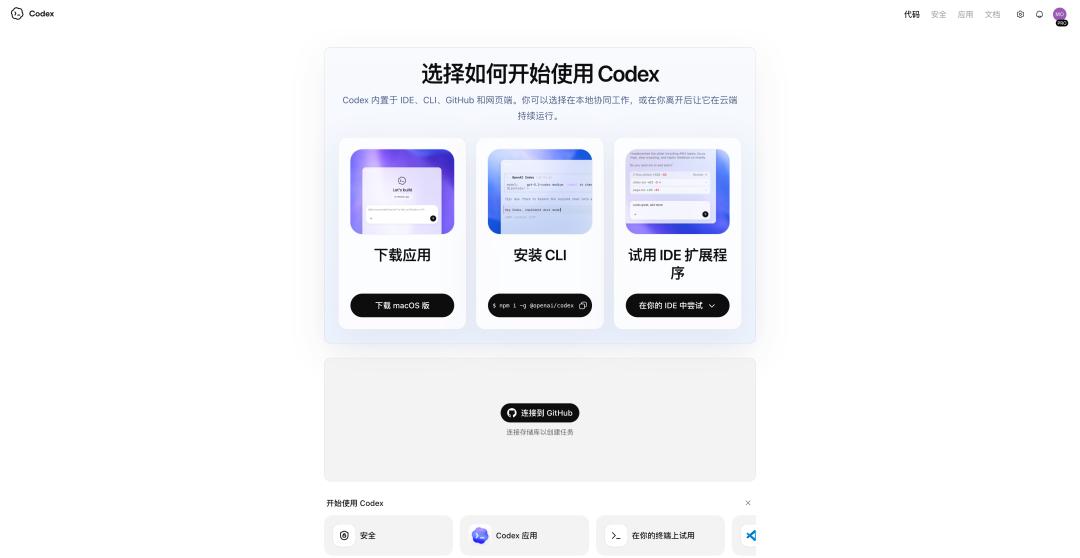
From the left sidebar at the top of the ChatGPT official website, click on Codex to enter the introduction page. Don't be intimidated by "Connect to GitHub", or the terms like CLI, IDE extensions above, and the terminal at the bottom.
We just need to download the application. Click to download the macOS version, just like a normal application installation program.

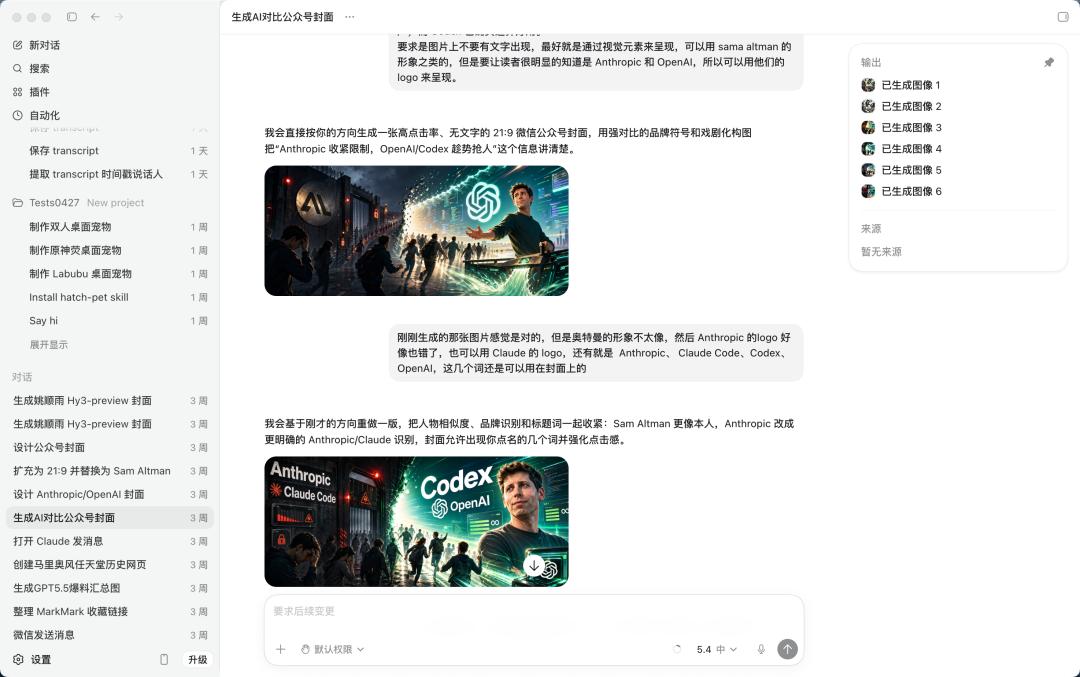
When you open Codex, its layout is basically the same as the web version of ChatGPT. On the left are different projects and individual conversations, and on the right is a chat box. We can enter questions or requests, select different models, and send them directly.
For example, directly ask it to generate a cover image for a WeChat official account, and then make modifications in the conversation.
Or translate an English podcast document into a bilingual word - for - word transcript and summarize the corresponding podcast content.
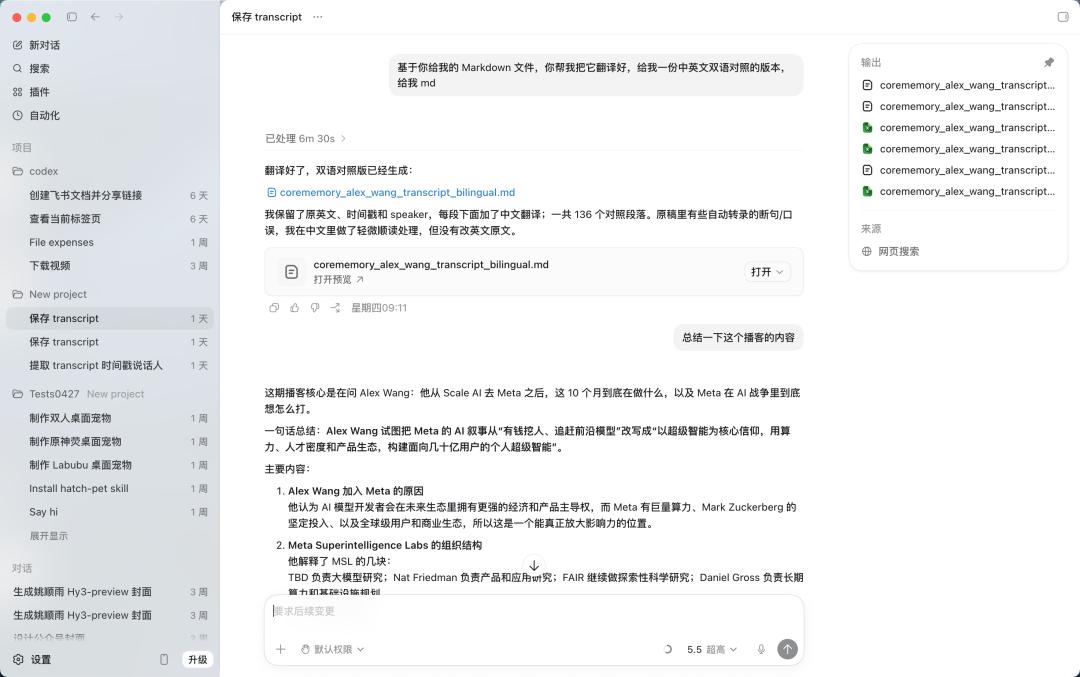
The experience of doing these tasks that were originally completed through ChatGPT on Codex is also quite good.
Functions common to other Agents such as Skill, Computer Use, and scheduled tasks can also directly evoke different instructions or use corresponding skills through slashes.
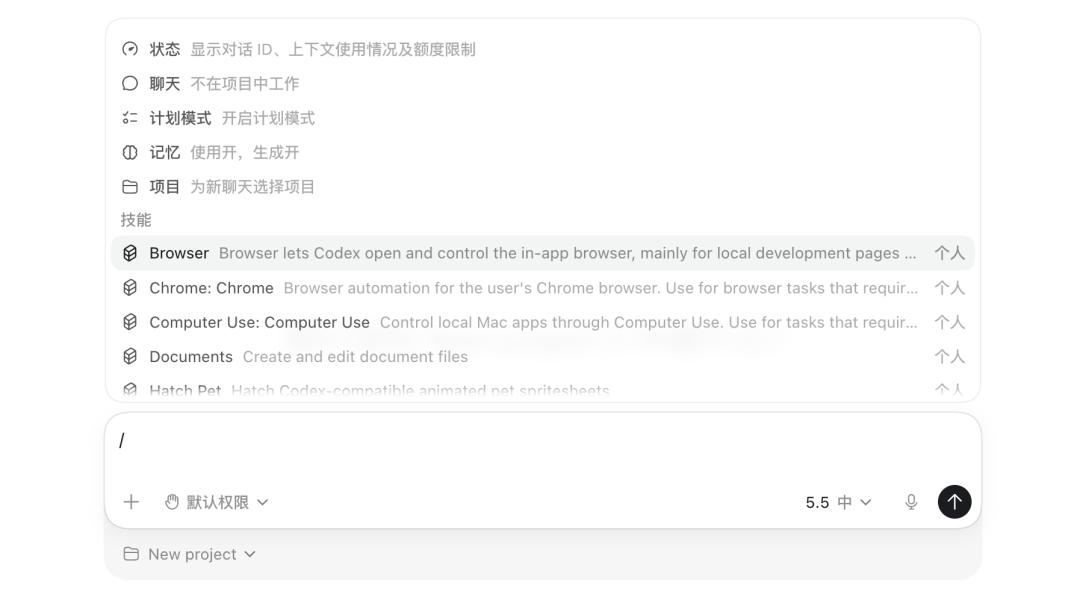
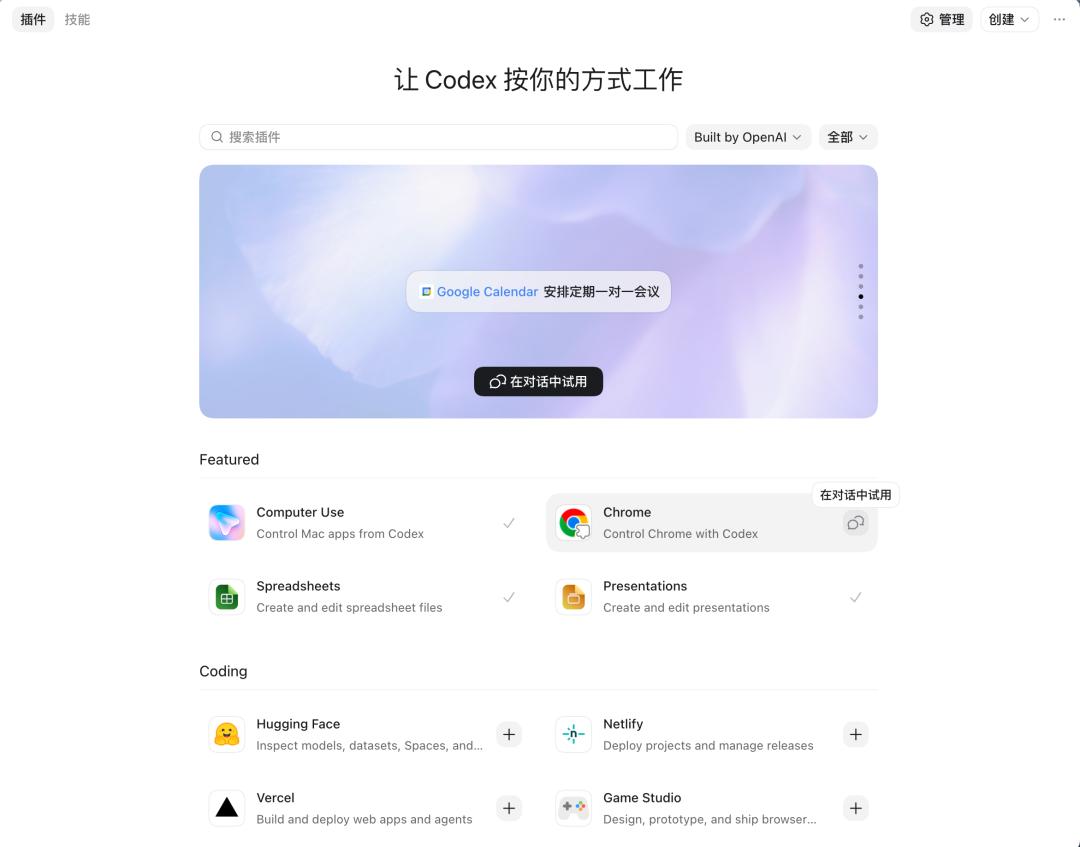
The plugin page of Codex also provides a ready - to - use method. For some commonly used skills, such as the Chrome plugin that was recently updated, and Computer Use, which is the main feature of almost all local Agent products.
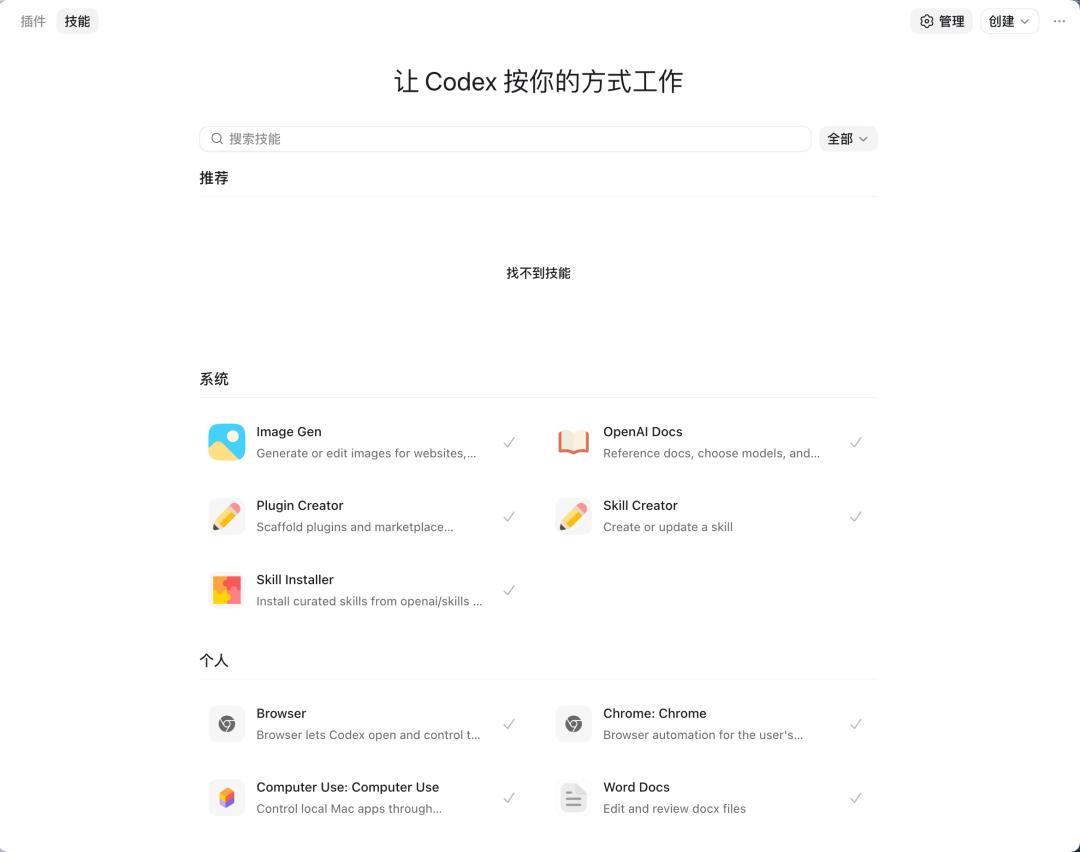
Switching to the skill interface, Codex will put all the locally installed Skills in a management interface, where we can search for and create different skills.
Generally, if there is a local folder for the content to be processed by AI, Codex can directly use the existing folder as the project context.

If a question is not enough to form a project, directly starting a "new conversation" will not affect Codex's performance.
That is to say, the early interaction with ChatGPT was more like a Q&A machine, with one question and one answer and results coming out in a few seconds. But with the development of Agent and AI workflows, more and more of our tasks have become "long - term tasks". At this time, Codex and various Agents will be better choices.
Use ChatGPT on your phone without connecting to Feishu or WeChat
When Lobster was just booming at the beginning of the year, it could be connected to various chat apps, such as Enterprise WeChat, Feishu, QQ, and even WeChat. You could control Lobster on your computer through the mobile app.
Remote control has become an essential function for local computer Agents. Although it can be connected to WeChat and Feishu, these chat apps have a major drawback. They cannot enable multi - threading and there is always only one robot conversation window.
Codex's solution is to place the complete Codex within the ChatGPT APP, but all Codex projects do not run on the mobile phone.
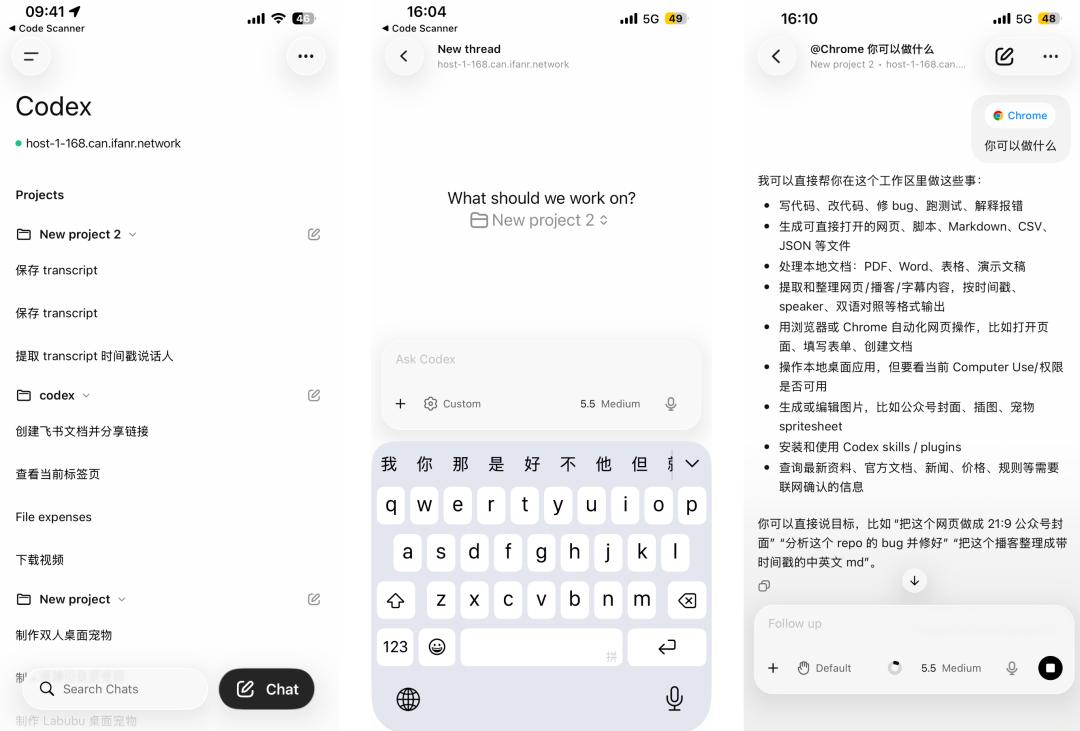
It runs on our computer or a remote server. The mobile phone is a "control panel". We can use it to check the progress, give instructions, and approve operations, but the actual code reading, test execution, and file modification all take place on the local computer.
We can view and enter different Codex projects/conversations on the mobile phone. The conversations on the mobile phone will be automatically synchronized to the Codex application on the computer without losing any project context.
It is also very simple to enable the mobile version of Codex. Log in to the Codex application on the desktop and the ChatGPT on the mobile phone with the same account. When you open Codex, there will usually be a pop - up window on the home page reminding you to configure it. After authenticating the device according to the prompts on the computer, you can connect.
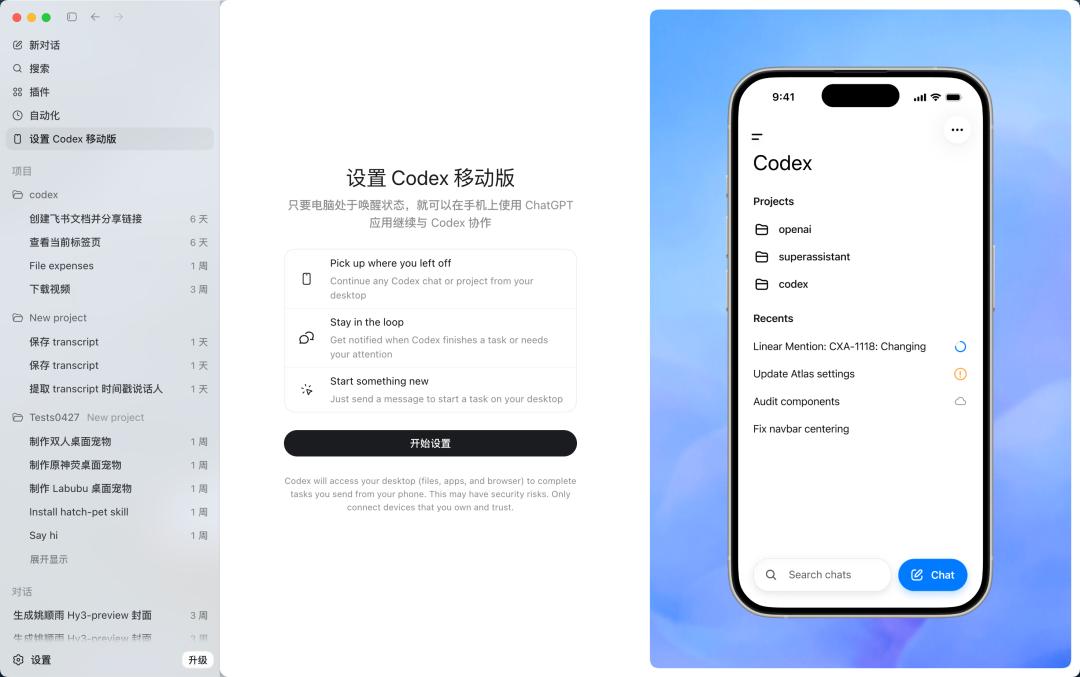
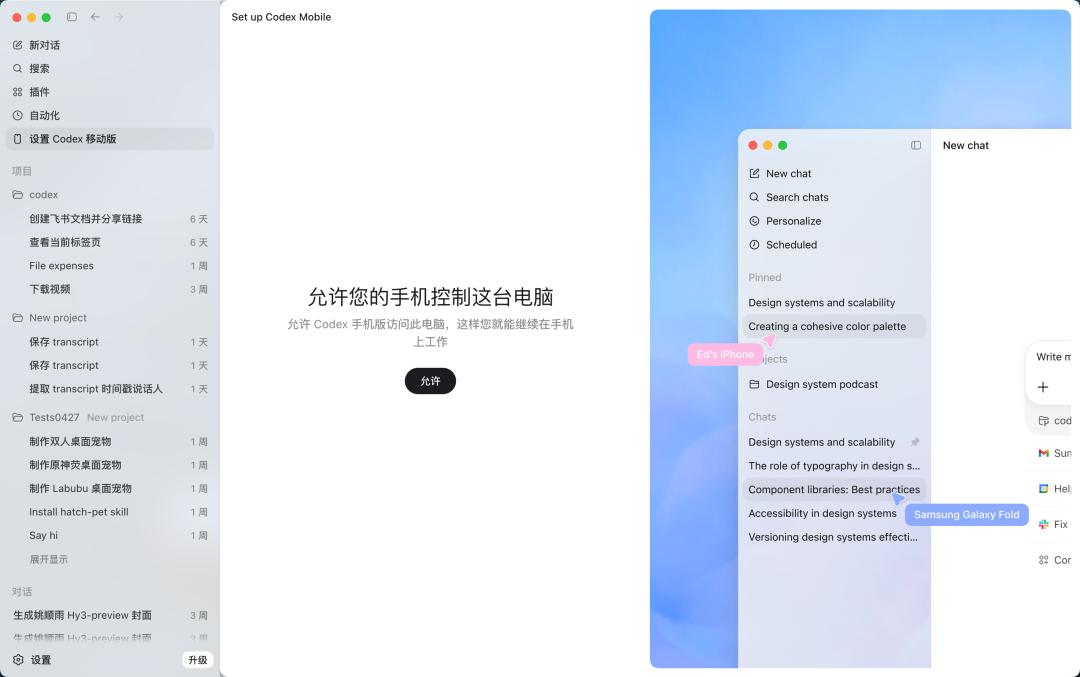
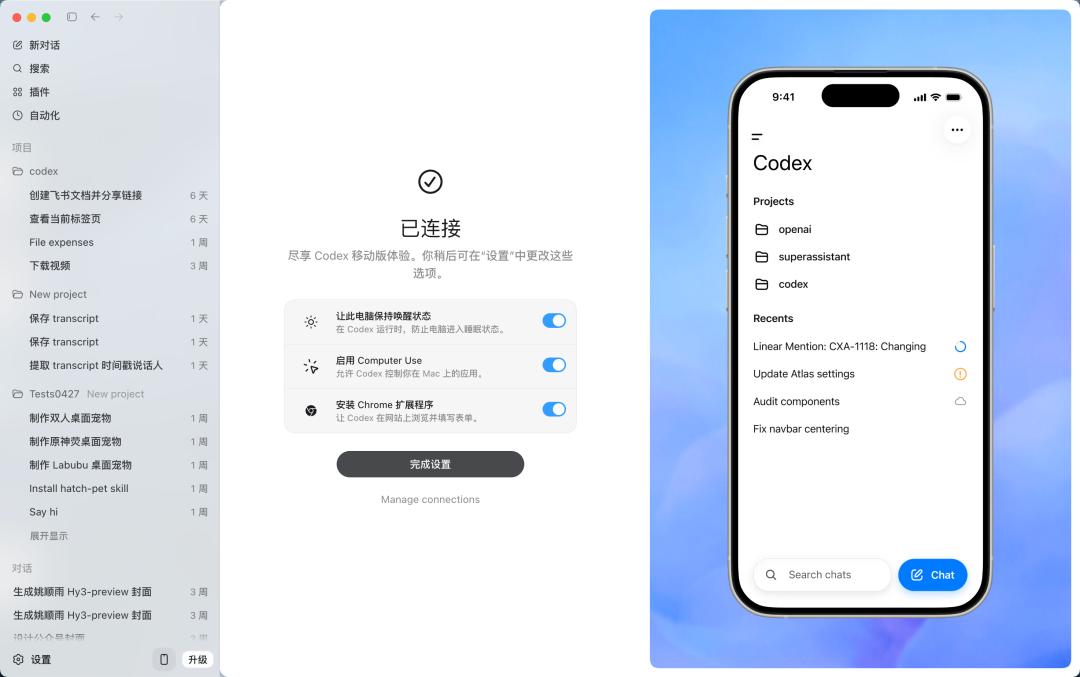
We can directly see the task threads opened on the desktop on the mobile phone, and they are updated in real - time.
The simplest thing is to let it read a file on the computer, provided that Codex has obtained the permission for the corresponding folder on the local computer.
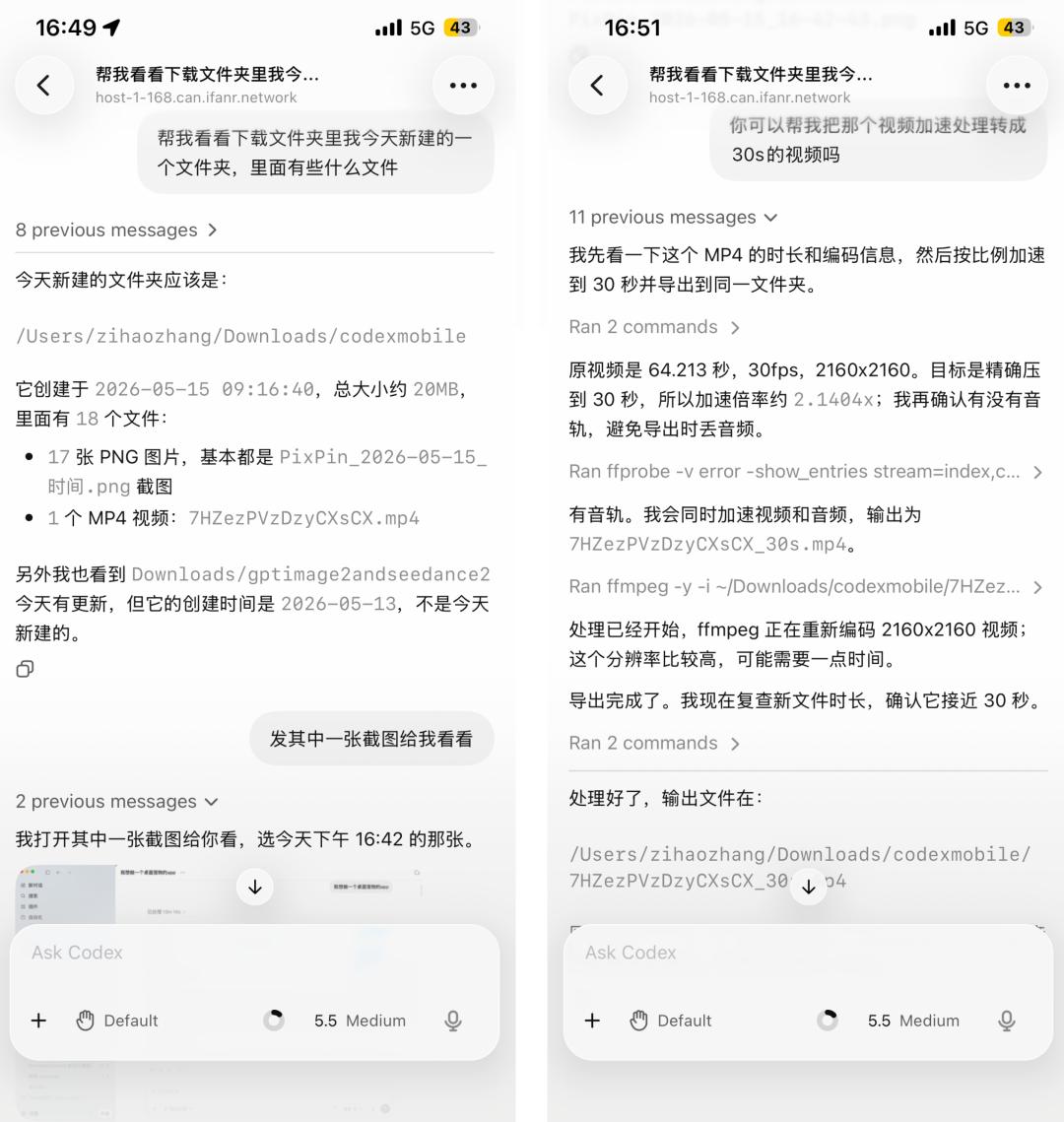
It can directly read files on the computer
We can directly ask it to check what's in the download folder and display one of the screenshots.
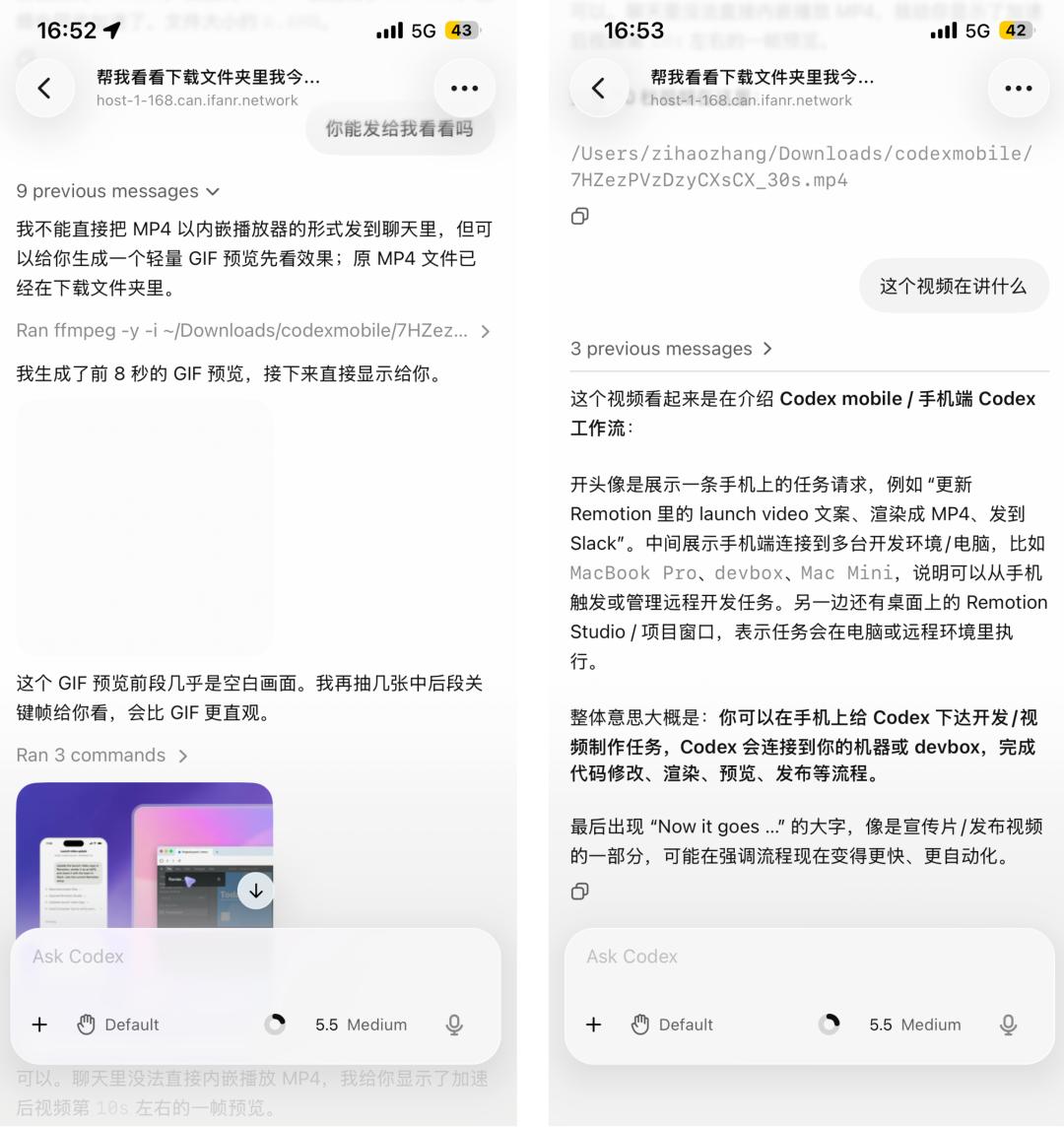
You can also let Codex use the FFmpeg library to process multimedia files on the mobile phone
Then ask it to speed up a video and convert it into a 30 - second version. It can use the capabilities of the local computer to handle it.
Processing local files on the computer is a basic operation. With this function in Agent tasks, we can check the task progress at any time.
Different from third - party chat tools that only send a "Status: Running" message, on the mobile phone, we can see the real execution content, such as terminal outputs, screenshots, test results, and file difference comparisons. Everything we can see on the computer is also available on the mobile phone.
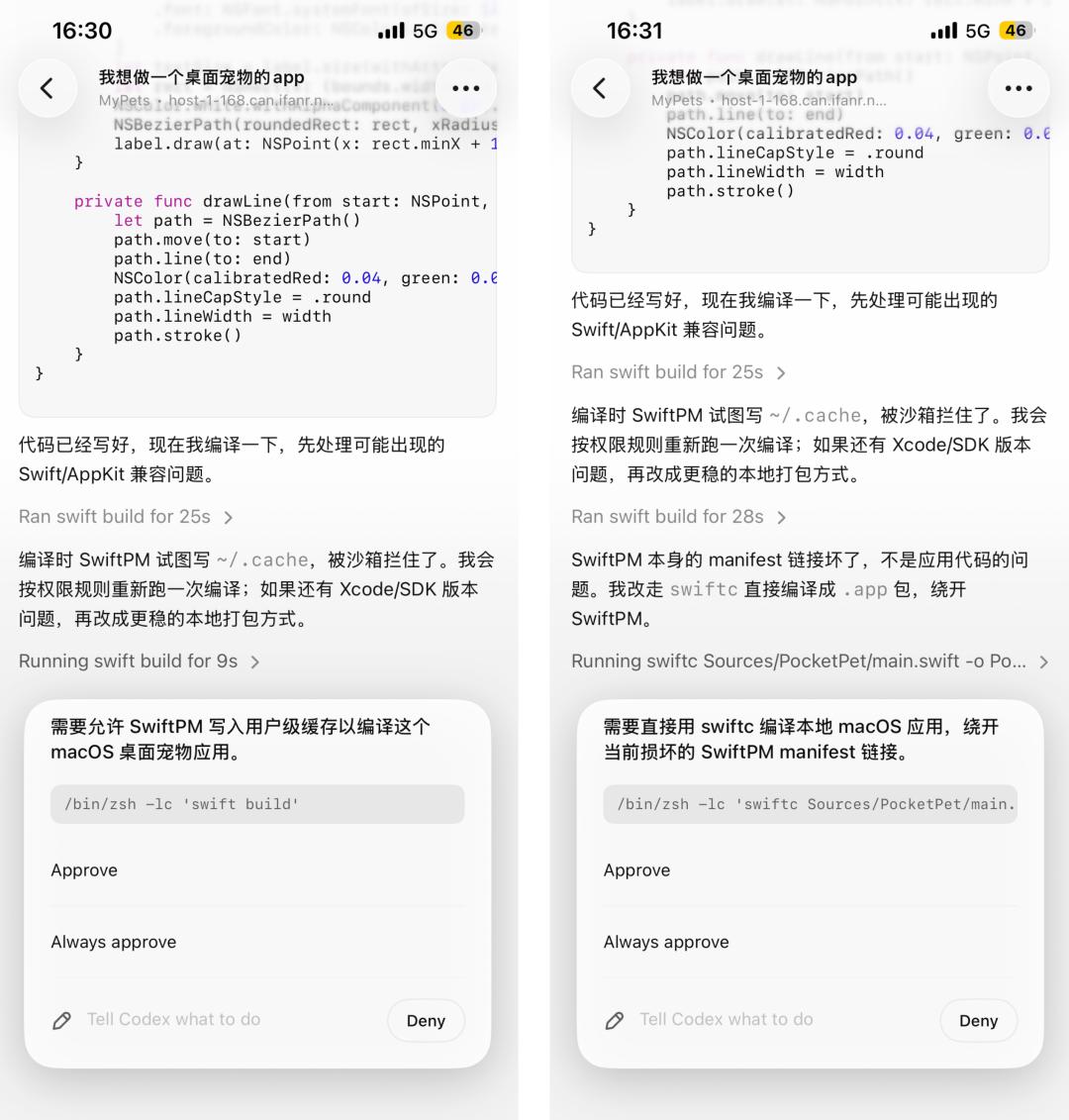
Previously, we said that Agents are good at performing long - term tasks, but we have to click "Agree" or "Continue" every once in a while. Now, through the mobile - version ChatGPT, we can also give instructions at key nodes without using the computer to respond.
If this pop - up window can be displayed on the Dynamic Island in the future, it will be even more convenient. When receiving a notification, the ChatGPT App can directly display ✅ or ❌ on the Dynamic Island.
In addition to handling and responding to these decision - making nodes, we can also actively initiate new tasks.
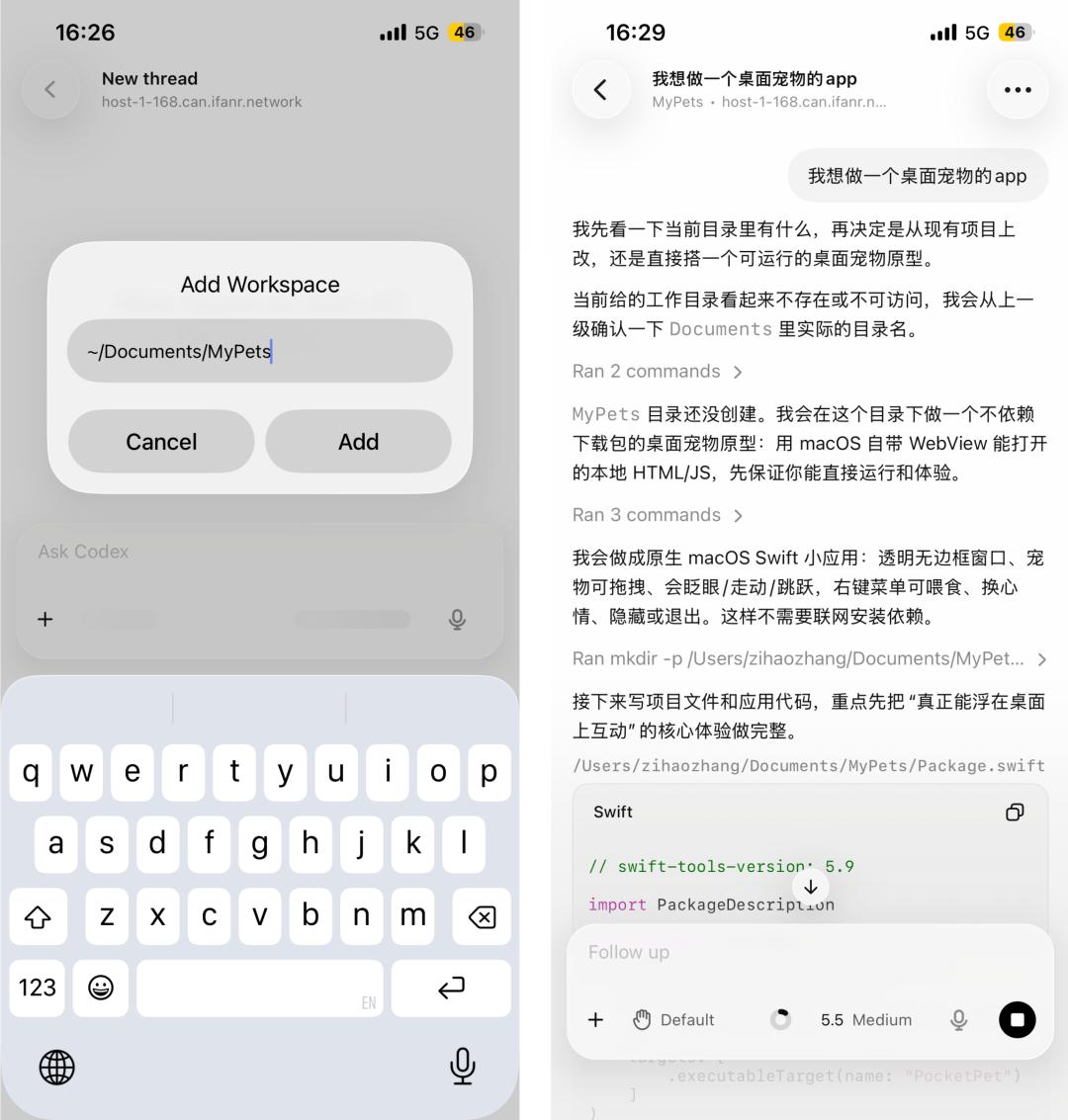
In the Codex interface on the mobile phone, you can open a new thread, just like on the desktop. Describe what you want to do, and the task will start running on your computer.
However, if you want to create a new project and use a new folder, note that you need to write the full folder path instead of just the folder directory name.
After the project is created, Codex will also create a folder with the same name on our local computer.
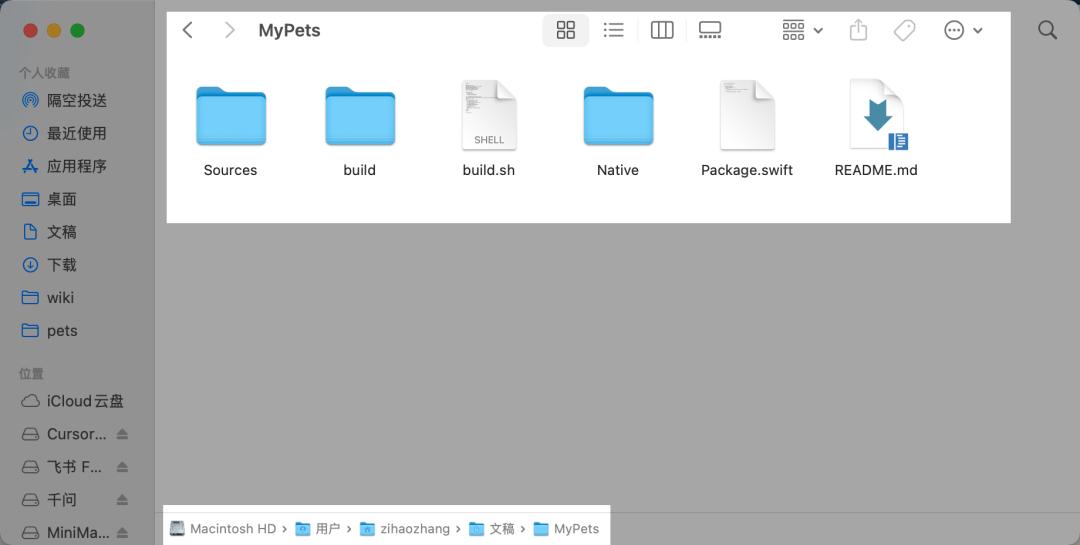
For individual users, the three functions of checking task progress at any time, giving instructions at key nodes, and actively initiating tasks have basically brought the capabilities of the desktop - version Codex to the mobile phone.
We don't need to wait until we get back to the computer or restart the task. We can just say it in the Codex conversation on the mobile phone, and it will synchronously adjust and execute.